WooSync Google Sheets Add-on allows you to sync WooCommerce orders with Google Sheets, view order details, and update them directly from your spreadsheet.
Follow the steps below to fetch and manage orders.
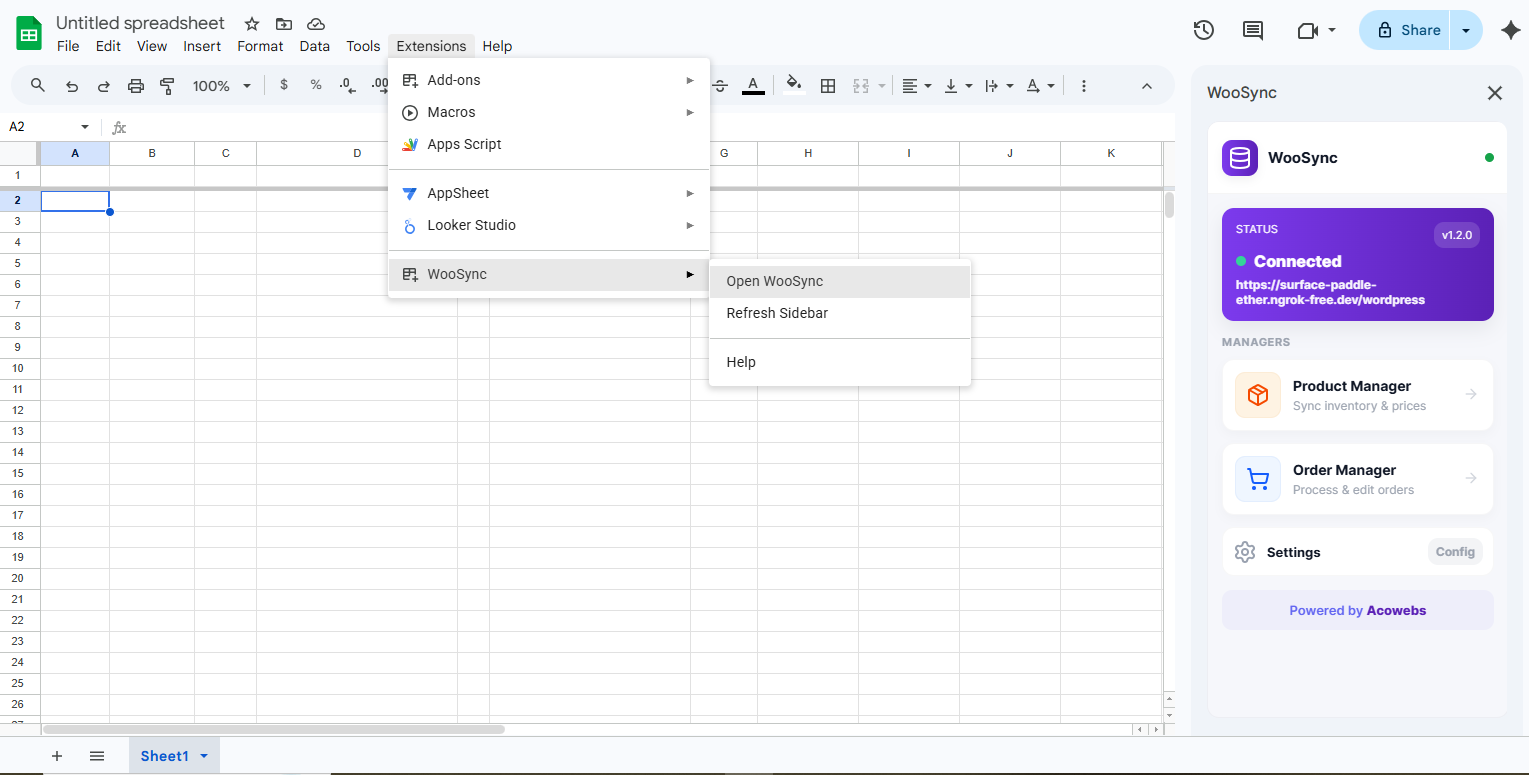
Open your Google Sheet and click:
Extensions > WooSync > Open WooSync
The WooSync sidebar will appear on the right side of your screen.
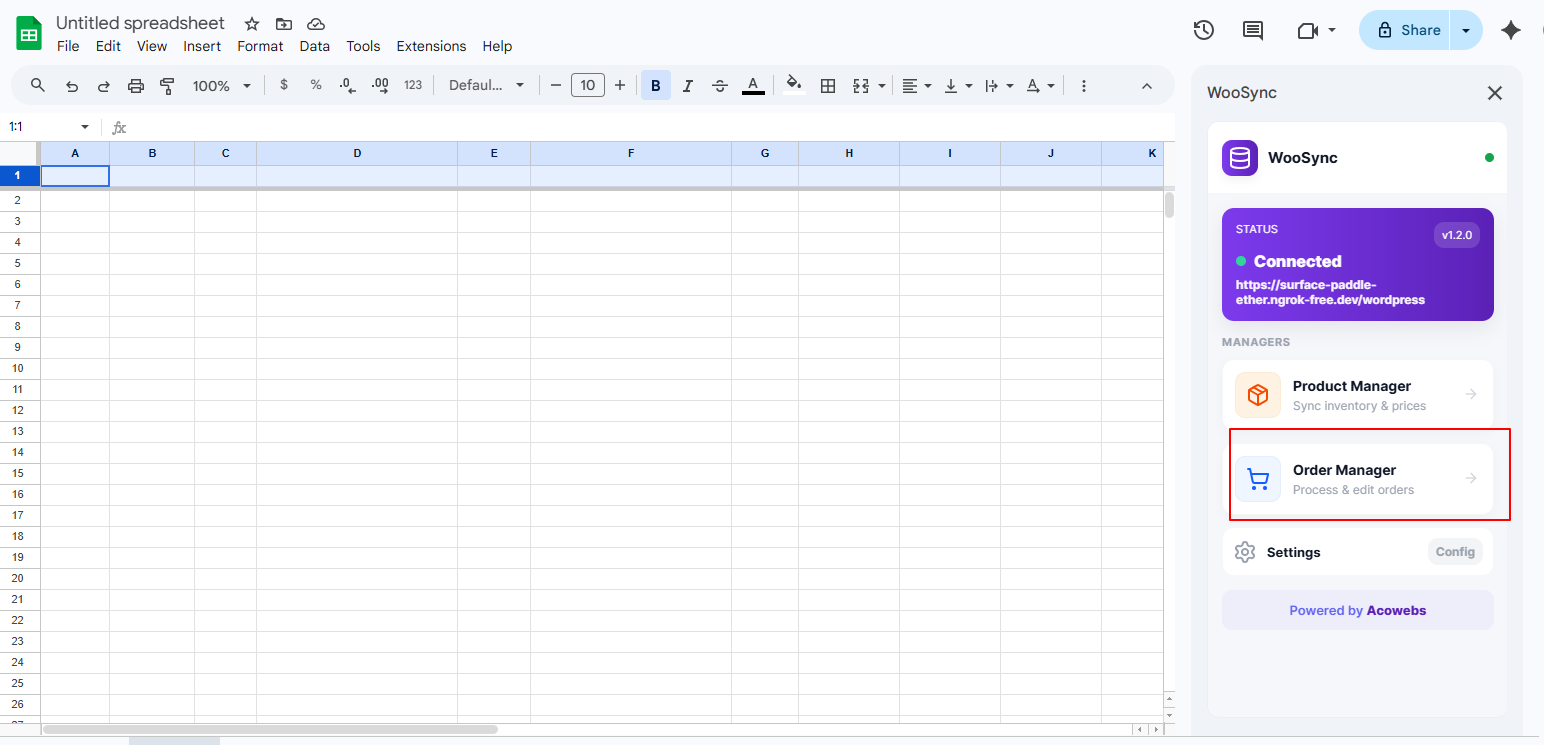
In the WooSync dashboard, you will see the Managers section.
Click on Order Manager (Process & edit orders).
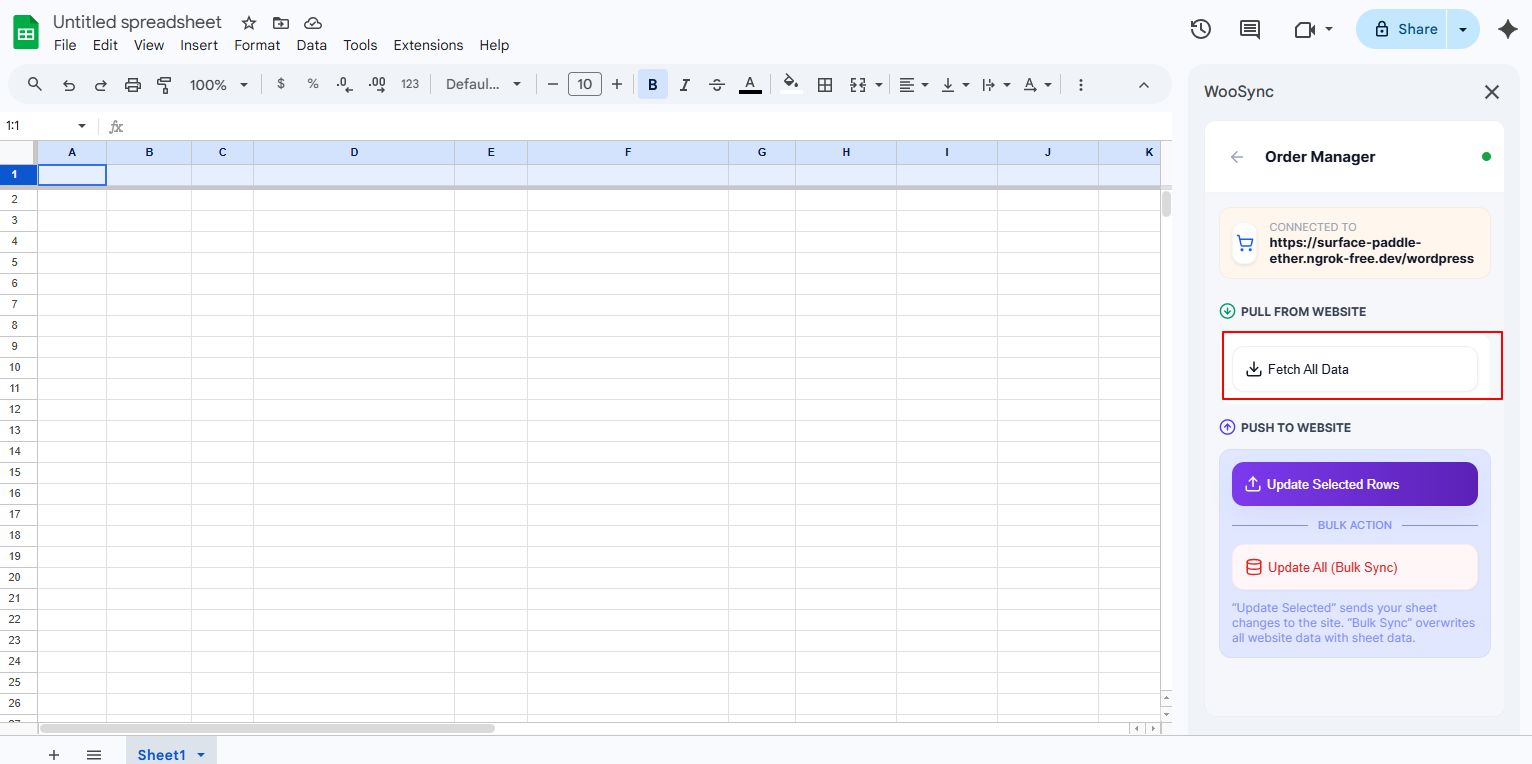
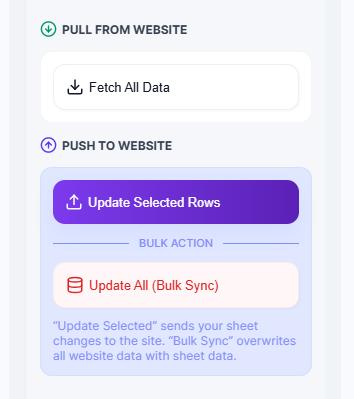
Inside the Order Manager, click the Fetch All Data.
This will import all WooCommerce order data into your connected Google Spreadsheet.
Once the fetch process is completed, all selected order fields will appear in your Google Sheet. You can view full order details, track order status, and manage order information directly from the spreadsheet.
Fields marked as Editable can be updated directly in the sheet. Any changes made can be synced back to WooCommerce.
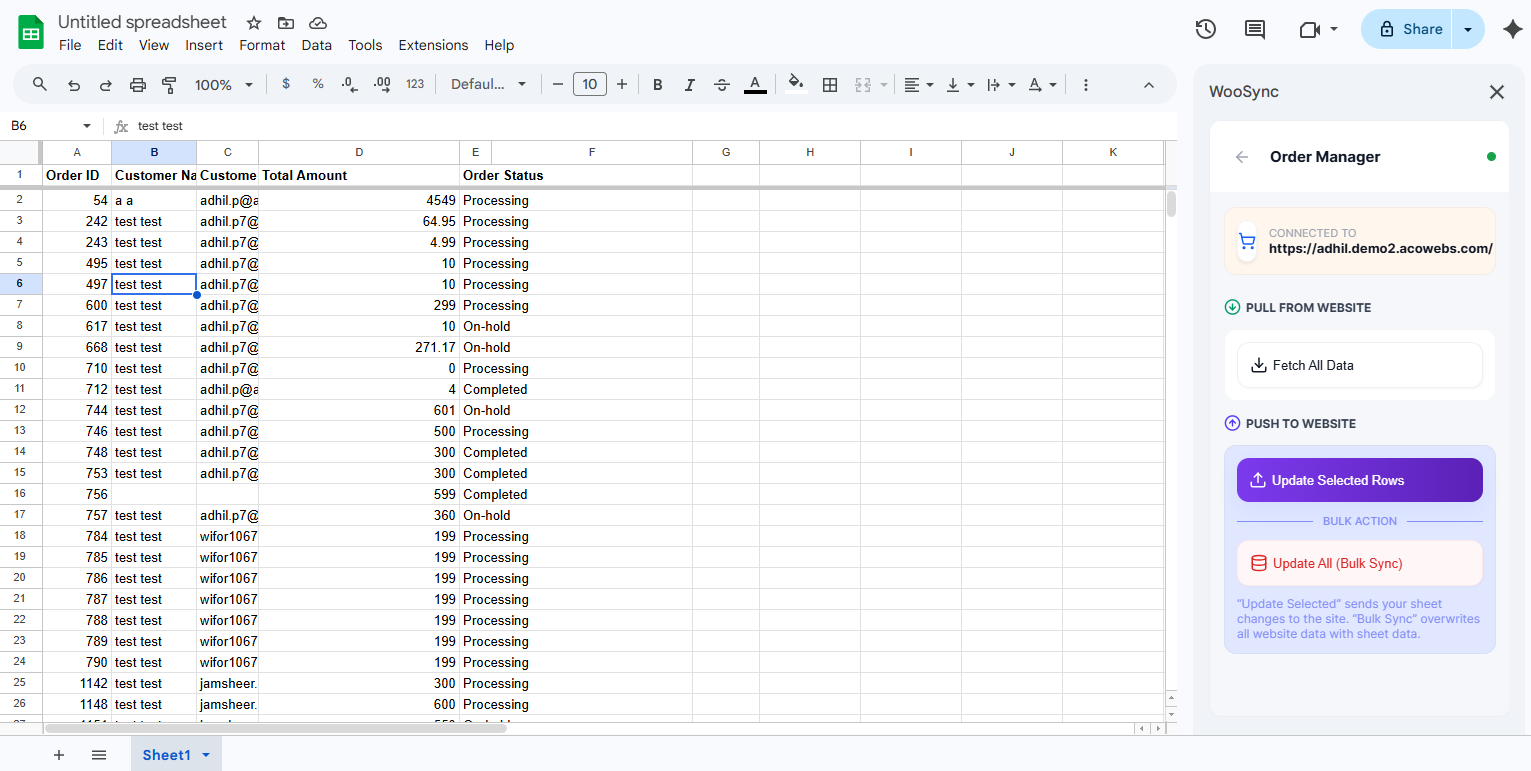
UseUpdate Selected Rows to update specific products, or Update All (Bulk Sync) to update all products at once.
Congratulations 🎉
You have successfully learned how to fetch, view, and update WooCommerce orders using the WooSync Google Sheets Add-on.
If you have questions about our plugin(s), are experiencing issues with any of our plugin






















 Login
Login
 Cart
Cart