Create and configure a recurring subscription product in WooCommerce with automatic recurring payments. This guide explains how to set up flexible billing schedules, subscription durations, free trials, sign-up fees, and renewal options based on your requirements using our subscription plugin.
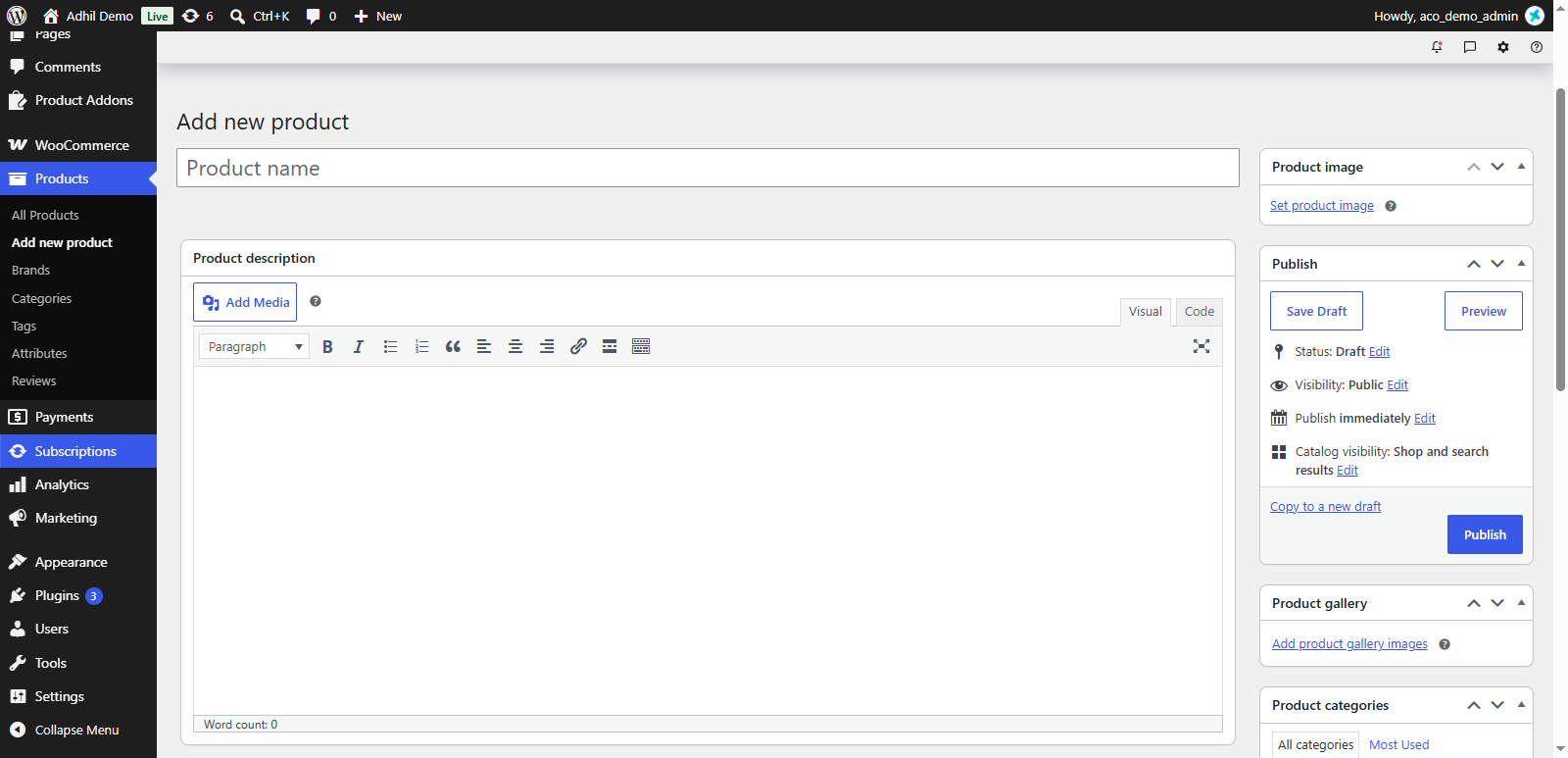
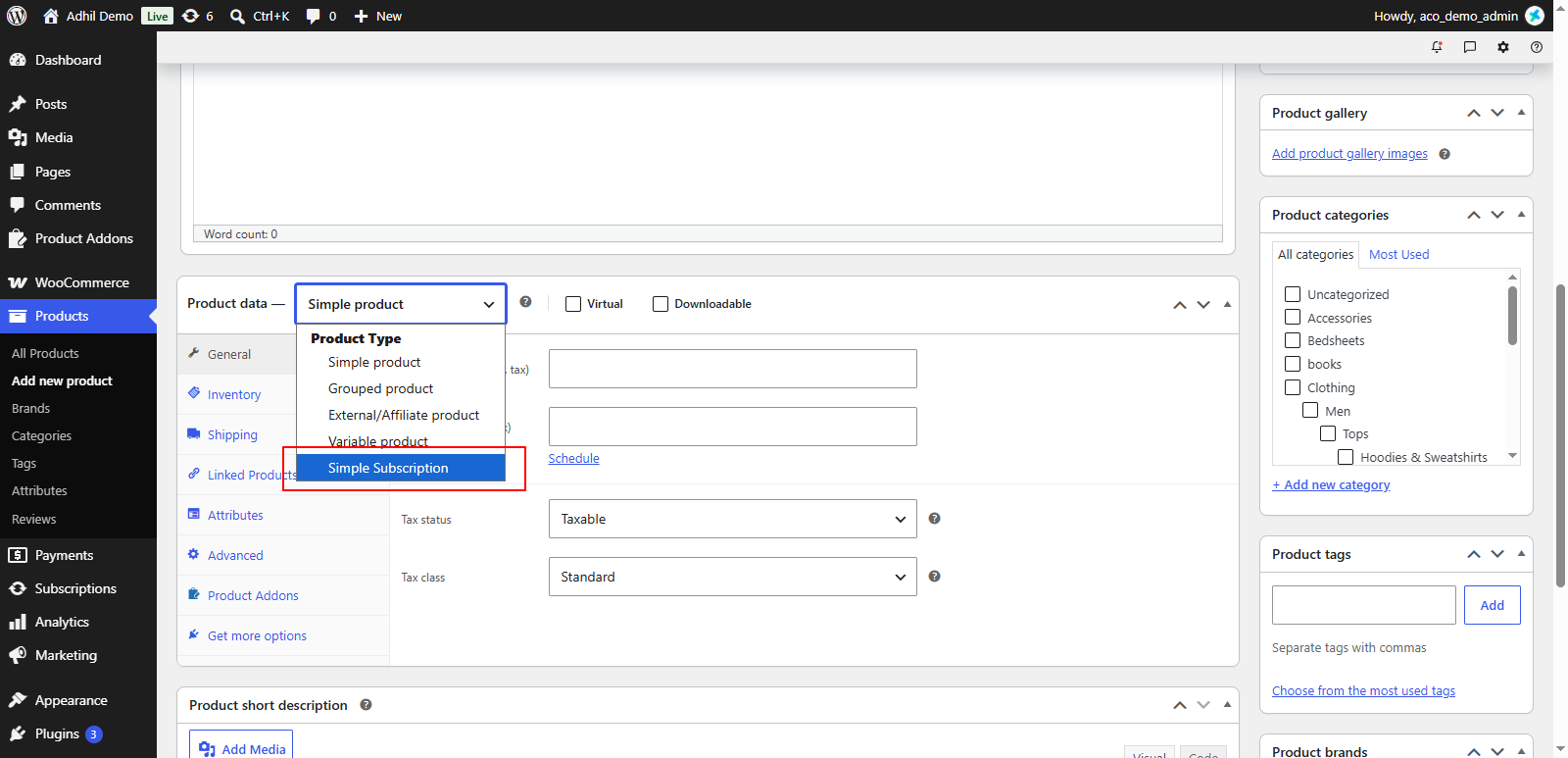
Open the Subscription tab to configure the subscription settings
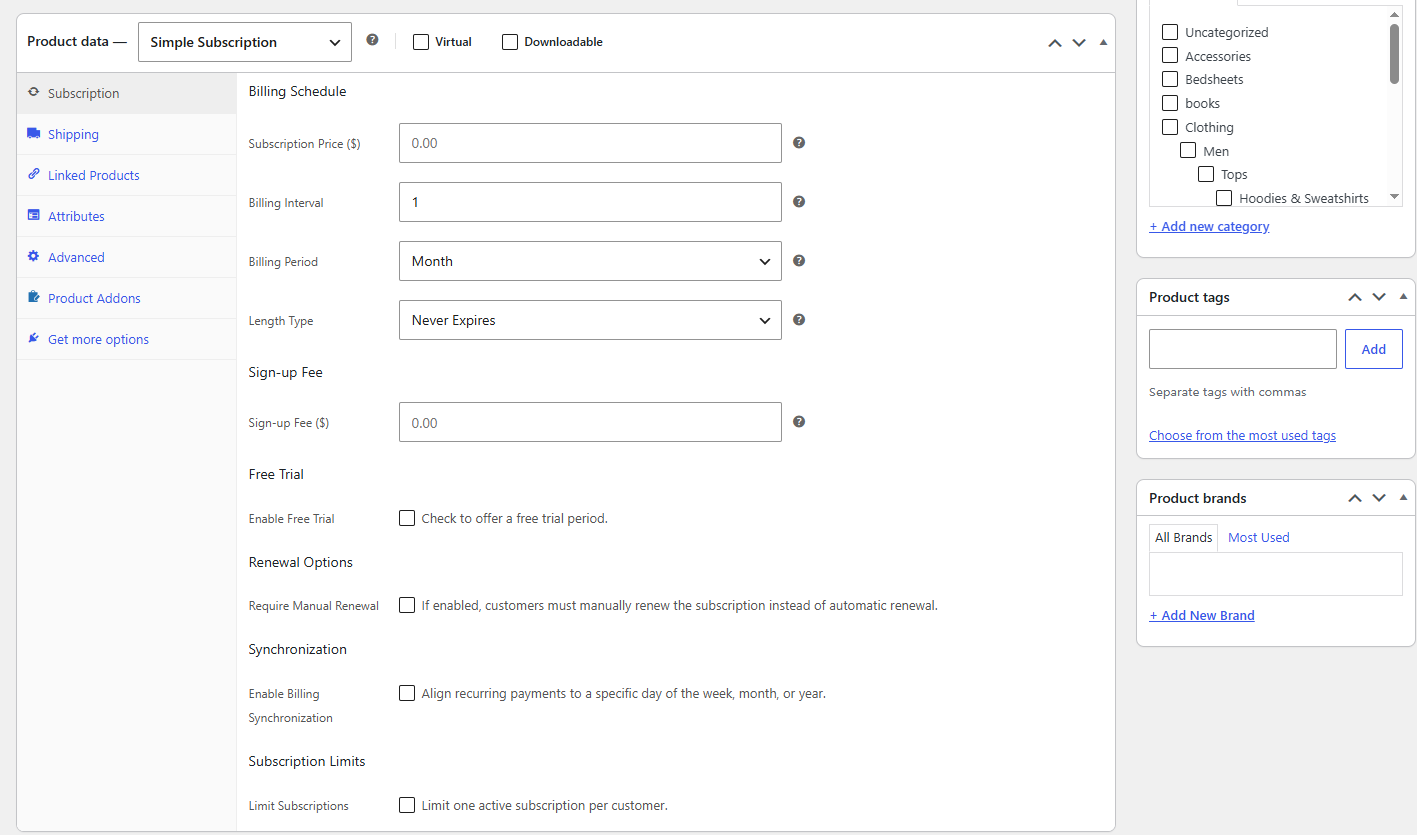
Configure how often the customer will be charged for the subscription.
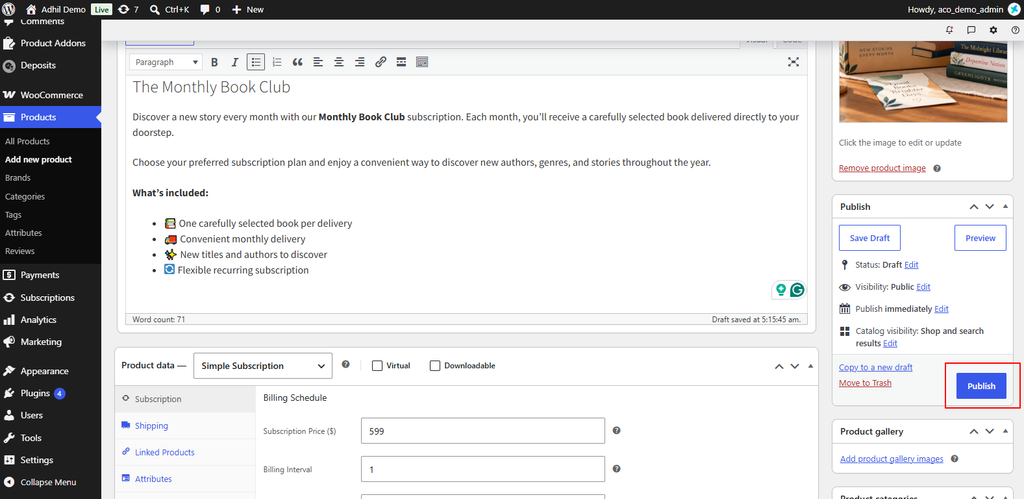
Enter the recurring amount that the customer will be charged for each billing cycle.
Example: $599.00
Enter how frequently the subscription should be billed.
1 — Every billing period2 — Every second billing period3 — Every third billing periodExample: A Billing Interval of 1 with a Billing Period of Month charges the customer every month.
Select the time period for the subscription billing cycle:
Select one of the following options:
Add a one-time fee that is charged when the customer initially subscribes.
Example: Enter $10.00 to charge a $10 sign-up fee.
Leave the value as 0.00 if you do not want to charge a sign-up fee.
Enable Free Trial if you want to offer customers a trial period before the recurring subscription payments begin.
Specify the trial duration as required
Note: The customer will not be charged the recurring subscription fee until the free trial period ends.
Enable this option if you want customers to manually pay for each subscription renewal.
Leave it disabled to allow automatic recurring payments.
Note: Automatic renewals require a payment gateway that supports recurring payments.
Enable this option if you want to align subscription renewal dates to a specific day.
Example: You can configure subscriptions to renew on the 1st of every month.
This option can be used to synchronize supported weekly, monthly, or yearly billing schedules.
Enable this option to prevent a customer from purchasing more than one active subscription for the same product.
After configuring the subscription settings, complete the standard WooCommerce product details as required.
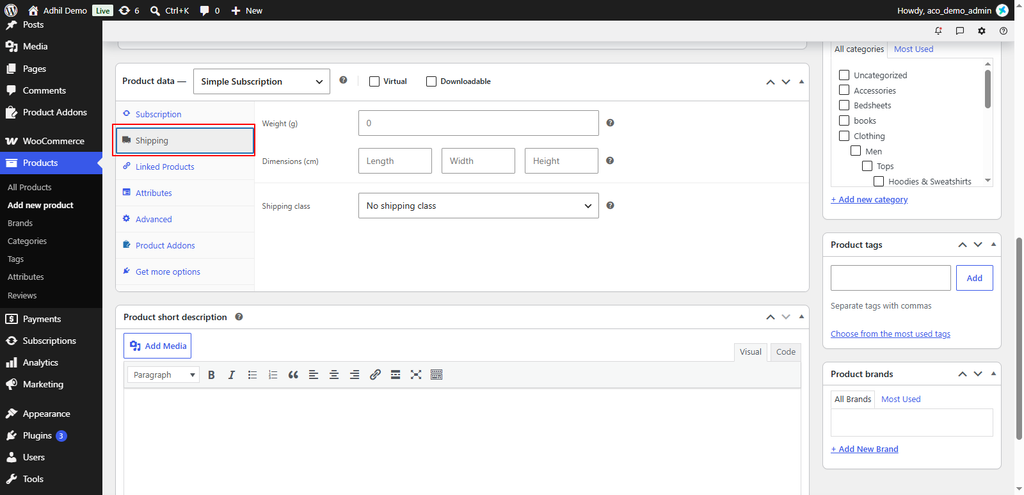
Once you have completed the configuration, click Publish in the top-right corner.
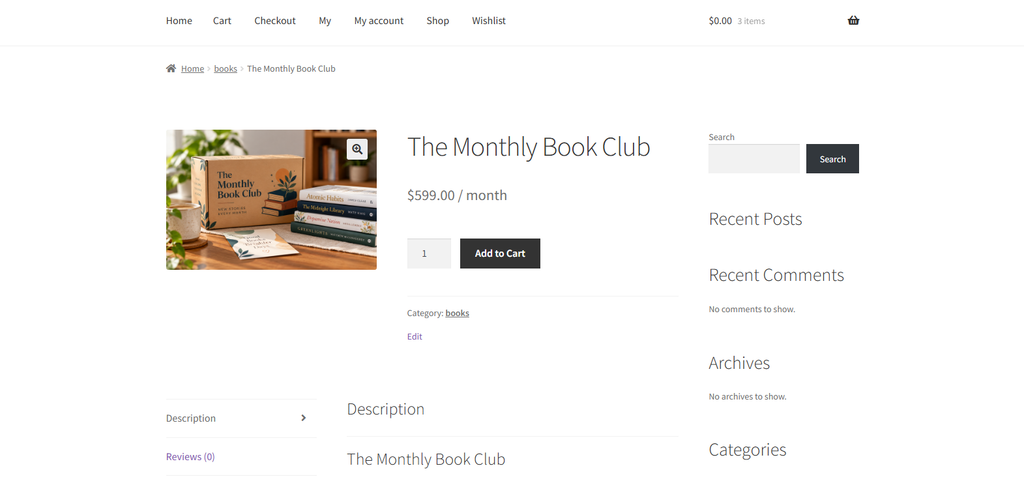
Then, open the product on your storefront and verify that the subscription price and billing period are displayed correctly, for example, $599.00 /month.
If you have questions about our plugin(s), are experiencing issues with any of our plugin






















 Login
Login
 Cart
Cart