This guide explains how to configure WooCommerce PayPal Payments with Subscriptions & Recurring Payments so that customers can purchase subscription products using PayPal and their recurring renewal payments can be processed automatically.
First, make sure the WooCommerce PayPal Payments plugin is installed and activated. Go to Plugins → Add New Plugin, search for WooCommerce PayPal Payments, and install and activate the plugin if needed.
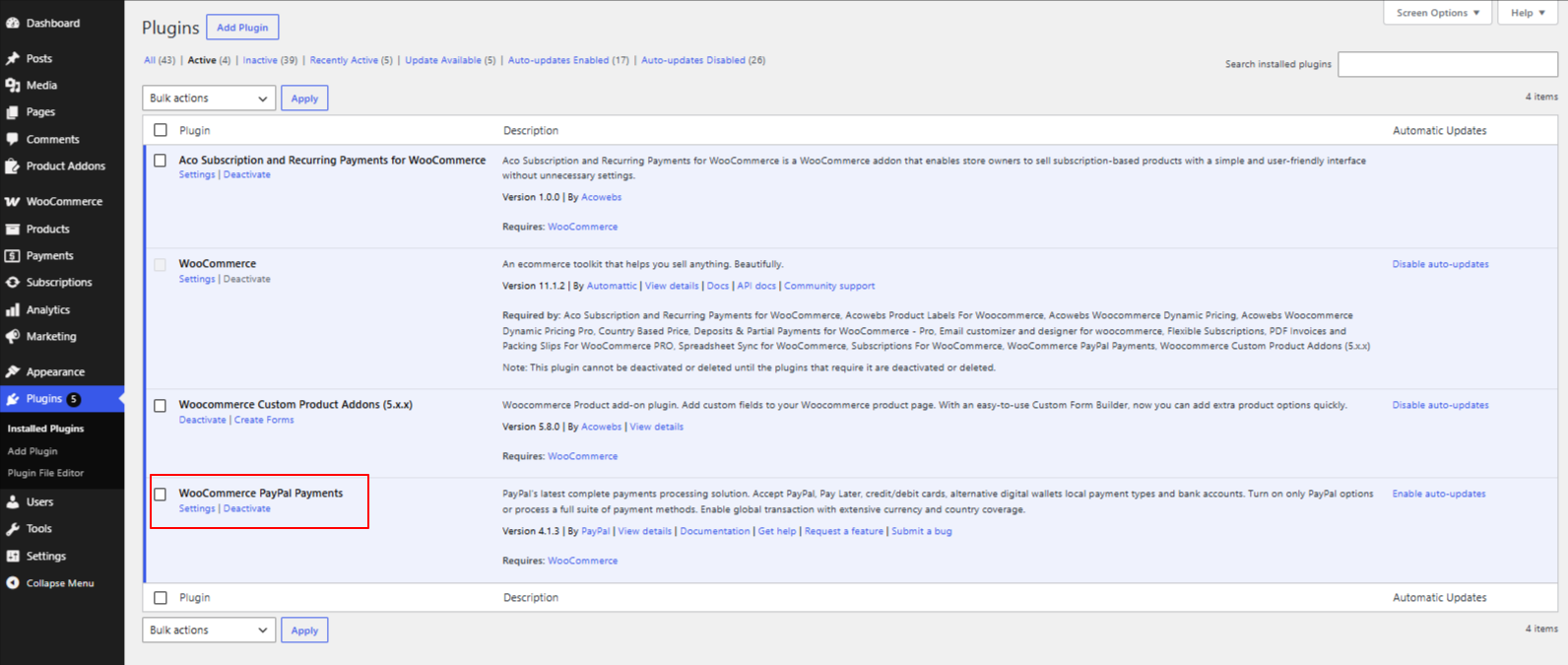
Next, open the WooCommerce PayPal Payments settings and connect your PayPal Business account. Select Sandbox mode if you are testing the integration, or Live mode for real payments.
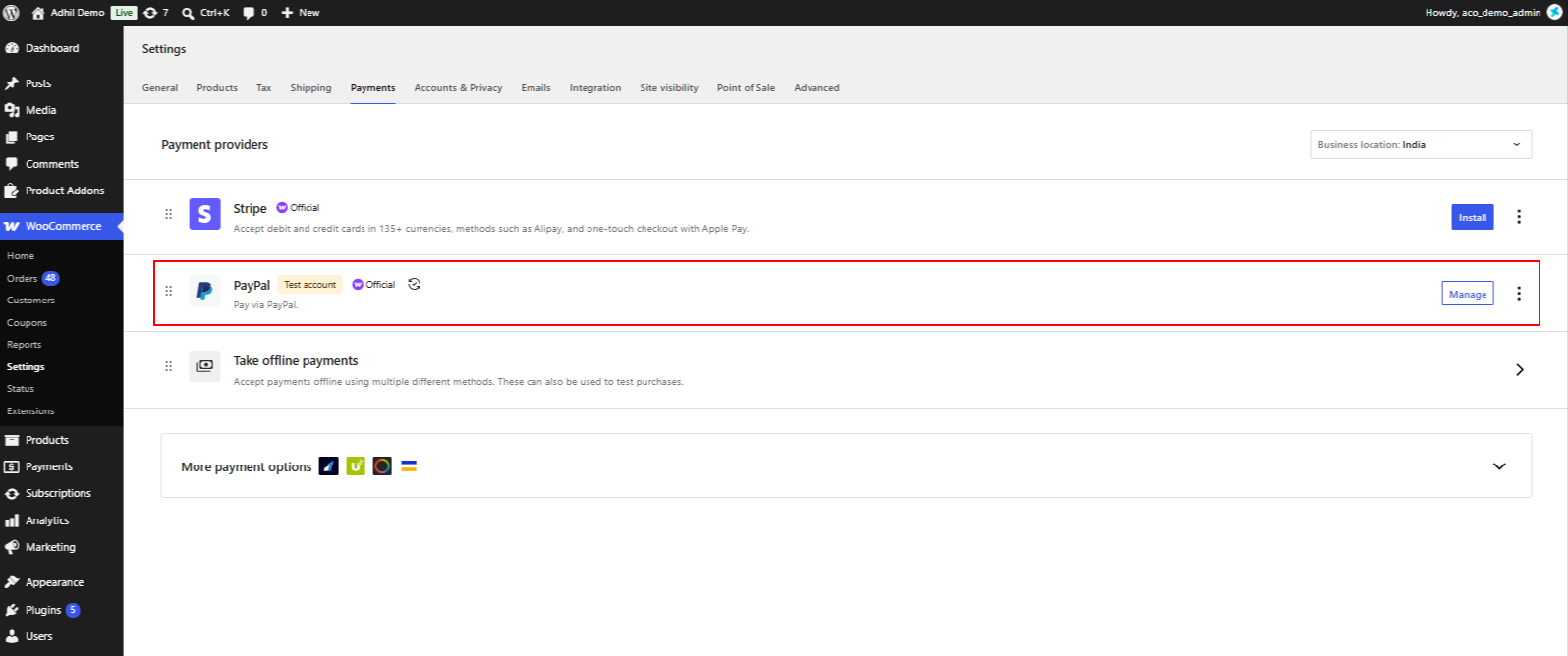
Once PayPal is connected, go to WooCommerce → Settings → Payments.
Under Payment providers, find PayPal and click Manage.
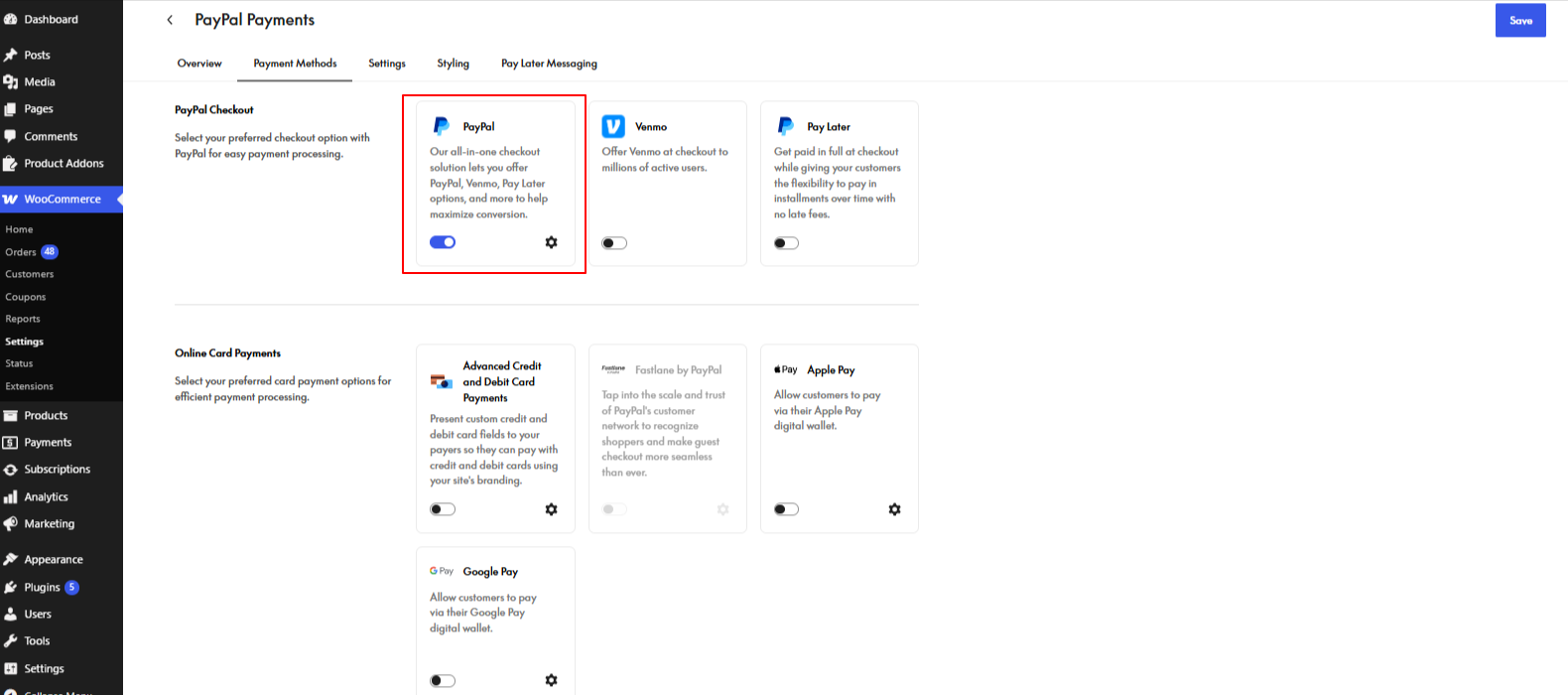
After clicking Manage, open the Payment Methods section and make sure to enable PayPal from PayPal Checkout. Then save the changes
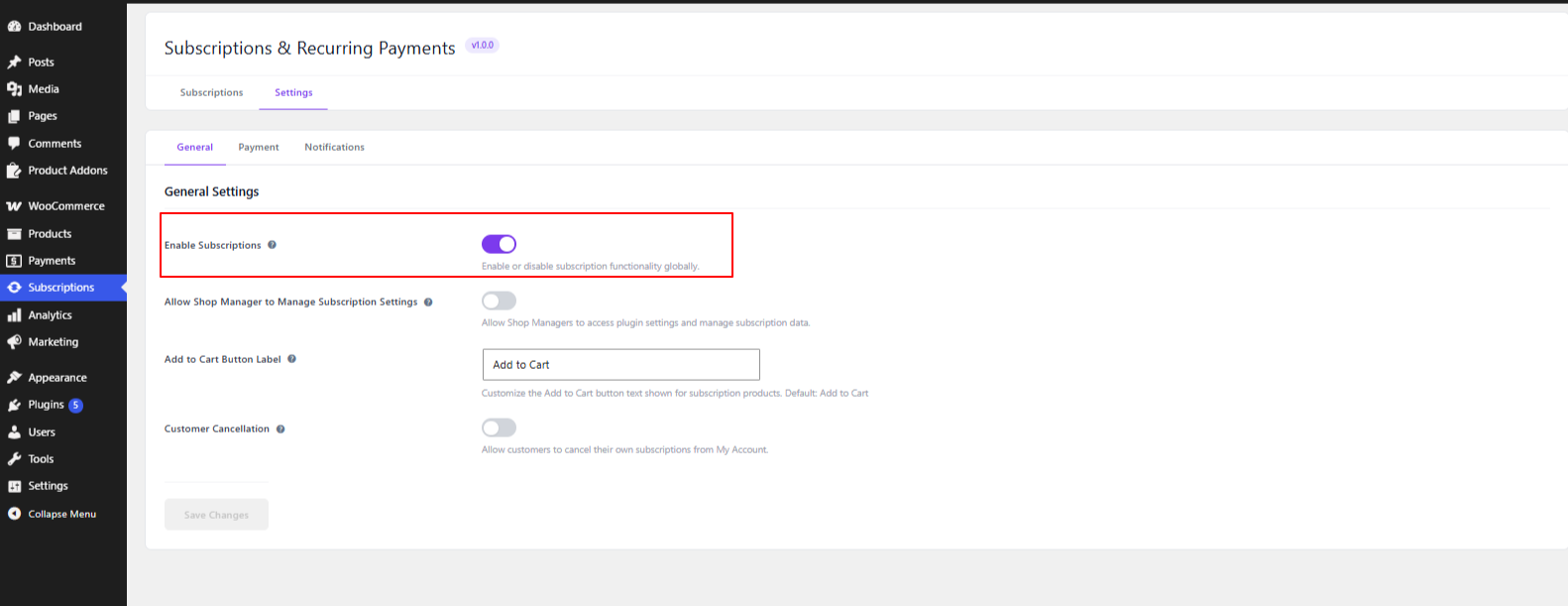
Go to the plugin settings: Subscriptions → Settings → General.
Under General Settings, enable Enable Subscriptions and click Save Changes. This enables subscription functionality on your store.
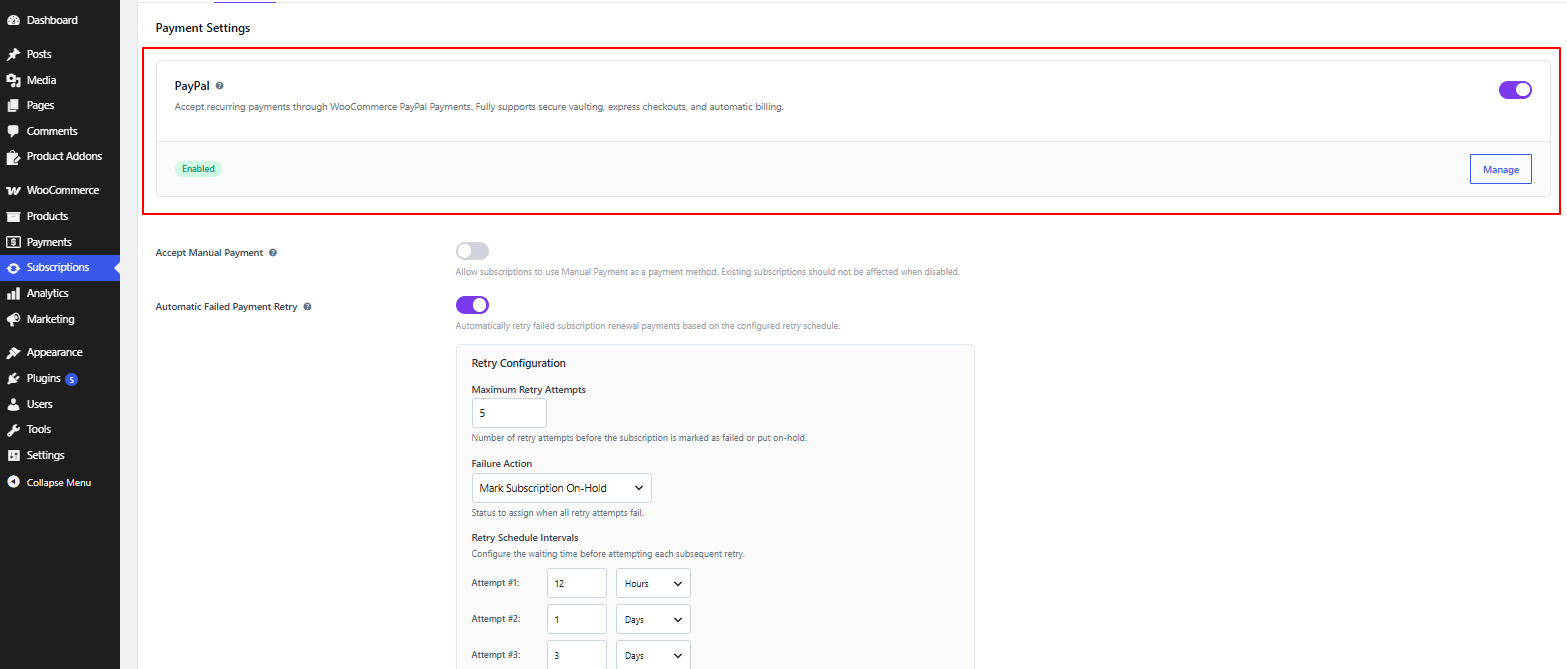
Go to Subscriptions → Settings → Payment. Under Payment Settings, Make sure PayPal is Enabled.
The PayPal integration supports secure vaulting, express checkout, and automatic billing. You do not need to enable Accept Manual Payment if you want subscription renewals to be processed automatically.
Go to Products → Add New.
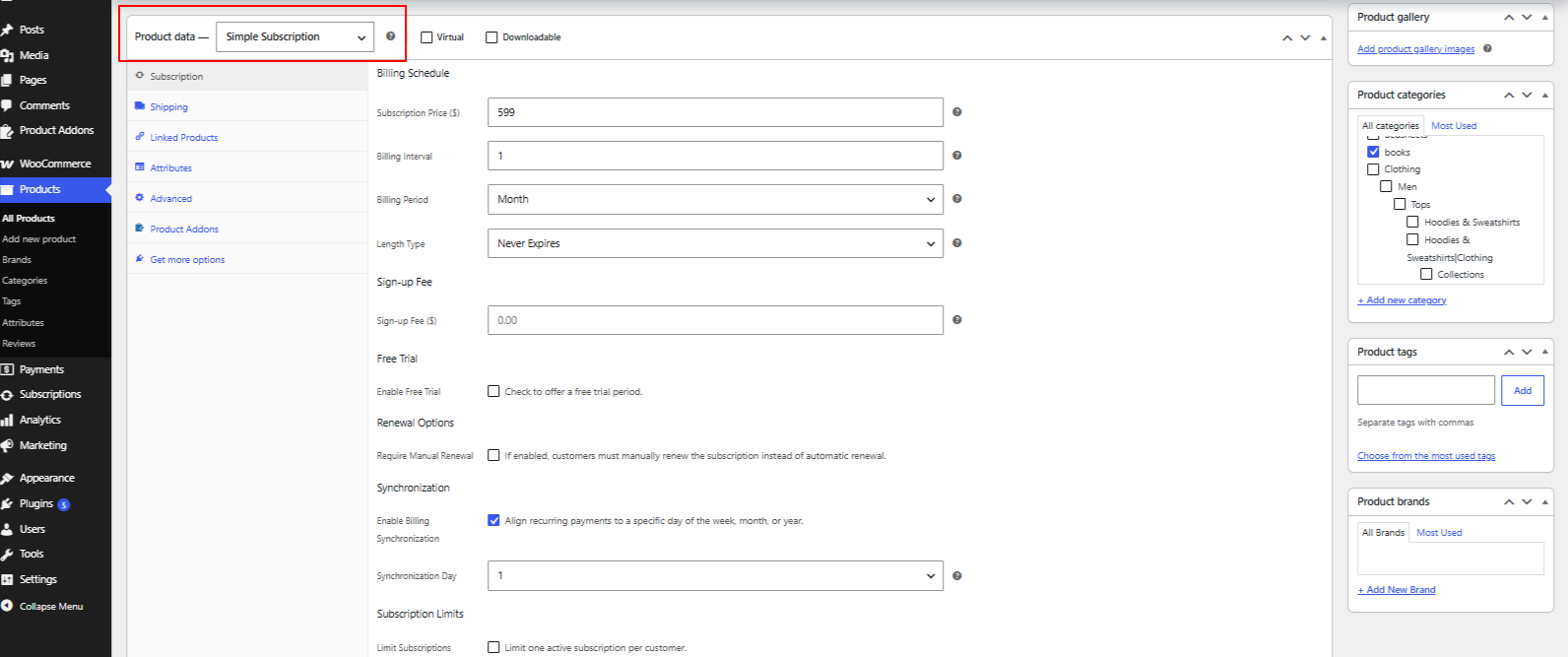
Select Simple Subscription as the product type and configure the Subscription Price and Billing Schedule according to your requirements.
For automatic recurring payments, make sure Require Manual Renewal is disabled.
Complete the remaining product details and click Publish to create the subscription product.
Finally, open the subscription product from the storefront and click Add to Cart.
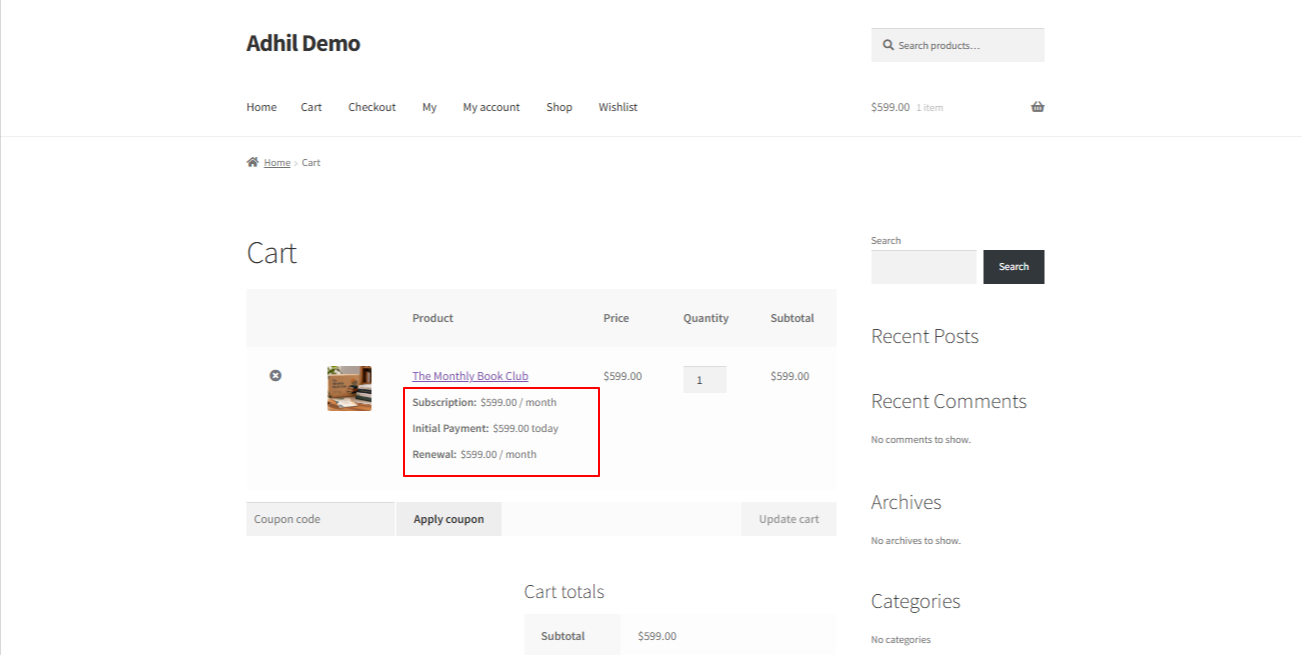
On the cart and verify that the subscription billing details are displayed correctly. The cart should show the initial payment and recurring payment information, such as:
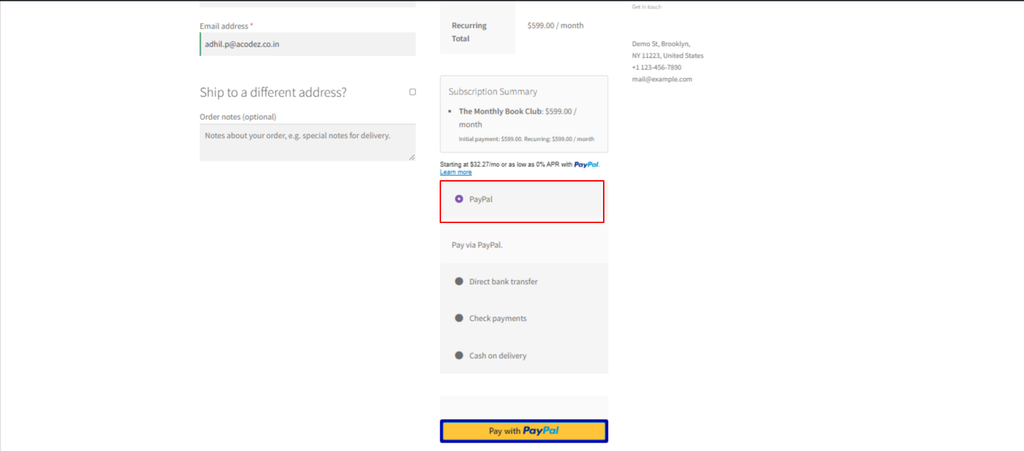
Go to the Checkout page and enter the required billing information. Under Payment methods, select PayPal.
Verify that the subscription summary shows the correct initial payment and recurring payment amounts. Then click the PayPal button to continue to PayPal and complete the payment.
If you are testing the integration in Sandbox mode, sign in using a PayPal Sandbox buyer account.
After completing the payment, go to Subscriptions in the WordPress admin area.
Locate the newly created subscription and verify that the subscription has been created successfully.
Check the Status, Payment Method, and Next Payment information.
The payment method should show PayPal, and the next payment should correspond to the configured billing schedule.
If you have questions about our plugin(s), are experiencing issues with any of our plugin






















 Login
Login
 Cart
Cart