You can use the Subscription Import / Export Engine to migrate existing subscription records into our Subscriptions & Recurring Payments plugin. The import wizard allows you to upload a CSV file, review the field mappings, validate the data, configure duplicate handling, and import the subscriptions in the background.
From your WordPress dashboard, go to Subscriptions > Import / Export. Then click Import Wizard to start the import.
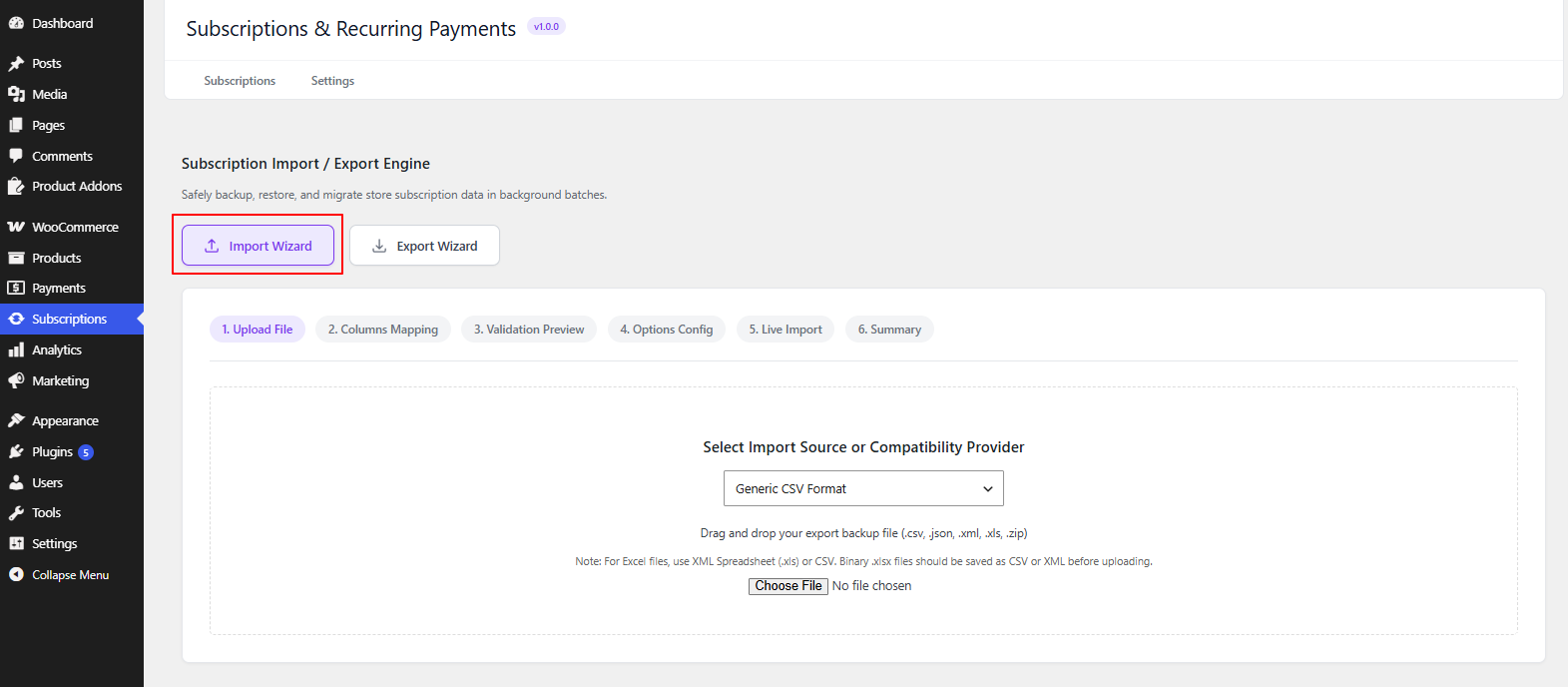
In the Import Wizard, select Generic CSV Format as the import source. Click Choose File and upload your subscription CSV file. After uploading the file, click Next to continue to the Columns Mapping step.
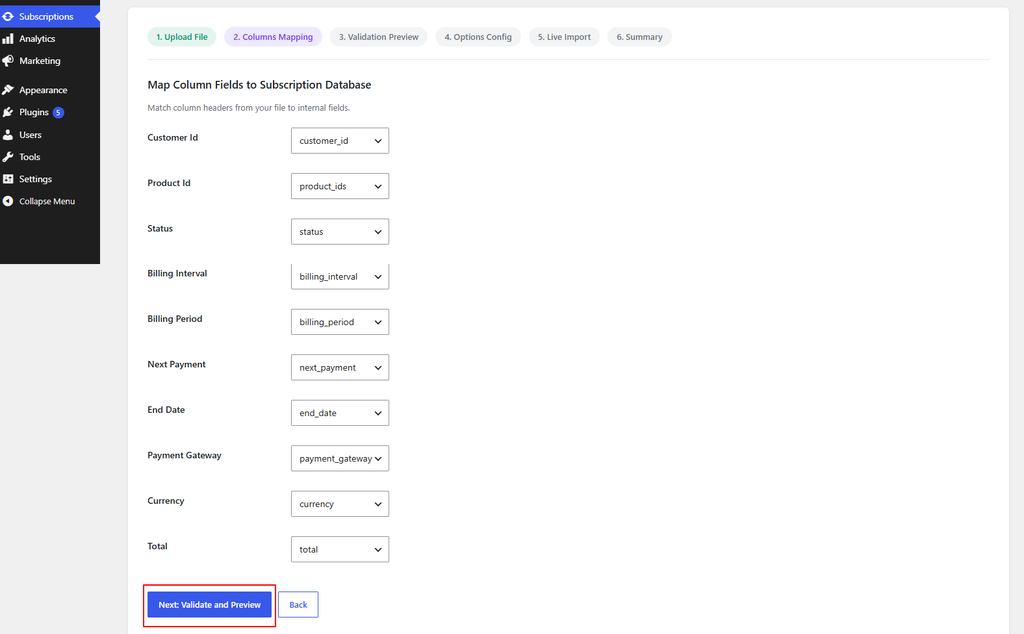
The Columns Mapping screen shows how the CSV columns are matched with the subscription fields.
Review the mappings to make sure they are correct. If everything looks right, click Next: Validate and Preview.
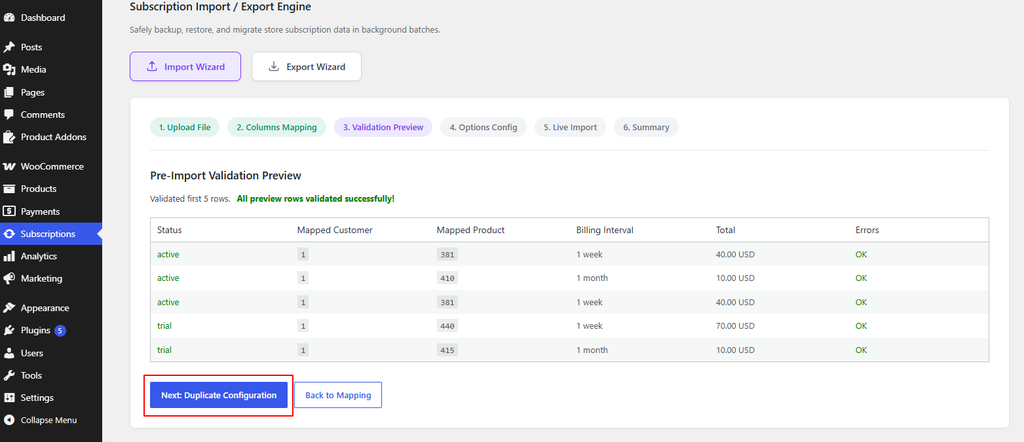
The Pre-Import Validation Preview screen lets you check the subscription records before importing them.
Review the displayed records and make sure there are no validation errors. If the records are validated successfully, click Next: Duplicate Configuration.
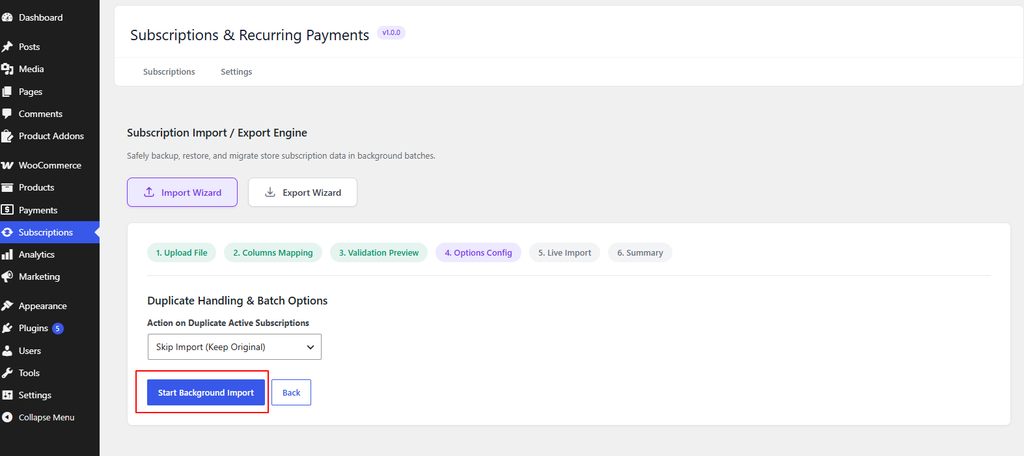
On the Duplicate Handling & Batch Options screen, select Skip Import (Keep Original). This prevents duplicate subscriptions from being created if the subscription already exists.
Then click Start Background Import to begin the import.
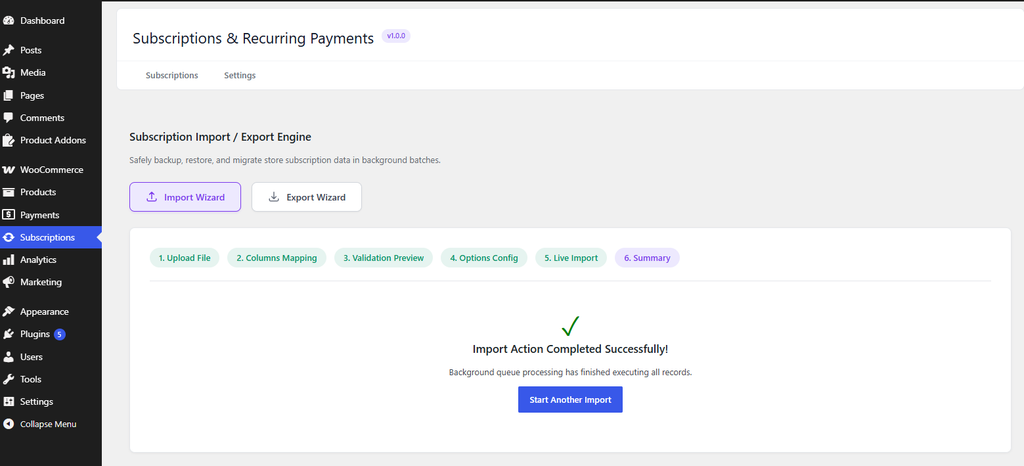
The import will run in the background. Once it is complete, you will see a message confirming that the subscriptions were imported successfully.
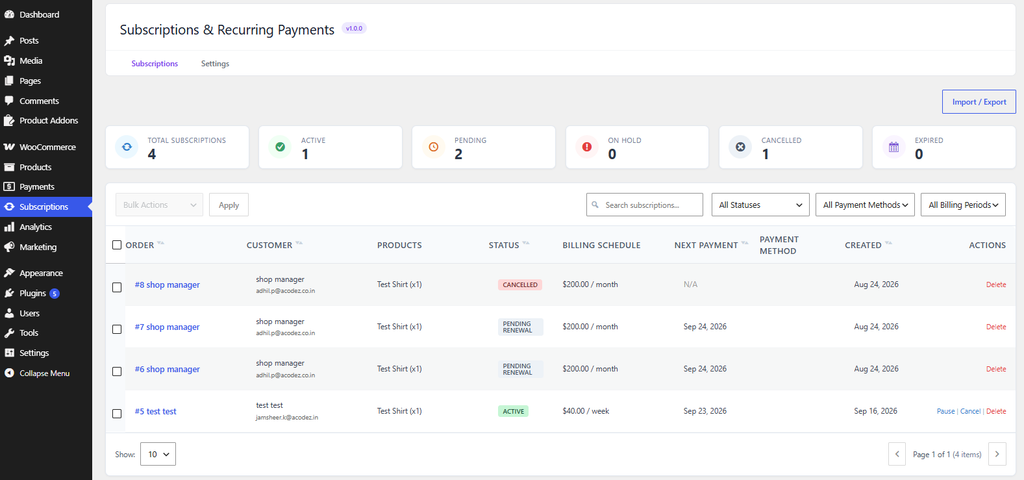
Go to Subscriptions to view the imported subscriptions.
Check the subscription list to make sure the imported records appear with their correct statuses.
If you have questions about our plugin(s), are experiencing issues with any of our plugin






















 Login
Login
 Cart
Cart