




















 Login
Login
 Cart
Cart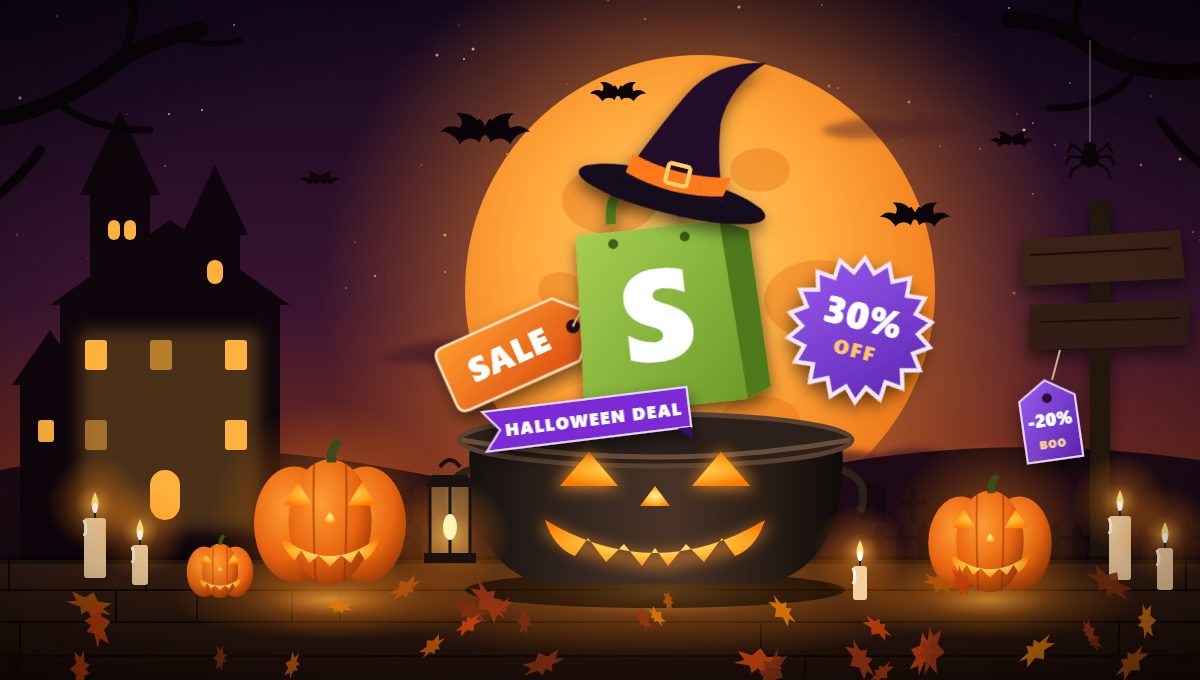
Shopify store owners can create Halloween sale badges in minutes, without editing any theme code. Shoppers expect discounts in late October, and a badge that says “Spooky Sale: 31% Off” or “Ends at Midnight” does what a plain price tag can’t: it stops the scroll, explains the deal, and creates urgency.
In this guide, you’ll learn how to add Halloween sale badges to your Shopify store, get badge design ideas, and use Labeler to customize and schedule your seasonal promotions step by step.
TL;DR: Halloween sale badges put your offer right on the product image, so shoppers see the deal without opening the page. With the Labeler app you can add them to Shopify in minutes, no code needed: install the app, pick a Halloween sticker, add your offer text, and set display rules so each badge shows only on the right products. The free plan covers the basics. Premium adds scheduling, so badges come down automatically after Halloween, and Advanced adds countdown timers for flash sales.
Why Use Halloween Sale Badges
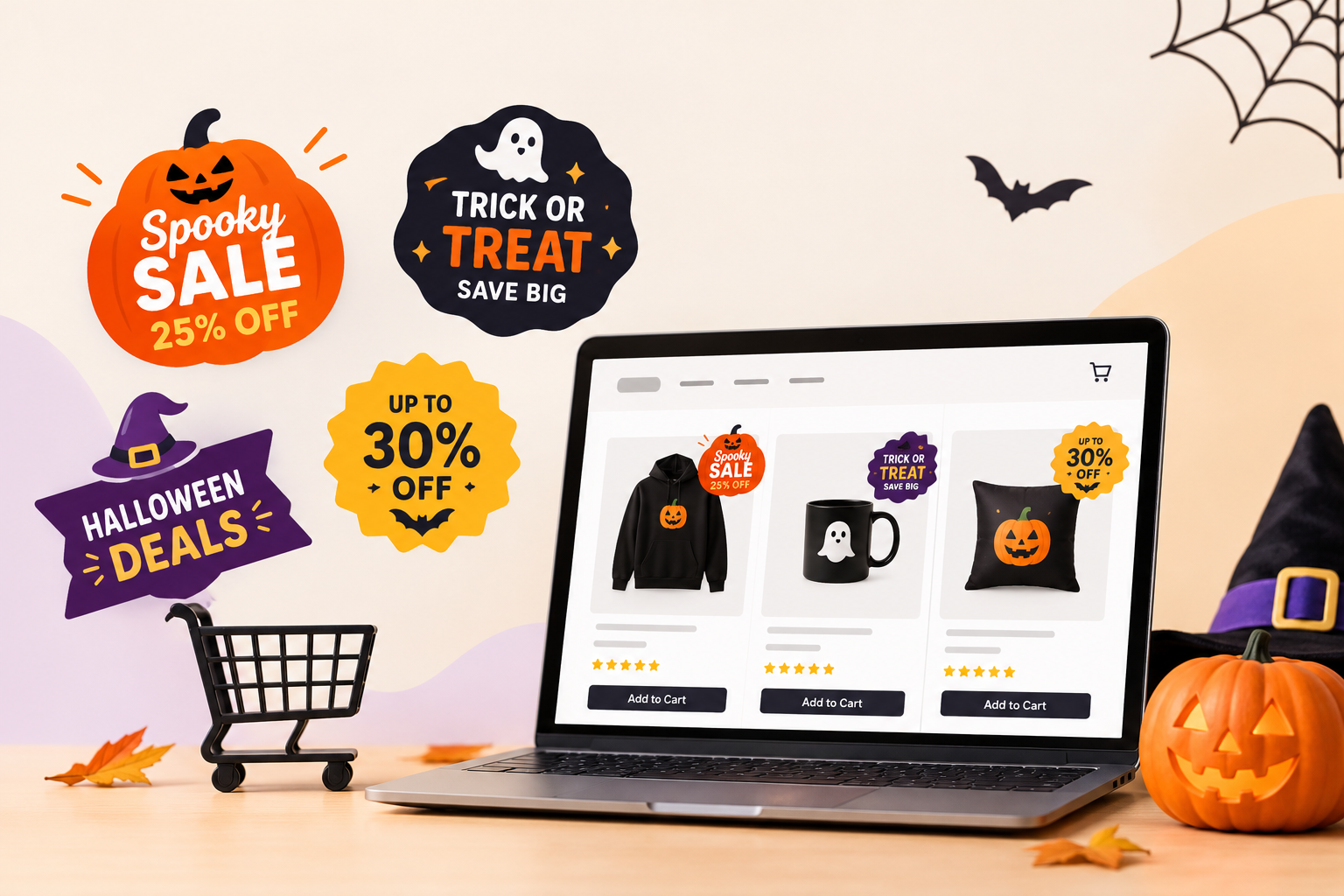
Halloween is the first big shopping event of Q4, and Shopify stores that look the part get more clicks. Shopify’s Halloween marketing guide lists 25 seasonal campaign ideas to pair with your badges. A badge works because it puts the offer in front of the shopper at the exact moment they look at a product and that visibility pays off in several ways:
- Discounts are legible at a glance. A percentage badge makes the saving clear without opening the product page. On a collection page with dozens of products, that one line of text is what separates an item a shopper stops on from one they scroll past and it lifts click-through on product tiles.
- Urgency pushes shoppers to decide now. “Only a few left” and “Ends at Midnight” tap into the fear of missing out, which pushes indecisive shoppers toward checkout. A countdown badge makes a flash sale feel immediate, and a one-night Halloween sale can attach a timer that ticks down on the badge itself, so shoppers see the deadline without leaving the page.
- Popular and low-stock items sell themselves. “Bestseller” and “Only a few left” give shoppers a quick reason to pick one product over another on a crowded collection page. Display rules can keep the low-stock badge on the items actually running out, and a “Spooky Sale” badge can appear on your Halloween collection, while a “New Arrival” badge highlights other products. One app can support several campaigns without overlapping badge messages.
- Automate your seasonal promotions. Scheduling puts the badges up and takes them down automatically, so there is no manual cleanup when November starts. Merchants set the start and end dates once, and the store returns to normal the day the sale ends.
- Maintain a consistent storefront design. The same badge system works on every theme, page, and device, so Halloween offers look deliberate instead of stitched together. Desktop and mobile can even be sized separately, so the badge stays readable at thumbnail size on a phone without covering the product image.

Make Your Store Halloween-Ready!
Create eye-catching Halloween product labels and boost your seasonal promotions with Shopify Product Labels.
Get Product Labels →Types of Halloween Badges to Use
Six badge types cover nearly every Halloween campaign. The table further down is the quick reference; these points explain when each type earns its place and how the types work together:
- Discount badges are the workhorse of any sale. Put one on every reduced item before the campaign goes live, so the saving is visible from the first minute of the sale. They pair well with a countdown timer or a low-stock badge. However, avoid stacking too many badges on one product. A single, clear discount message is more effective than a pile of labels.
- Limited-time and countdown badges earn their place only when the deadline is real. They work best in the final days of a sale or on a one-night flash event, because a ticking clock creates urgency only while shoppers believe it. Use them sparingly: a store where every badge counts down teaches shoppers to ignore the timers.
- Low-stock badges do their best work at the tail end of the campaign, when inventory is tight and hesitation costs a sale. Tie them to actual stock levels rather than applying them by hand, so a badge never lingers on a product that has been restocked mid-sale.
- New arrival and bestseller badges are opening-week tools: they point shoppers at the items worth looking at first while the collection is fresh and no one knows what will sell. As the sale matures, urgency badges do the heavy lifting, so these are best phased out before the final days.
- Free shipping and announcement badges are the storewide channel of the set. Run one announcement for the whole campaign and let the per-product badges carry the specific offers, instead of turning every product tile into a message board.
- Trust badges work quietly. They do not shout about the sale; their job is to make the final decision feel safe. Keep them running all season – and after the sale ends, because trust is not a seasonal offer.
Here is the same lineup at a glance, with where each badge belongs and which Labeler plan unlocks it:
| Badge type | Example text | Best use | Where it shows | Labeler plan |
| Discount | “Spooky Sale: 31% Off” | Make reduced prices legible at a glance | Product tiles and product pages, on sale items | Free (customizable labels); Premium adds discount-badge support |
| Countdown timer | “Ends at Midnight” with a ticking clock | Flash sales and one-night offers | Any page the badge is placed on | Advanced (customizable timer/countdown labels) |
| Low-stock | “Only a Few Left” / “Don’t Get Ghosted” | Push hesitant shoppers while items run out | Product tiles, driven by inventory rules | Premium (stock and vendor rules) |
| New arrival / bestseller | “New for Halloween” / “Bestseller” | Point shoppers to fresh or popular items | Product tiles, assigned by collection or tag | Free (customizable labels); Premium adds collection and tag rules |
| Free shipping / announcement | “Free Shipping Over $50” / “Halloween Sale Live Now” | Storewide seasonal messaging | Any page, storewide | Premium (announcement badges) |
| Trust | “Verified” / “Secure Checkout” | Reassure shoppers at the point of purchase | Product pages | Premium (trust badges) |
Why Labeler Works for Halloween Sale Badges
Labeler: Product Labels Badges is a Shopify app from Acowebs for placing product labels and badges — sale offers, stock warnings, and seasonal designs like Halloween — directly on product images, so shoppers see them at a glance. Merchants pick a sticker or upload a design, write their offer text, and choose where the badge appears, without editing theme code and across every Shopify theme. The app is rated 4.7 out of 5 from 141 merchant reviews on the Shopify App Store, and the Labeler product page on acowebs.com documents the full feature set. Its main features:
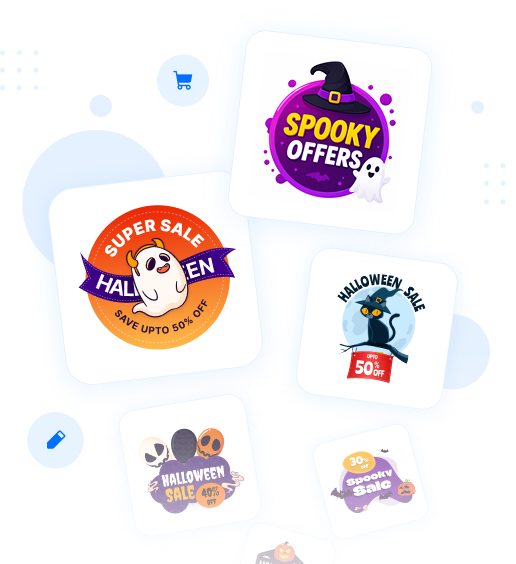
- 500+ free stickers on the free plan, 1000+ on paid plans, plus an AI sticker generator that creates Halloween artwork from a text prompt.
- Custom badge designer and CSS editor for sizing, colors, fonts, animations, and positioning.
- Countdown timers for flash sales that tick down on the badge itself.
- Scheduling so badges appear and disappear automatically on the dates you set.
- Display rules can target collections, tags, vendors, product types, prices, inventory levels, and countries. The free plan includes limited rules, while paid plans offer additional targeting options.
- Works on all themes, on any page, browser, or device, with separate desktop and mobile targeting.
How to Add Halloween Sale Badges in Shopify (Step by Step)
Follow these steps and your store can be wearing Halloween badges before the candy runs out.
Step 1: Install the app from the Shopify App Store
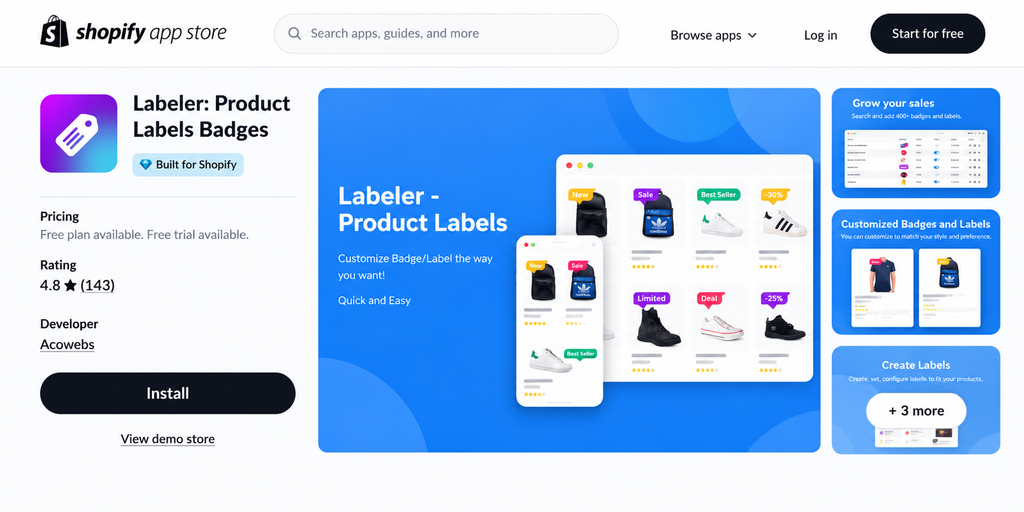
Open the Labeler listing on the Shopify App Store, click Add app, and confirm installation. The free plan is enough to start; you can upgrade later.
Step 2: Pick a sticker from the library, from AI, or your own upload
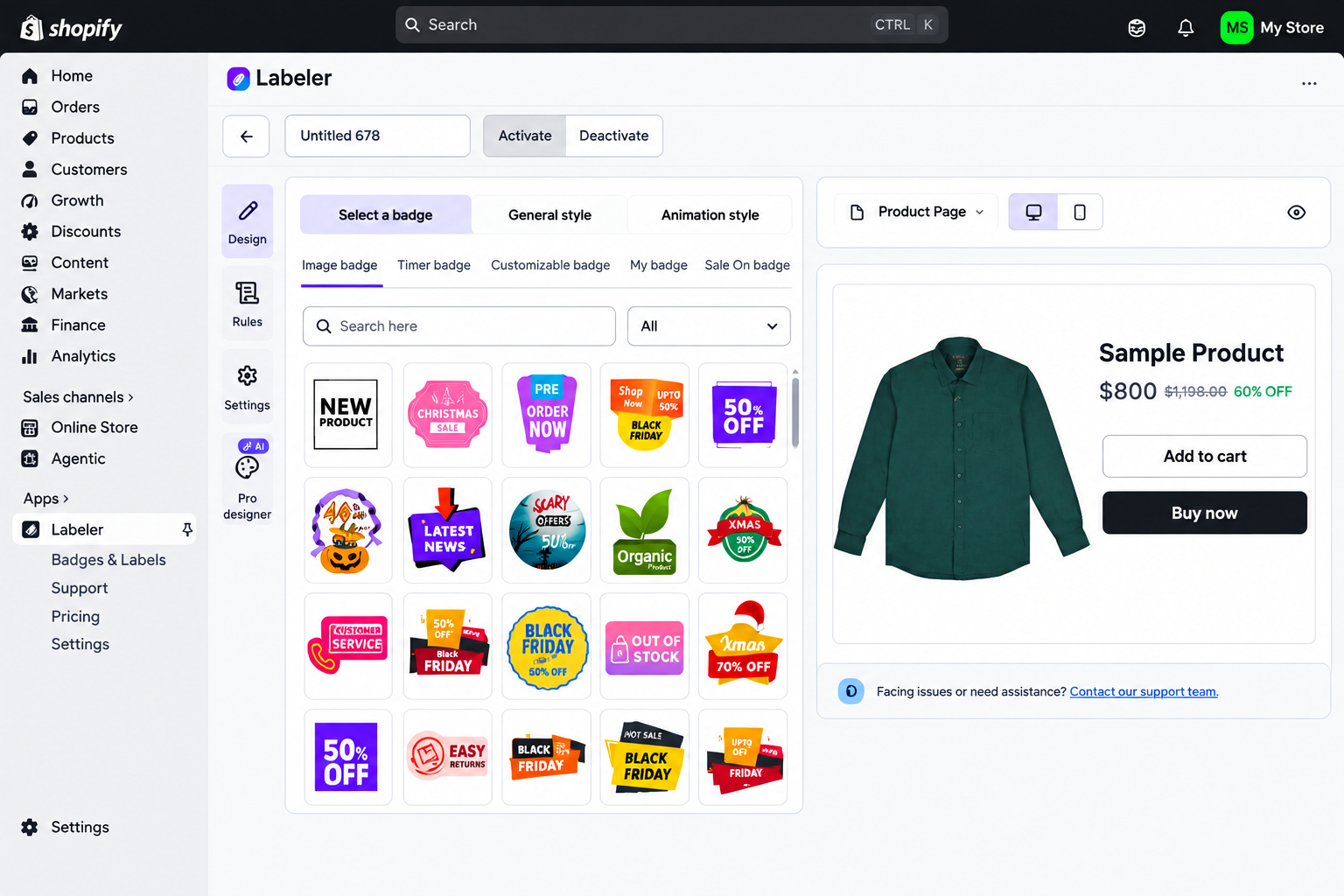
Choose a ready-made Halloween sticker from the library, type a prompt into the AI generator (“orange pumpkin badge, sale text, spooky font”), or upload your own design. On the free plan, you get 500+ stickers and 2 own-designed or uploaded stickers.
Step 3: Customize text, color, font, size, and position
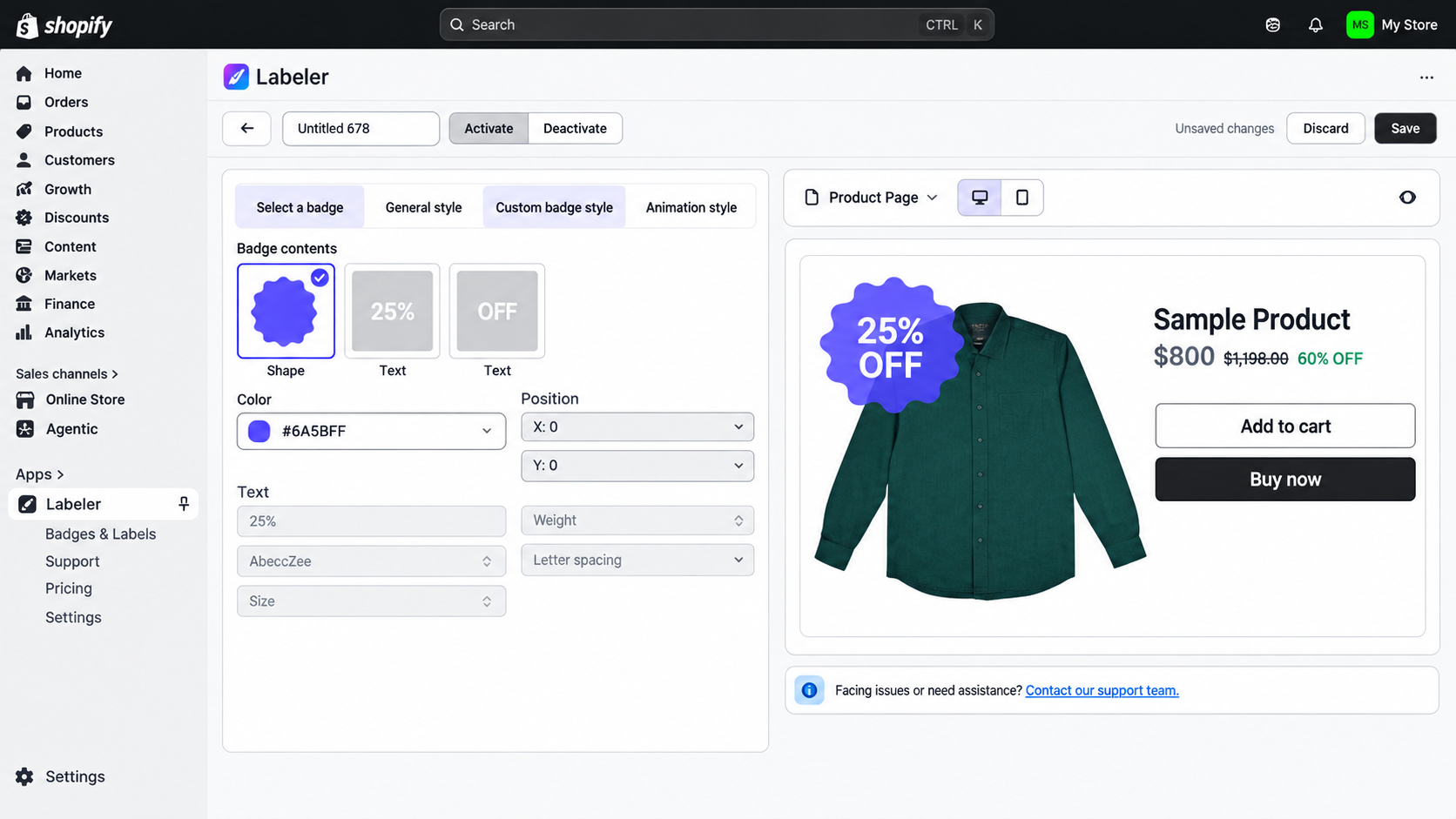
Edit the badge text to match your offer, then set color, font, size, animation, and position on the product image. The built-in CSS editor gives you full control if you want pixel-perfect styling.
Step 4: Set display rules
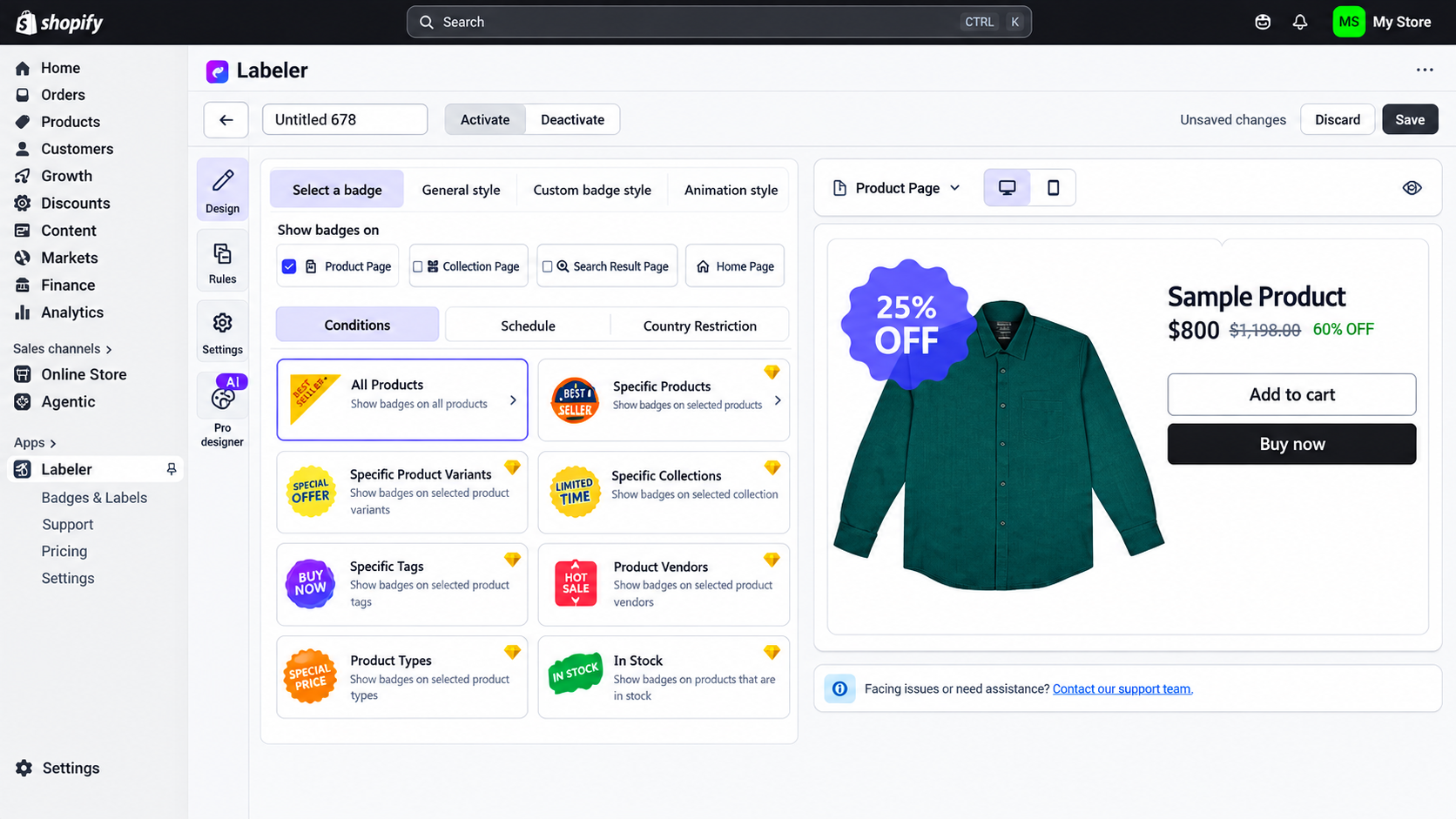
Show the badge only where it belongs: a specific collection, products with a certain tag, a vendor, a price range, low stock, or a country. This is how “Only a few left” stays on the right products.
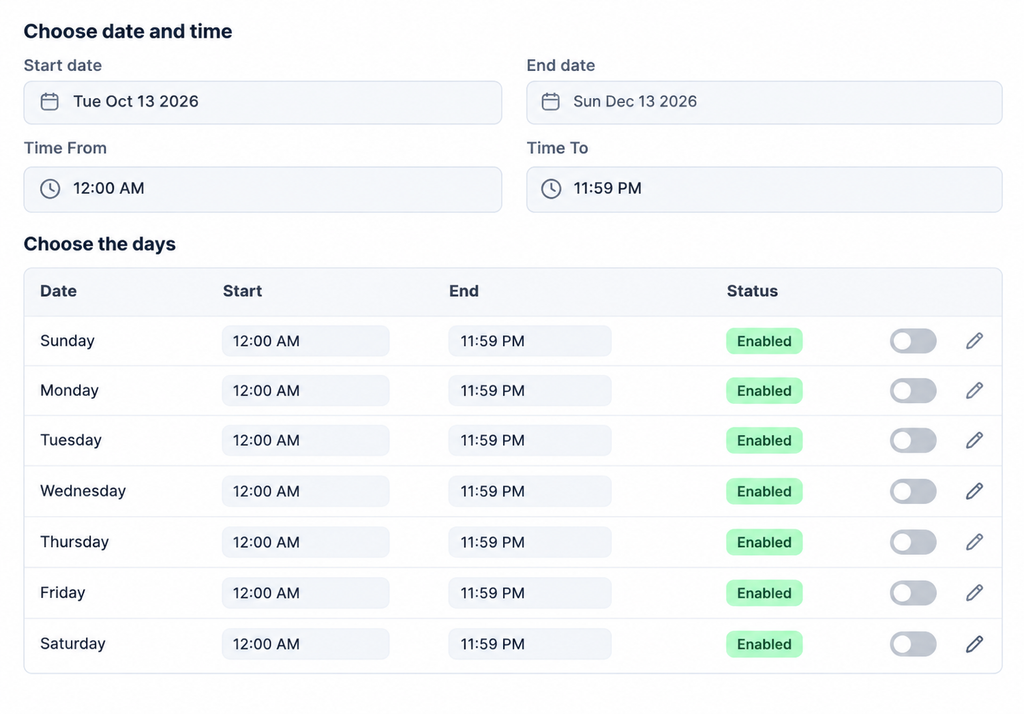
Step 5: Schedule the badge to start and end automatically
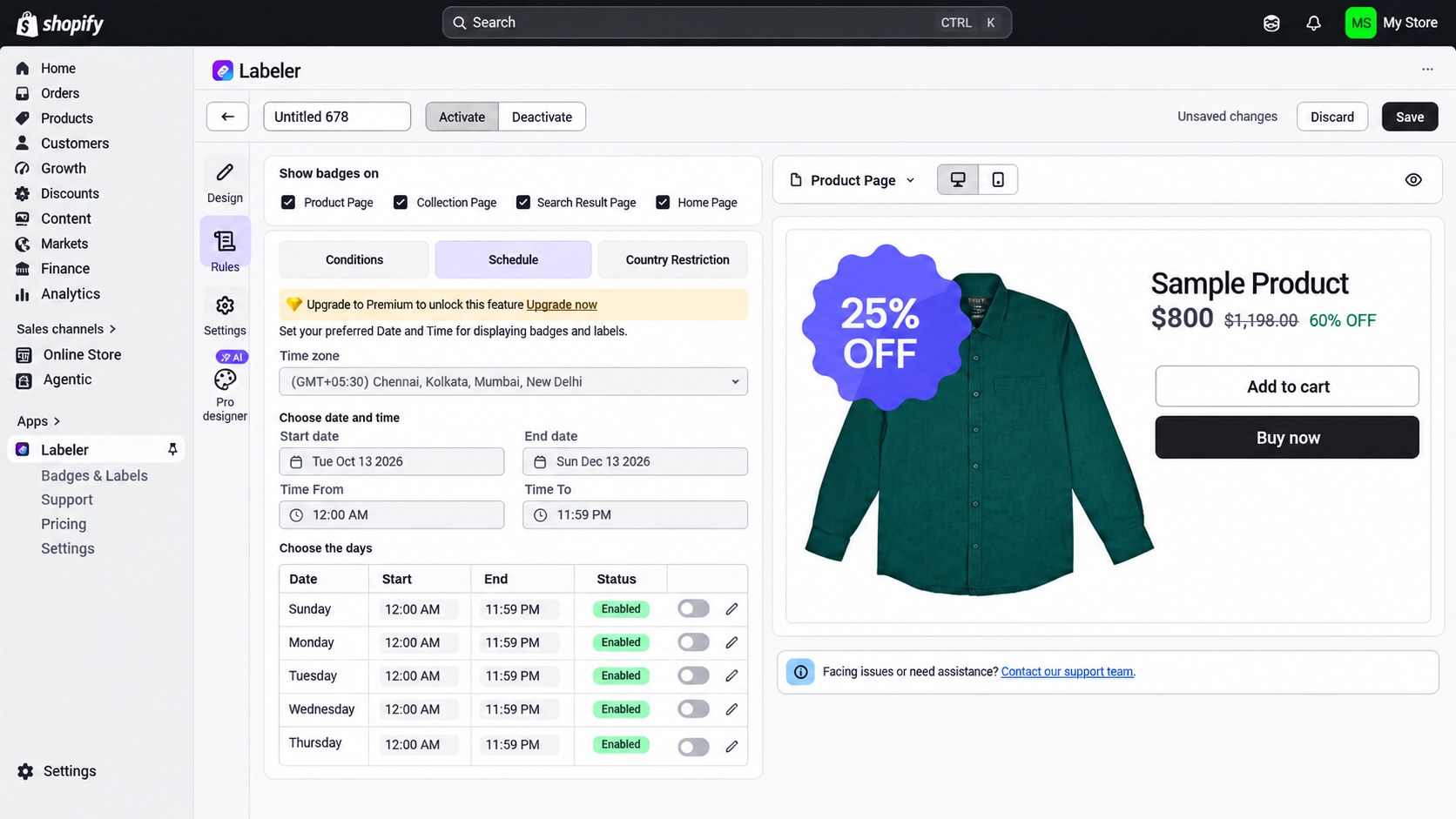
Set a start date and an end date, and Labeler removes the badge for you when Halloween is over. No manual cleanup after November 1.
Step 6: Add a countdown timer for flash sales
On the Advanced plan, attach a countdown timer to the badge so shoppers see exactly how long the offer lasts. Deadlines convert.
Step 7: Preview everywhere
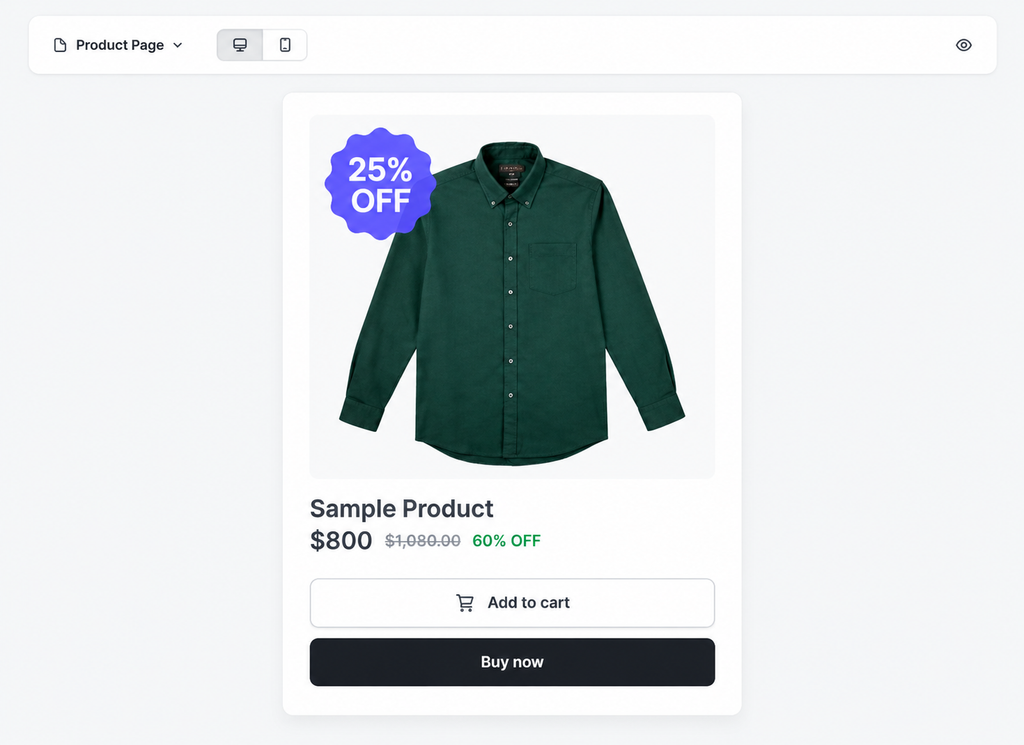
Check the badge on collection, product, cart, search, and home pages, on both desktop and mobile. Labeler lets you target devices separately, so the badge can be bigger on mobile without cluttering desktop images.
Halloween Badge Text Ideas
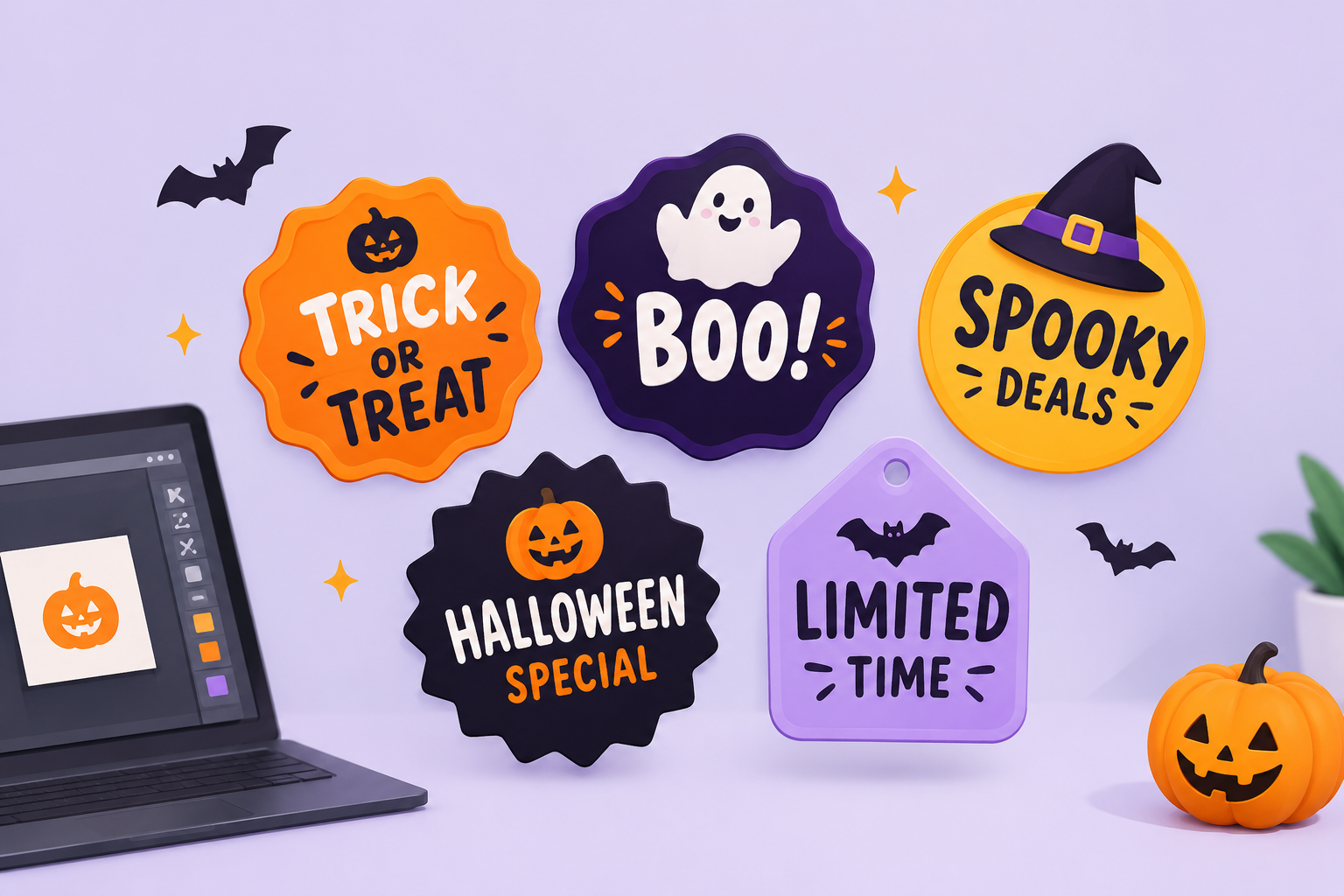
Start from these, grouped by the badge type they fit, and adapt the wording to your own offers:
Discount badges
- “Spooky Sale: Up to 31% Off”
- “Trick or Treat Deal”
- “Boo-gain Price”
- “Flash Sale: 25% Off Tonight”
- “Halloween Price Drop”
Limited-time and countdown badges
- “Ends at Midnight”
- “Sale Ends Tonight”
- “Last Day of the Sale”
- “This Weekend Only”
Low-stock badges
- “Few Left: Don’t Get Ghosted”
- “Only 3 Left”
- “Almost Gone”
- “Last Chance Before It’s Gone”
New arrival and bestseller badges
- “Limited Edition Halloween”
- “New for Halloween”
- “Bestseller”
Free shipping and announcement badges
- “Free Shipping Over $50”
- “Halloween Sale Live Now”
- “Trick or Treat: Extra 10% Off Over $75”
Keep the text short; badges are read from a thumbnail, not a product page.
Best Practices
- Use one or two badges per product. Stacking five badges makes every offer feel less urgent.
- Keep contrast and readability high. A white badge on a pale product image disappears; check it at thumbnail size.
- Match the Halloween theme without cluttering the image. One pumpkin or bat motif is enough.
- Use device-specific sizing for mobile. What looks right on desktop can cover the product on a phone.
- Remove or schedule off badges after the sale ends. A “Spooky Sale” badge on November 5 looks broken. Scheduling handles this automatically.
Pricing Snapshot
Labeler has a free plan and two paid tiers, both with a 7-day free trial:
- Free 4 labels/badges with no product limit, 500+ stickers, 2 own-designed and 2 uploaded stickers, limited rules.
- Premium ($5.99/month or $59/year): 1000+ stickers, unlimited designed and uploaded stickers, discount and announcement badges, scheduling, trust badges, 5 AI stickers, vendor and stock rules, advanced rules with country restrictions.
- Advanced ($15.99/month or $159/year) includes everything in Premium plus countdown timers, 100 AI stickers, unlimited rules, and priority support.
For seasonal merchants, a sensible pattern is to run the free plan now, upgrade to Premium for scheduling, and add Advanced if you want countdown timers on flash sales.
Conclusion
Halloween sale badges Shopify stores can add in a single afternoon and remove automatically when the holiday passes are one of the cheapest conversion wins of the year. Pick a spooky sticker, set a rule, schedule a date, and your products stand out while the sale lasts. Install Labeler (free plan available) and set up your Halloween badges today. Acowebs is running its own Halloween deals through October 31, so seasonal pricing ideas are easy to borrow. For more, read our holiday discount schedule guide and the Black Friday and Cyber Monday strategies and if urgency is your goal beyond October, our scarcity marketing guide covers the wider playbook.
Acowebs are the developers of the WooCommerce Product Labels which let customers include custom product labels or product badges for WooCommerce products. WooCommerce sales badges plugin provides you with different label styles and customizations for labels. It offers a easy-to-use UI to add labels to the selected products or categories and woocommerce email customizer using which you can easily build and customize WooCommerce emails with a drag-and-drop user interface.-
FAQs
No. Labeler installs from the Shopify App Store and adds badges through a visual editor no theme code, no Liquid, no developer needed. You pick a sticker, type your offer text, and choose where it appears from a menu. If you want finer control, the built-in CSS editor is there, but nothing on the free plan requires touching your theme.
Yes. Premium and Advanced plans include scheduling, so badges appear on your chosen date and disappear automatically when the sale ends. Set the start and end dates once, and the app handles the rest a “Spooky Sale” badge will not still be up on November 5. On the Advanced plan, the scheduling dates run together with your countdown timer, so a flash sale opens and closes on its own.
Yes. Display rules can target collections, tags, vendors, product types, price ranges, stock levels, and countries so a low-stock badge stays on the items actually running out. Premium and Advanced plans include the full rule set, including vendor and stock rules and country restrictions, while the free plan includes a limited rule set for testing.
Yes. Labeler works with all themes, including Shopify 2.0 themes, on any page, browser, or device. Because the app is built for Shopify and installed from the App Store, it adds badges without theme edits or custom code. You can also size badges separately for desktop and mobile, so they stay readable at thumbnail size on a phone.
Yes, on the Advanced plan. The countdown ticks down on the badge itself, so shoppers see exactly how long the offer lasts a deadline a plain discount label cannot match. Advanced also includes 100 AI stickers and unlimited rules, and the plan starts with a 7-day free trial, so you can test the timer before committing.
Yes. The free plan includes 4 badges with no product limit and 500+ stickers, plus 2 own-designed and 2 uploaded stickers enough to run Halloween badges across your catalog before upgrading. If you later want scheduling or countdown timers, Premium and Advanced both start with a 7-day free trial, so you can move up for the season and cancel after.