



















 Login

 Cart
You can automatically display a badge on products that are out of stock using the WooCommerce Product Labels plugin.
Step 1: Open the Badges Page
First, create a new badge by following our guide:
How Do I Create My First Product Badge in WooCommerce?
Once the badge has been created and configured, proceed to the Products Selection tab.
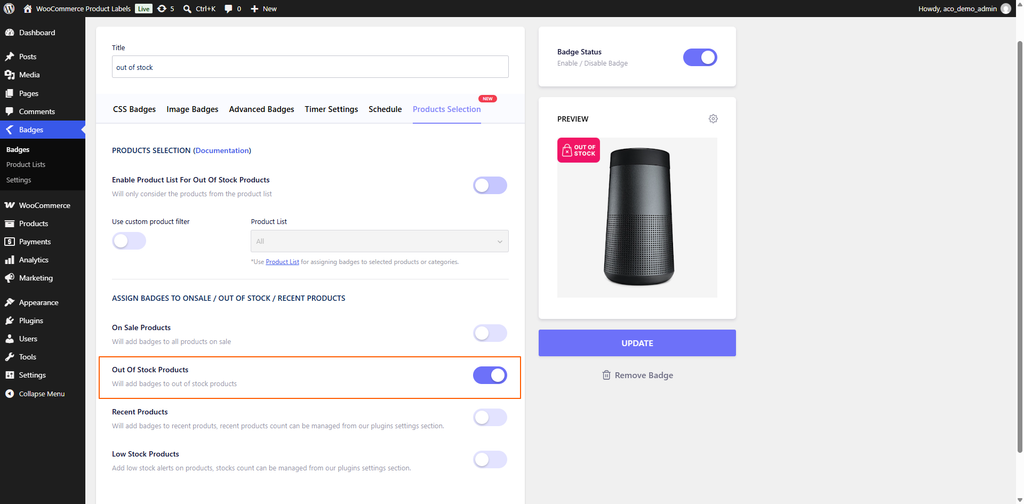
Step 2: Assign the Badge to Out of Stock Products
After configuring the badge appearance:
- Open the Products Selection tab.
- Enable the Out Of Stock Products option.
- The badge will now be applied automatically to products that are on sale.
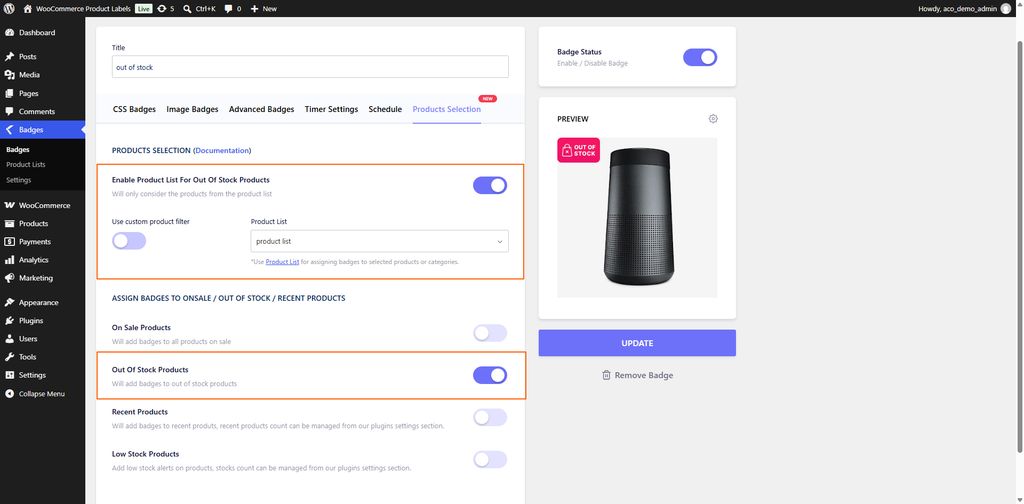
Step 3: Apply the Badge to Out Of Stock Products Within a Product List
If you want to display the badge only on sale products that belong to a specific product list:
- Enable Enable Product List For Out Of Stock Products.
- Select the required product list from the Product List dropdown.
- The badge will be displayed on the Out Of Stock Products included in the selected product list.
Step 4: Publish the Badge
Once you have finished configuring the badge:
- Review the badge settings.
- Verify that the Out Of Stock Products option is enabled.
- If applicable, verify that the correct Product List is selected.
- Click Publish.
The badge will now be displayed automatically on the applicable sale products.
If you need any assistance or have questions, you can contact our support team through either of the following options:
Was this article helpful?
Thanks for letting us know.
Sorry about that. Ask our support team and we will help you set it up.