


 Login
Login
 Cart
Cart
If you sell customizable products, the right product options plugin turns browsers into buyers by making personalization, add-ons and tailored pricing easy. Having a WooCommerce custom field makes it efficient and convenient, and achieves the goal of selling custom products faster. AcoWebs’ WooCommerce Custom Product Addons is a powerful, lightweight plugin that adds flexible product fields, conditional logic, pricing formulas and file uploads to any product page, without custom code. This guide explains what it does, why it matters for your store, how to set it up quickly, real-world use cases, best practices, and answers to common questions. Also we will suggest a top WooCommerce custom field plugin to make things easier for you
What are WooCommerce custom fields?
WooCommerce Custom fields are display elements that showcase additional details. These custom fields are extended features made possible through plugins and extend WooCommerce standard product functionality. Three key categories where WooCommerce custom fields comes to best use are for:
- Product information fields: WooCommerce product custom fields display added product details like technical specifications, instructions, and warranties or anything relevant on the product pages itself. This helps customers be aware more about your product and make better decisions.
- Customer input fields: these interactive form elements made possible from WooCommerce custom fields helps customers provide additional information from sample text inputs. This is done for product personalisation and complex configuration to adjust the product pricing. This is ideal for businesses that offer customisable products requiring specific customer details.
- Registration and Checkout fields: Using WooCommerce product custom fields can also be effectively used for collection of additional information during checkout or registering an account. VAT numbers for B2B stores and delivery preferences are included in this.
Why do custom fields WooCommerce matter?
Product personalisation is no longer a “nice-to-have.” Shoppers expect options: engraving, gift wrapping, size variations, custom text, uploaded files for print etc. Therefore, store owners should consider having custom product add-ons like Acowebs custom product add-ons. Adding product options:
- Increases average order value (AOV): customers add complementary items or paid customizations.
- Improves conversion: clear, relevant options remove friction for buyers who need customization.
- Supports premium pricing , custom services, or custom-made products justify higher margins.
- Enables new business models , gift personalization, made-to-order, print-on-demand, B2B quoting.
A plugin that makes it simple to offer those options, with accurate pricing and a great UX , becomes a revenue driver. AcoWebs’ plugin is built for this exact purpose: fast to configure, rich in field types, and capable of computing custom prices.
How does Woocommerce product fields plugin help different store owners
- Novice store owners
You don’t need to code. The drag-and-drop builder and ready-made field types let you add personalization options quickly (e.g., “Add engraving” or “Upload your logo”) and test pricing variations immediately. - Professional store owners/agencies
Build advanced product forms with conditional logic, price rules and product-as-field bundles. Save time on custom quoting and avoid maintenance headaches tied to bespoke solutions.
Product categories that benefit most
- Personalised gifts (engraving, text fields, packaging options)
- Print-on-demand (file uploads, image selectors, colour pickers)
- Food & beverage (add-ons, delivery slots, portion size selection)
- Apparel & accessories (custom text, monograms, colour swatches)
- Services (date/time booking, location selector, add-on service options)
- B2B catalogues (tiered pricing via lookup tables, quote-ready fields)
The plugin is versatile: simple options for beginners, advanced configurations for pro stores.
Quick setup, go from install to live in minutes
You can set up a basic product addon in under ten minutes. Here’s a short walkthrough you can follow after installing the plugin:
- Install & activate First, Purchase and install our plugin Custom Product Addons from Acowebs website on your WooCommerce store
- Open the Addons builder from the WordPress admin menu and create a new Addon Group.
- Drag field types (e.g., Text, File Upload, Checkbox) into your group. Configure each field’s label, placeholder, validation and price.
- Apply conditional logic if needed (e.g., show “upload logo” only when “custom print” is selected).
- Assign the Addon Group to specific products, categories or globally (sitewide).
- Test on a product page: confirm the option appears in the frontend, price updates correctly, and selection flows into the cart and order backend.
- Polish the layout with grid/column alignment for a neat appearance on desktop and mobile.
That’s it, no code required. For complex price calculations, use the custom price formula or lookup tables provided in the plugin settings.
Real-world examples & conversion ideas
- Jewellery store, engraving & gift packaging
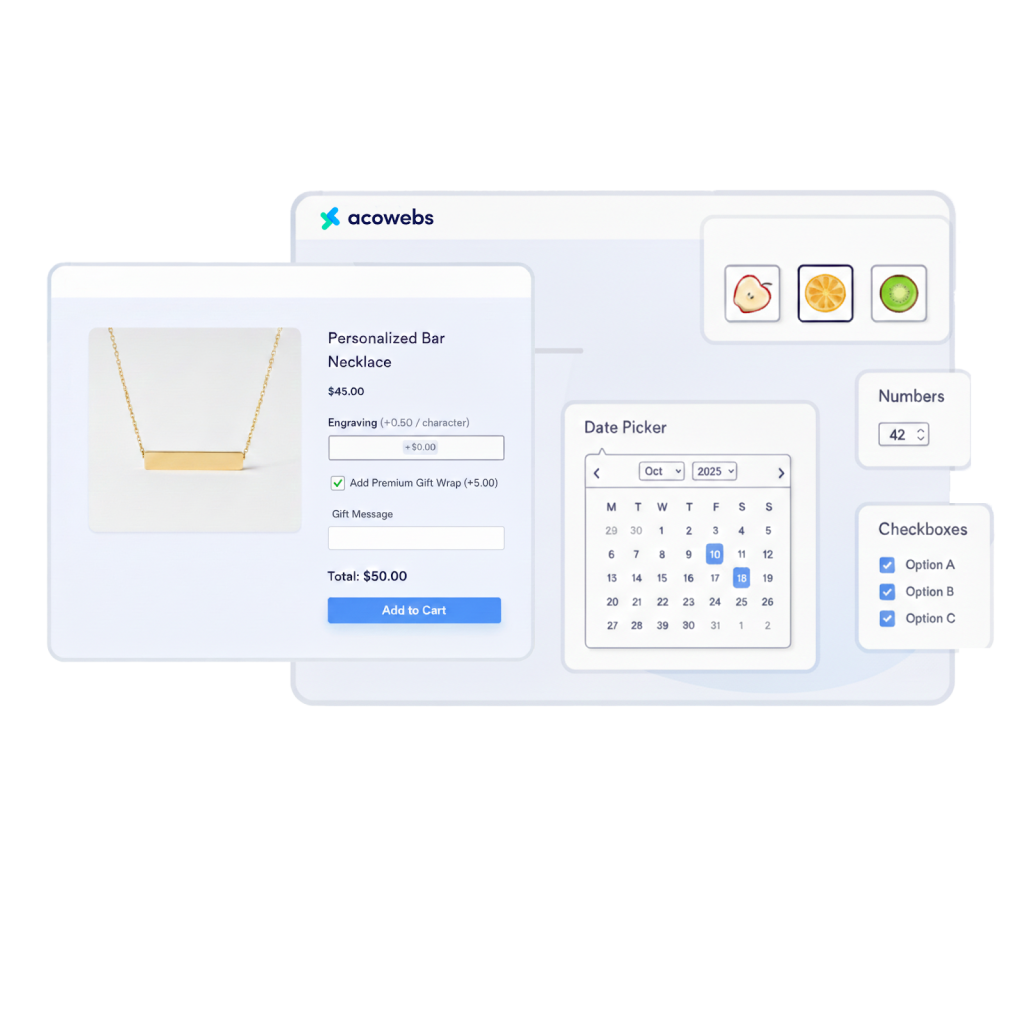
Add a Text field with character-based pricing for engraving, a Checkbox for gift wrap, and a Date field for delivery date. Use conditional logic: show gift message field only if gift wrap is selected. Result: higher AOV and fewer support tickets because customization is captured at checkout.
2.Print shop, file uploads + product preview
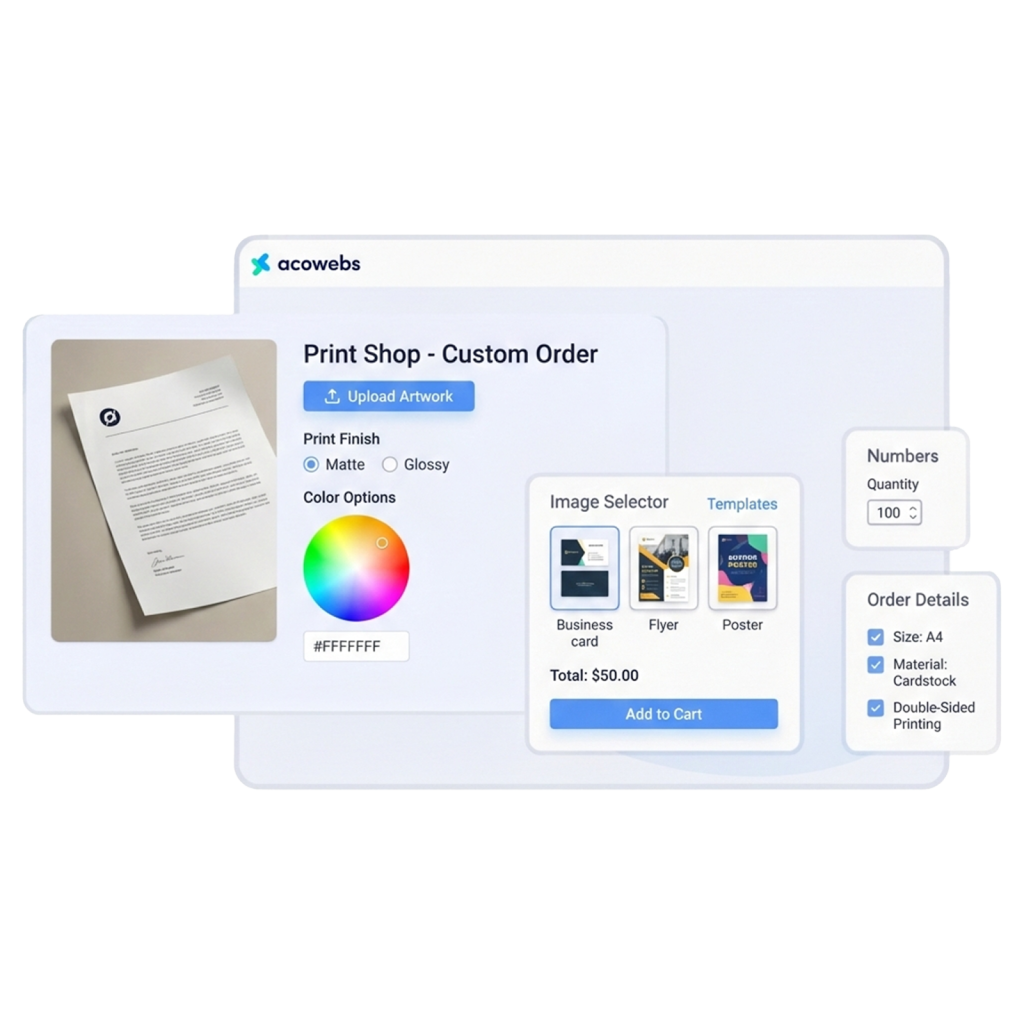
Allow customers to upload files, choose a print finish using radio buttons, and select color options with a color picker. Use the Image Selector to display template thumbnails. Workflow: customers upload artwork, choose options, and the price adjusts automatically based on size and material.
- Food delivery, time slots & add-ons
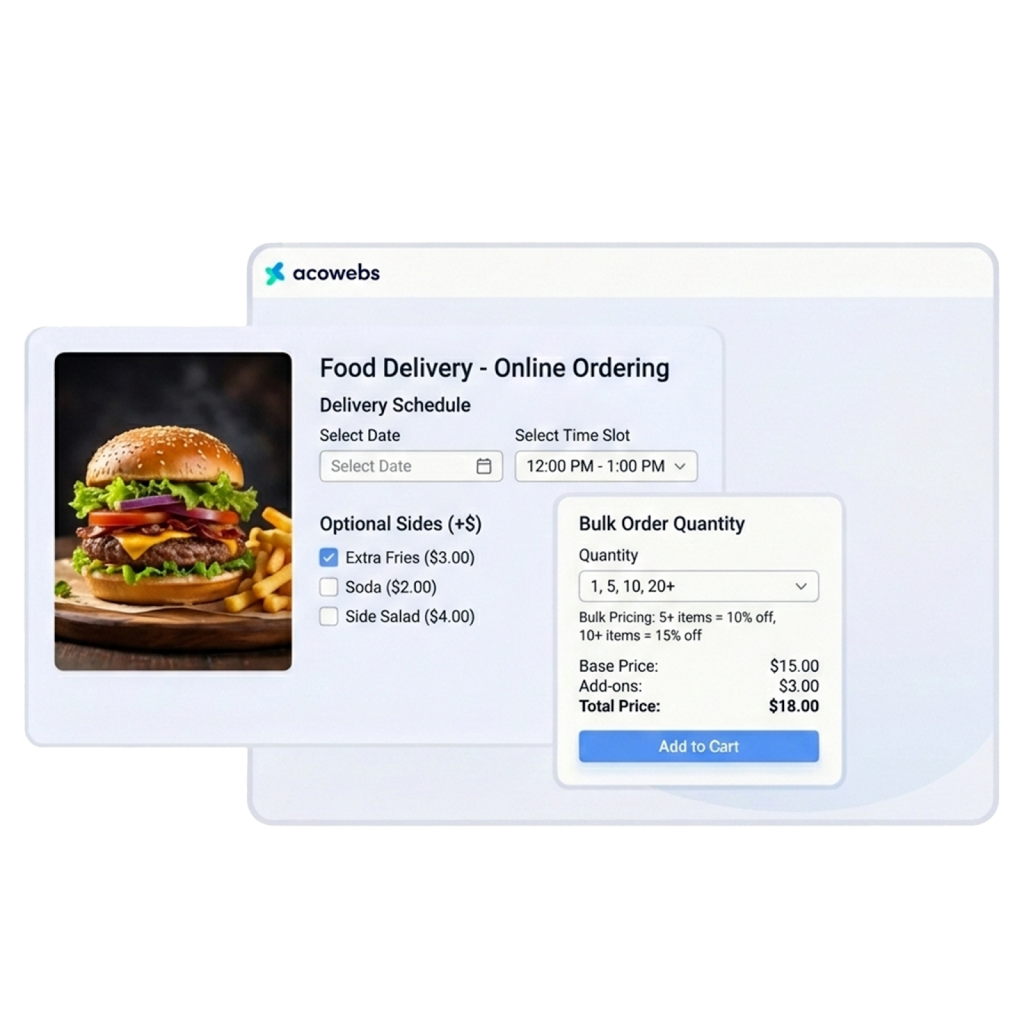
Use Time and Date fields for delivery scheduling, add optional sides via checkbox groups, and apply lookup-table pricing for bulk orders. This turns the product page into an online ordering form, reducing friction and support queries.
- Tech store, add warranty or installation
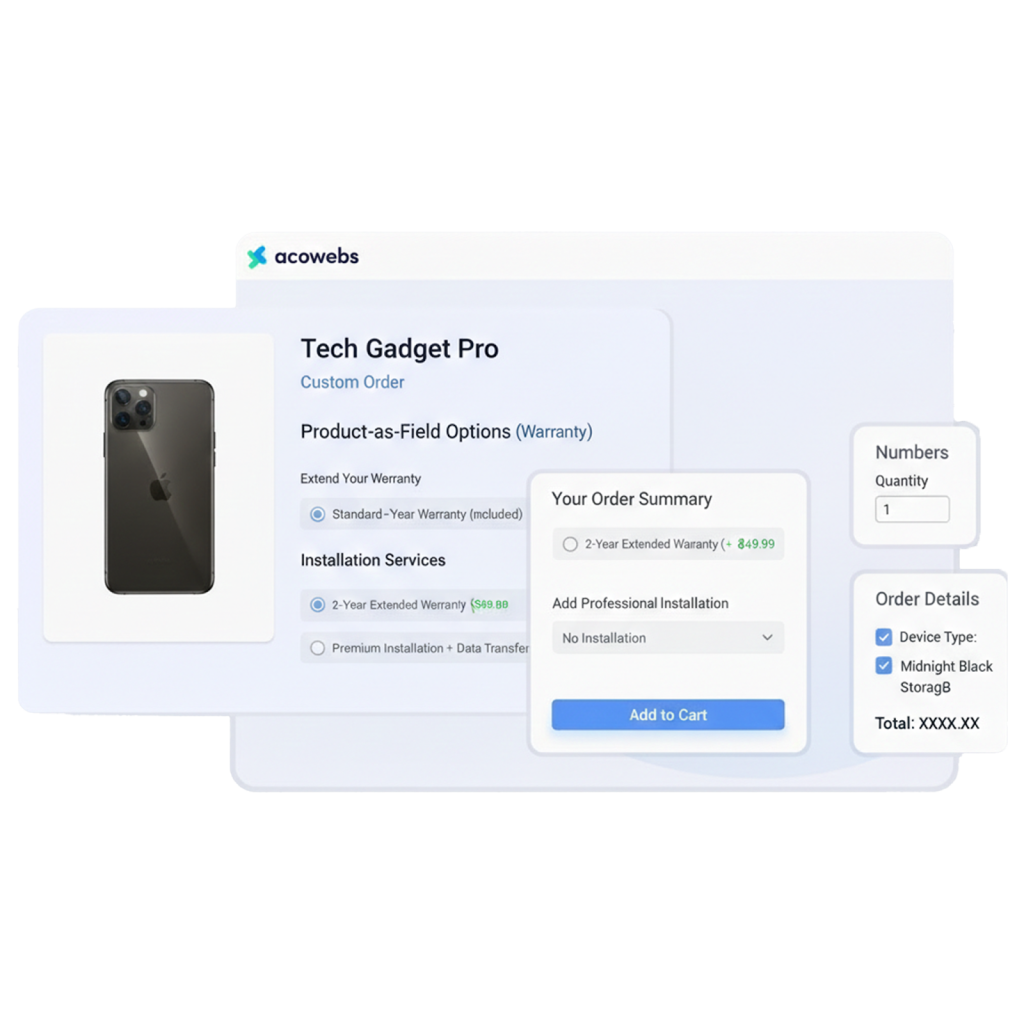
Offer warranty extensions as product-as-field options (add another product to the main product). Let customers add installation services via a select field with conditional pricing. This increases revenue without complex cart logic.
These practical uses illustrate how product options remove barriers and turn a simple product page into a conversion-optimized experience.
Best practices for using custom product addons
Follow these rules to maximize conversions and reduce cart abandonment:
- Keep it simple visually: Don’t overwhelm buyers with too many fields. Use progressive disclosure and conditional logic to show options only when relevant.
- Lead with value: Clearly state why an option costs extra (e.g. “Custom engraving, adds 2 days handling time”). Transparency reduces buyer hesitation and returns.
- Optimize mobile layouts: Use the grid/column alignment to stack fields neatly on small screens. Test every option on mobile.
- Use clear price labelling: Show how the addon affects price (e.g., “+9.99/10 characters”). Avoid surprises at checkout.
- Use file validation: If you accept uploads, restrict file types and sizes to avoid production issues. Consider automatic filename or order ID tagging for easier processing.
- Leverage preview images: For image selectors or color choices, provide visual thumbnails so buyers know what they’re selecting.
- Pre-configure default options: For common choices, pre-select sensible defaults to reduce friction. But always allow users to change them.
- Test conversion impact: A/B test add-on visibility, default states and pricing to measure effects on AOV and conversion rate.
These small interface and messaging tweaks often yield the biggest lifts in revenue and reduce support overhead.
Pricing logic , how to charge for custom options
One plugin feature that stands out is custom price formulas and lookup table pricing. These let you:
- Charge a fixed amount per field (e.g.5 per engraving).
- Charge a percentage of the base product price (useful for proportional material upgrades).
- Use formulas combining base price, user inputs and quantity (e.g., base_price * 0.2 + input_value * 0.5).
- Create lookup tables for tiered or location-based pricing (e.g.different shipping/delivery fees by region).
Best practices: Use formulas only when they are clear to the customer. Show a price breakdown on the product page and in the cart so users understand charges.
Handling uploads, proofs and production flow
If you accept customer files (artwork, logos, documents):
- Enforce file rules (accepted formats, maximum size).
- Collect production notes with a Text area field (size, color changes).
- Attach order IDs to file names for clear processing (either manually or via export naming conventions).
- Preview and proofing workflow: consider an automated or manual proof step before production. For complex print jobs, a quick approval step reduces mistakes and refunds.
- Storage & privacy: uploaded files are usually saved in WordPress uploads. Ensure you have a process for removing files if necessary and include appropriate privacy notes.
AcoWebs supports drag-and-drop uploads and standard file handling to make this straightforward.
Troubleshooting & support (short)
Common questions and fixes:
- Options not appearing? Check addon group assignment (product/category/global) and ensure conditional logic rules aren’t hiding them.
- Price mismatch in cart? Verify the price formula and test with different quantities and inputs.
- Upload errors? Confirm file limits in WordPress and server PHP settings (upload_max_filesize, post_max_size).
- Mobile layout issues? Adjust grid/column settings and test breakpoints.
AcoWebs provides documentation, demos and support for setup and configuration.
Short checklist before you go live
- Define your high-value add-ons (which options should be paid vs free).
- Build one Addon Group and assign it to test products.
- Test price updates, cart display and order data.
- Test on desktop and mobile.
- Validate file uploads and order handling.
- Monitor performance (conversion, AOV) for two weeks and tweak.
Best WooCommerce product custom fields plugins
It is important to get the best custom fields for WooCommerce for your store for the best results, such as more sales and improved customer experiences. If you are exploring the best WooCommerce custom fields plugin, there are a very few best ones, with each having specific features tailored to your requirements and store objectives. A few of them include Wombat, Acowebs, and more. For choosing the best, let’s take a moment to try and test Acowebs’s WooCommerce Custom Product Add-ons.
What does the WooCommerce Custom Fields plugin by Acowebs do?
AcoWebs’ WooCommerce Custom Product Addons converts your product page into a flexible order form. Key features include:
- Drag & drop form builder: build option groups and fields visually.
- 22+ field types: text, number, text area, email, date/time pickers, file upload, image selector, colour pickers, radio, checkbox, dropdowns, and product-as-field.
- Conditional logic: show or hide fields based on other field values or selected product variations.
- Custom price formula: compute the add-on price by formula using the product base price, user inputs and quantities.
- Per-field pricing: fixed or percentage pricing, lookup tables for complex rules.
- File uploads & drag-and-drop: collect images, documents or artwork for production.
- Grid/column alignment: controls the layout of options for better UX.
- Location selector (Google Places): useful for delivery options or location-specific services.
- Product bundling via fields: add other products as optional fields (handy for upsells).
- Integrations with reporting and checkout: all selected options and calculated prices appear in the cart and orders.
These features let non-technical store owners add complex options, including per-character pricing, lookup-table pricing and formula-based price adjustments, without custom development.
Final thoughts: Is this plugin right for your store?
If you sell any product that benefits from customization, add-ons or tiered pricing, a robust product options plugin is one of the highest-ROI investments for your store. WooCommerce Custom Product Addons from AcoWebs offers a practical balance of power and ease: advanced pricing formulas, broad field types, conditional logic and file handling, all accessible through an intuitive builder. It’s a capable tool for novice owners who want fast setup and for professional merchants who need complex pricing or file workflows.
Frequently Asked Questions (FAQ)
No, the drag-and-drop builder and prebuilt field types are designed for non-developers.
Yes, use the character-based pricing and custom formula options to calculate price by character count or user input.
Yes, addon selections and calculated prices are included in the cart, checkout and order details.
Yes, configure allowed file types and limits to prevent unsupported formats and to manage server storage.
Yes, show/hide fields based on other field values or product variations.
Acowebs are the developers of Woocommerce Custom Product Addons which is a optimized, lightweight, and fruitful plugin that is simply the best to add extra product options using its custom form builder easily. WooCommerce custom fields also comes with drag and drop form builder, 22+ field types and custom price formula. WordPress offload media plugin which allows you to offload your media to cloud storage such as Amazon s3, Cloudflare r3, Google Cloud, Digital Ocean and more.