User-Generated Content (UGC) and authentic video reviews are powerful tools for driving sales. Showing real people using your products builds immediate trust, reduces purchasing anxiety, and injects social proof directly into your storefront.
With Shopeo, you can seamlessly embed interactive, shoppable customer videos across your store without writing a single line of code. Follow this step-by-step guide to get your UGC and review videos live.
Initialize the Video Engine
Before displaying review playlists, you must ensure Shopeo’s infrastructure is activated within your live Shopify theme core.
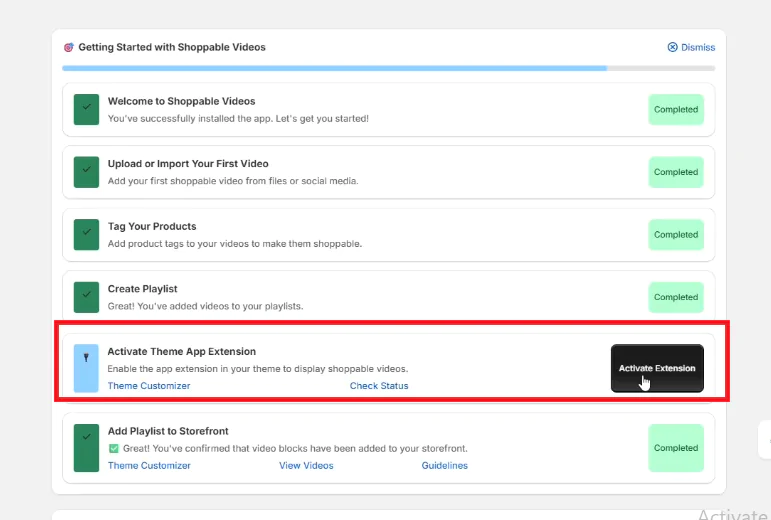
Navigate to your Shopeo dashboard panel and find the Activate Theme App Extension module.
Click the black Activate Extension button to automatically open your Shopify Theme Customizer in a new window.
On the left sidebar menu, select the App embeds tab.
Toggle the switch next to Shoppable Videos to ON, and hit Save in the top right corner to register the core engine.
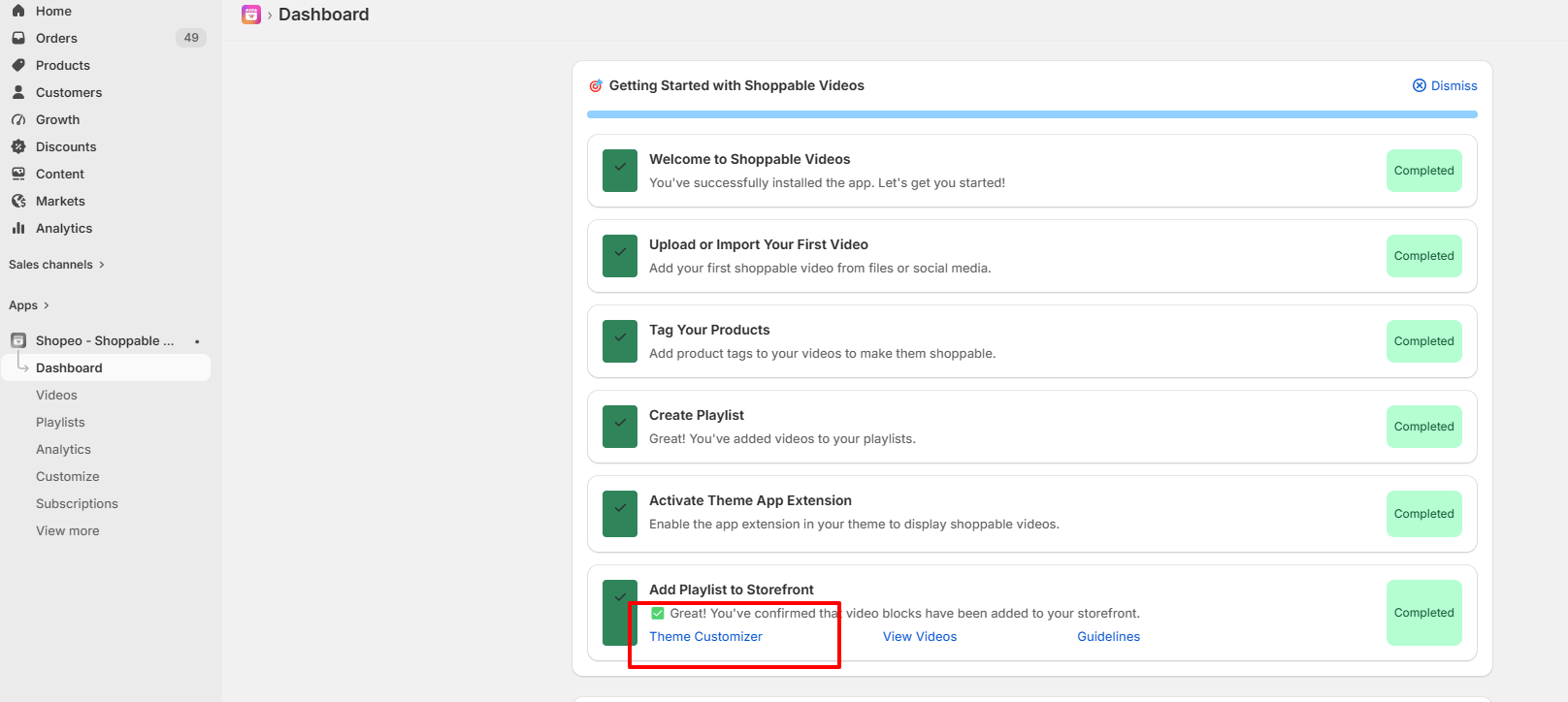
If you have already activated the extension, you can navigate to the theme customizer section.
Add a Video Section to Your Templates
Once the engine is live, you can inject video grids or carousels into any storefront layout.
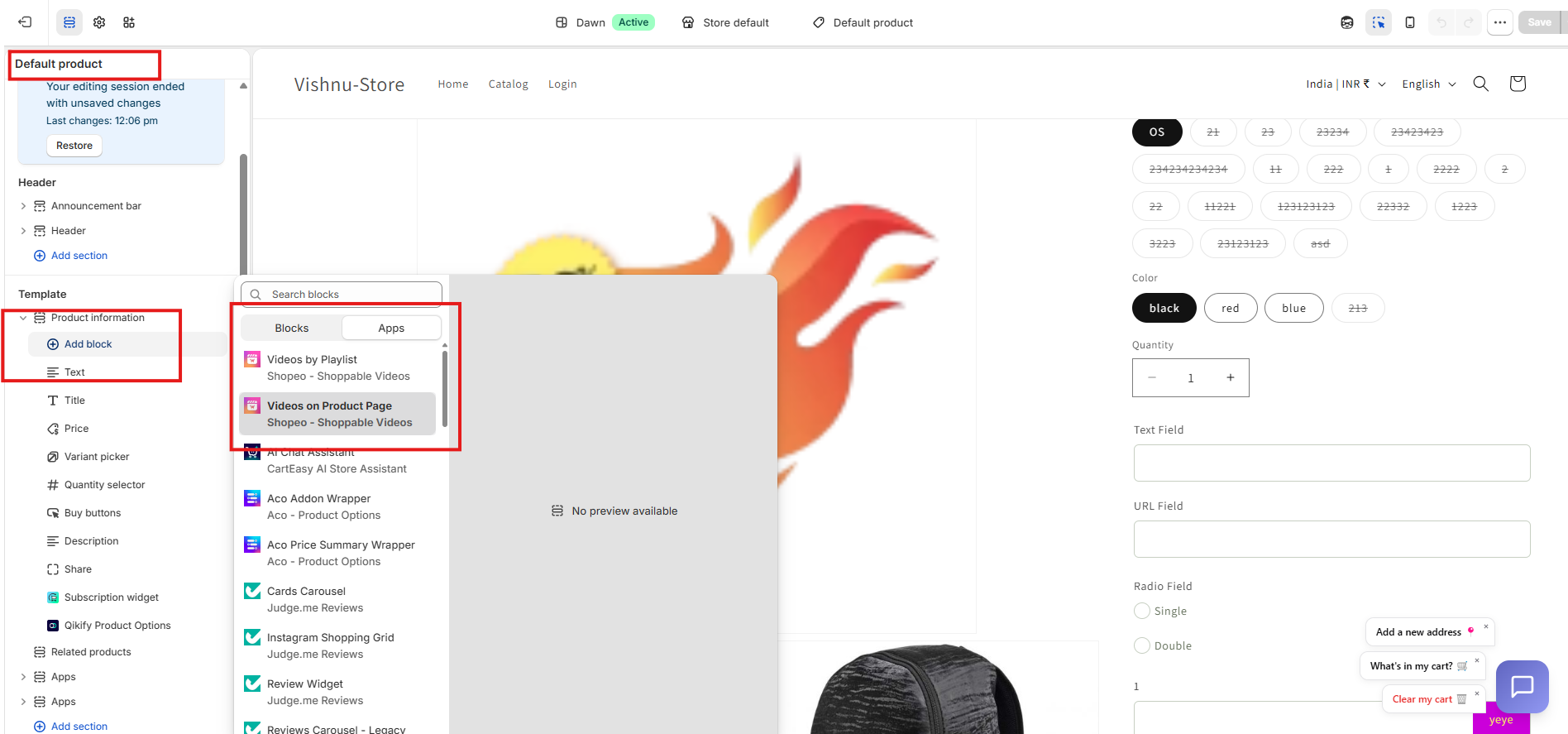
At the top of your Shopify Theme Customizer, open the template dropdown and select the page where you want your reviews to appear:
Home page: Perfect for a broad “What Our Customers Say” curation feed.
Default product (PDP): Highly recommended for dropping specific styling reviews or product testing videos right next to your checkout buttons.
Default collection: Ideal for showing products in a lifestyle context before buyers browse the catalogue.
In the left-hand sidebar layout tree, click Add block or Add section within your desired template location.
In the element choices pop-up menu under Apps, select Videos by Playlist or Videos on Product Page.
Link Your UGC Content & Sync Product Tags
To turn regular videos into highly profitable, interactive shopping experiences, map your uploaded review videos using their dedicated library codes.
Direct product tagging
Navigate to the Videos tab inside your Shopeo dashboard and select the specific processed video card from your library.
Click on the Tag Products option
Search through your synchronized live Shopify product catalog to select the exact item or items showcased in that specific video snippet
Save your selection. The designated item cards will now automatically lock onto the overlay window, complete with active store pricing
Playlists Creation
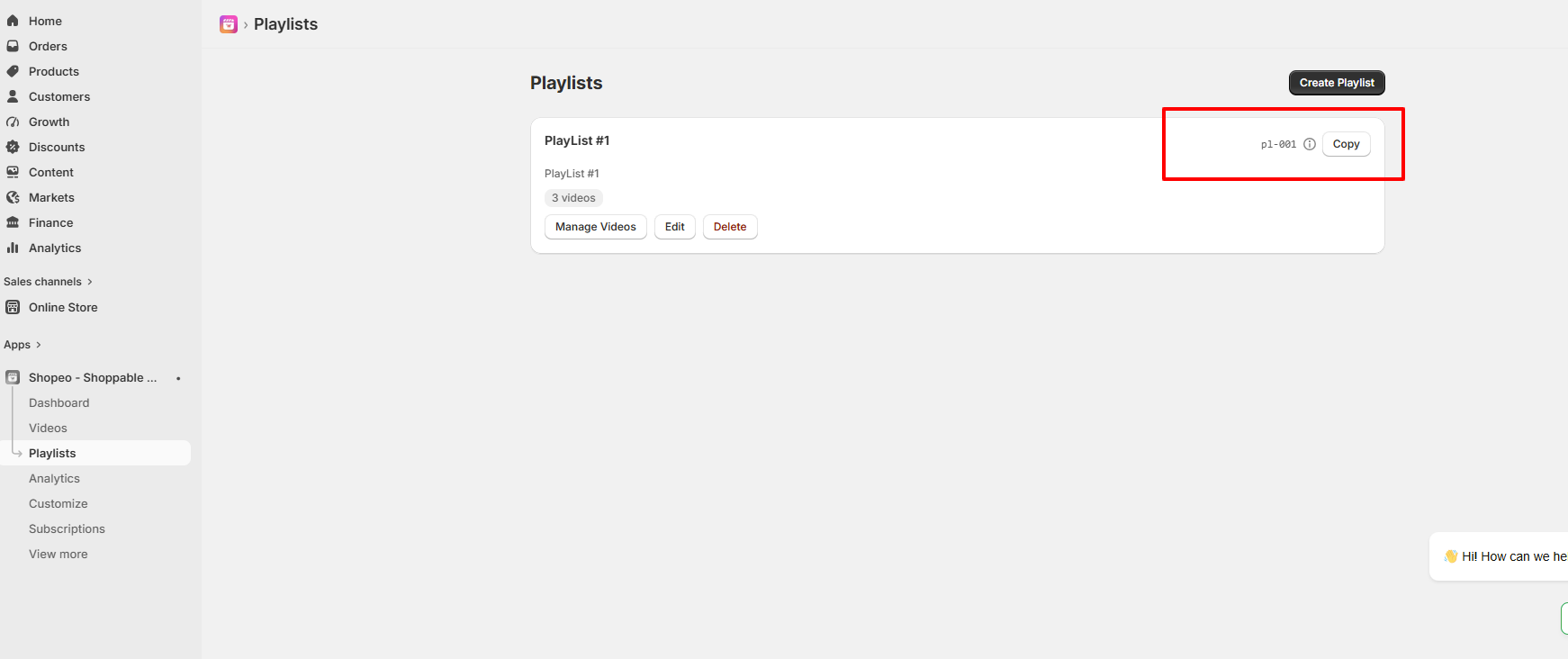
Go to the Playlists menu page in your main Shopeo app dashboard.
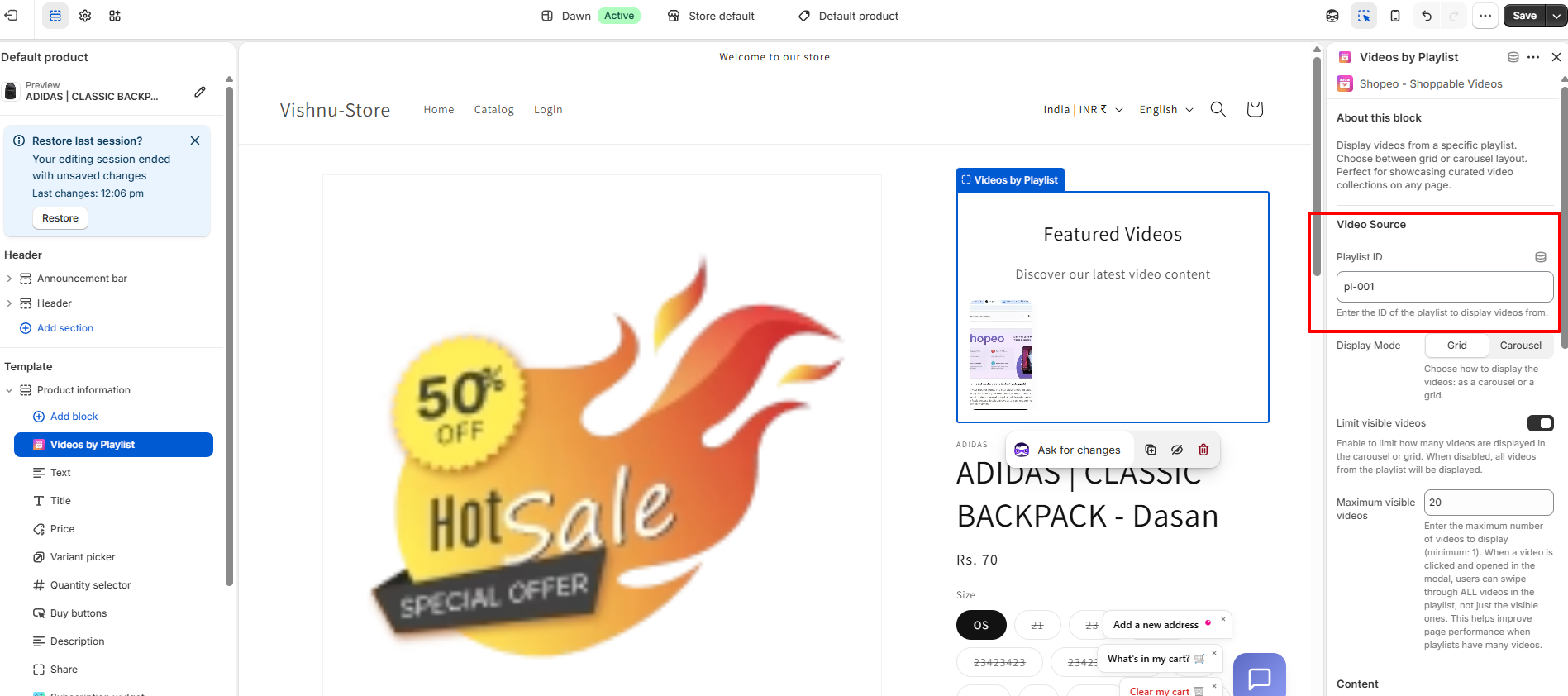
Locate your customer review or UGC library block and click the Copy button next to its unique alphanumeric Playlist ID (e.g., pl-001).
Go back to your open Shopify Theme Customizer workspace and click on your newly added video app block to view its right-hand configuration drawer
Paste your copied code string directly into the Playlist ID input text field. Your customer videos will instantly populate on the visual preview canvas
Customize the Layout for Optimal Engagement
UGC content works best when it complements your existing store design. You can fully customize the display behavior to fit your theme:
Choose Your Display Mode: Set your playlist to Grid to display review videos cleanly across columns, or switch to Carousel mode to pack them into a space-saving horizontal slider.
Control Density with Limits: Use the Maximum visible videos field to define how many video cards show up initially on page load (e.g., limiting the view to 4 cards keeps pages clean). When customers tap a video, they can still swipe through your entire library inside the fullscreen popup modal.
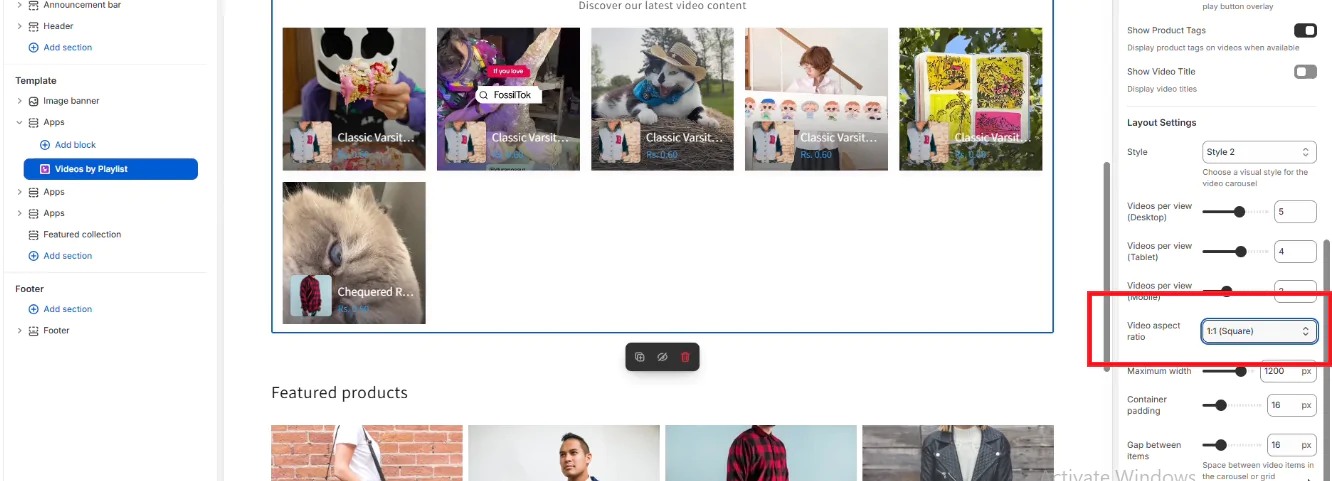
Match Social Platforms with Aspect Ratios: Go to the Video aspect ratio selector drawer and change the crop to 9:16 (Vertical/Reels). This gives your storefront review loops a modern, social-first TikTok or Instagram Reels feel that customers intuitively know how to engage with.
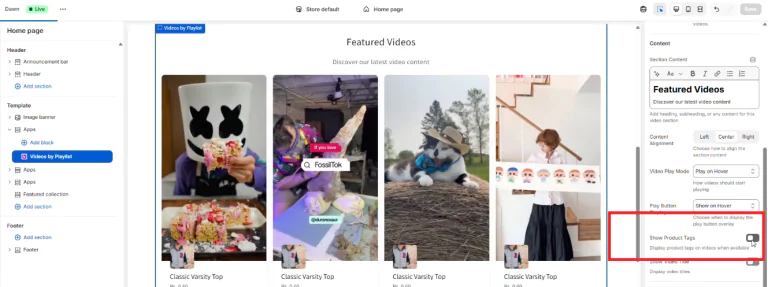
Keep Product Tags Clean: Toggle the Show Product Tags switch off if you don’t want product cards showing up under the main grid thumbnails. No matter what you choose, your interactive product links will always appear prominently inside the fullscreen video popup when an item is opened.
Monitor the ROI of Your Video Content
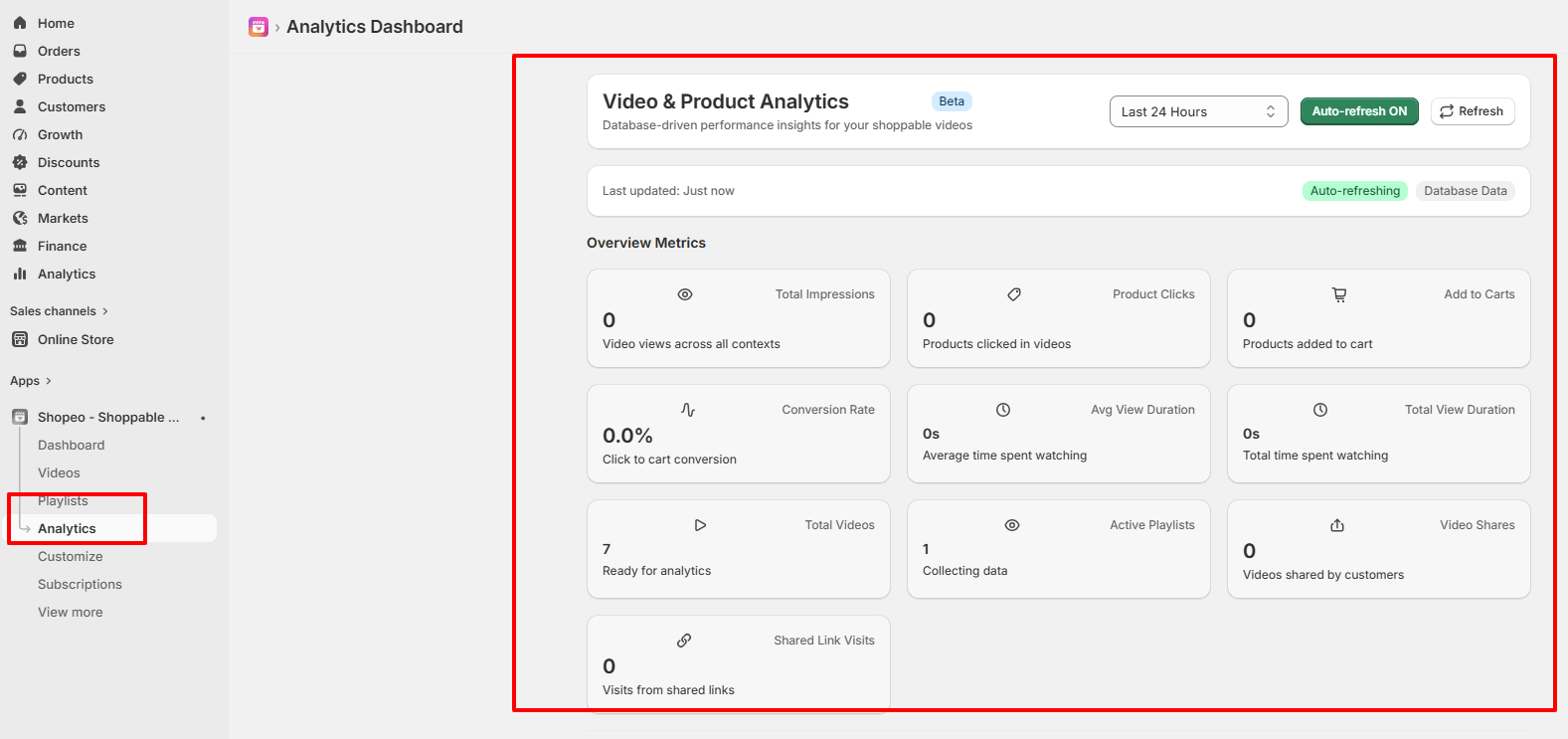
After your UGC videos are live, keep an eye on how well they are converting window-shoppers into paying buyers. Click on the Analytics tab in your left-hand app menu to track performance across several metrics:
Total Impressions & Video Shares: Monitor how viral your customer content is by looking at views and video share counts.
Product Clicks & Add to Carts: Measure direct buying intent by tracking exactly how many items were clicked and added to carts straight from the video overlays.
Top Performing Videos Table: Review the itemised video sheet at the bottom of the dashboard. This tells you exactly which customer reviews or UGC video clips are driving the highest conversion rates, helping you make smarter marketing choices moving forward.
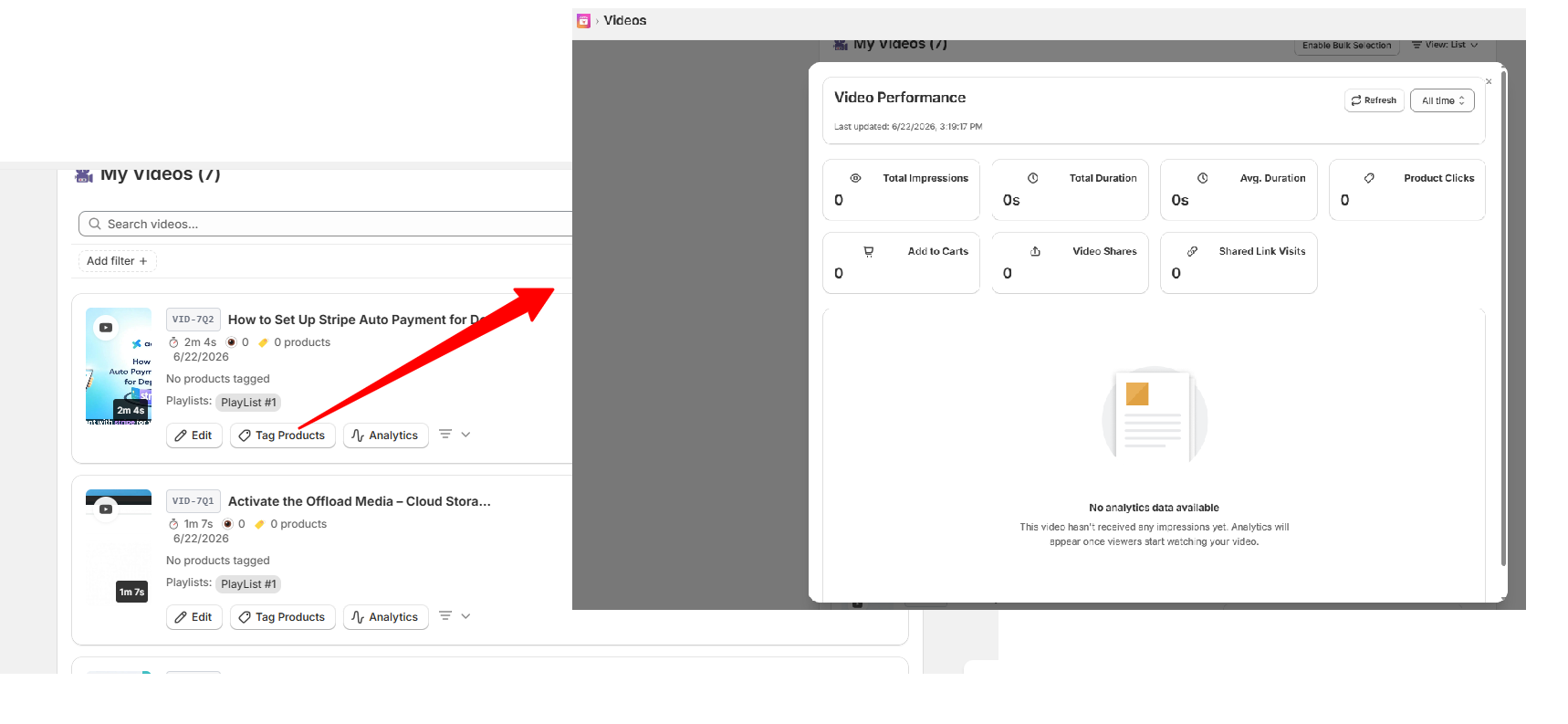
You can also check the analytics directly on the tags products, as shown below





















 Login
Login
 Cart
Cart