





 Login

 Cart
Once your playlists, tagging, and theme setup are complete, it’s important to verify how everything appears and functions on your storefront. Follow the steps below to ensure the videos and shopping experience work smoothly.
1. Open Videos on the Storefront
- Visit the storefront page where the Shopeo playlist block is added.
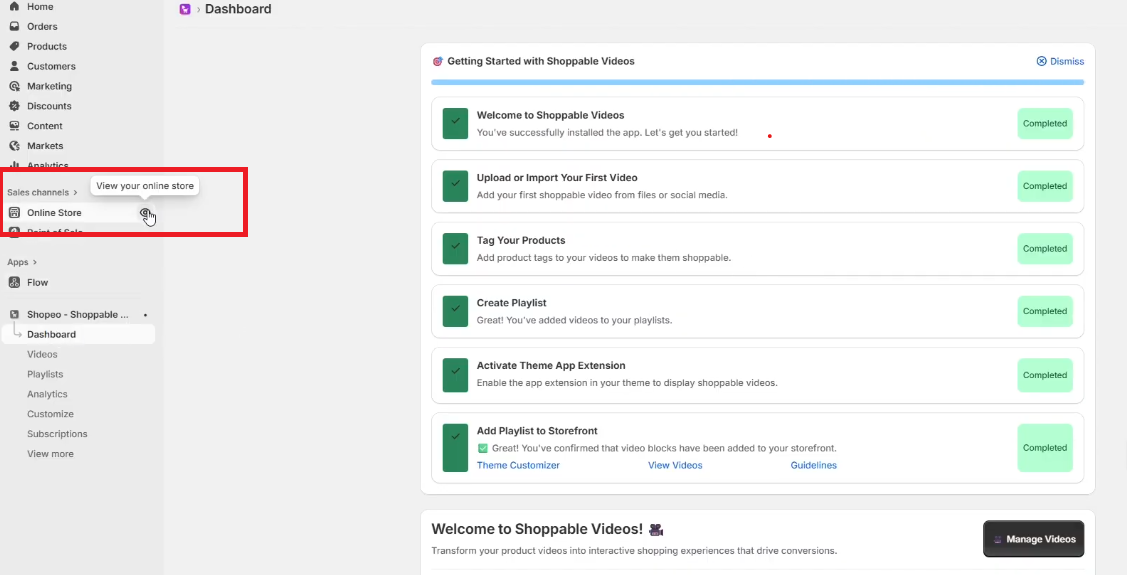
- Click any video to open the player
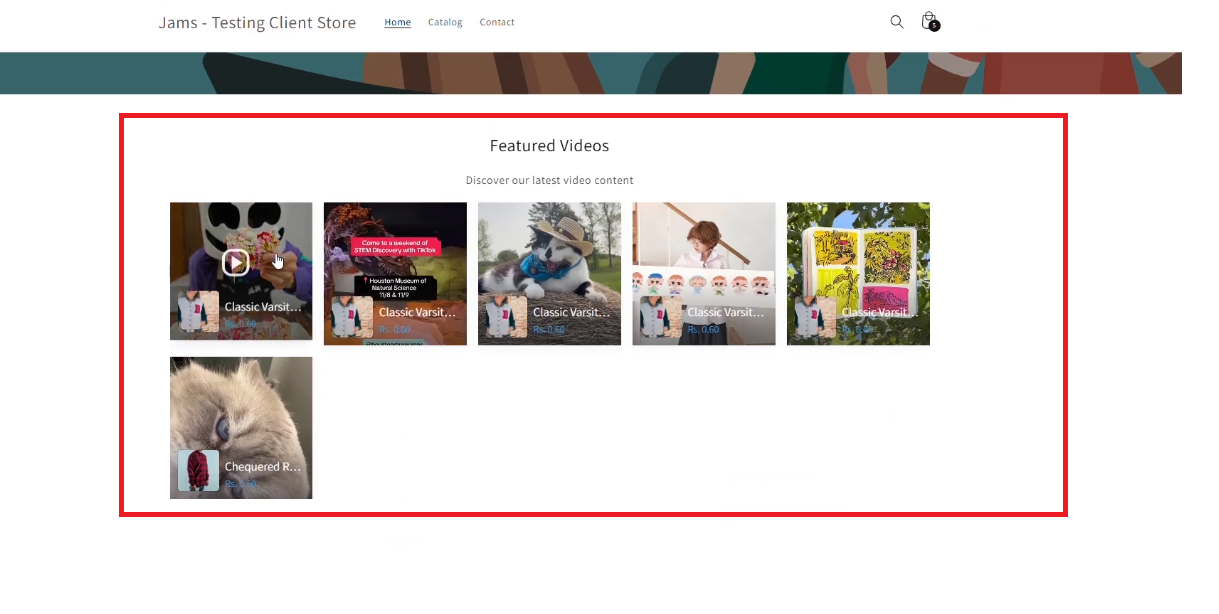
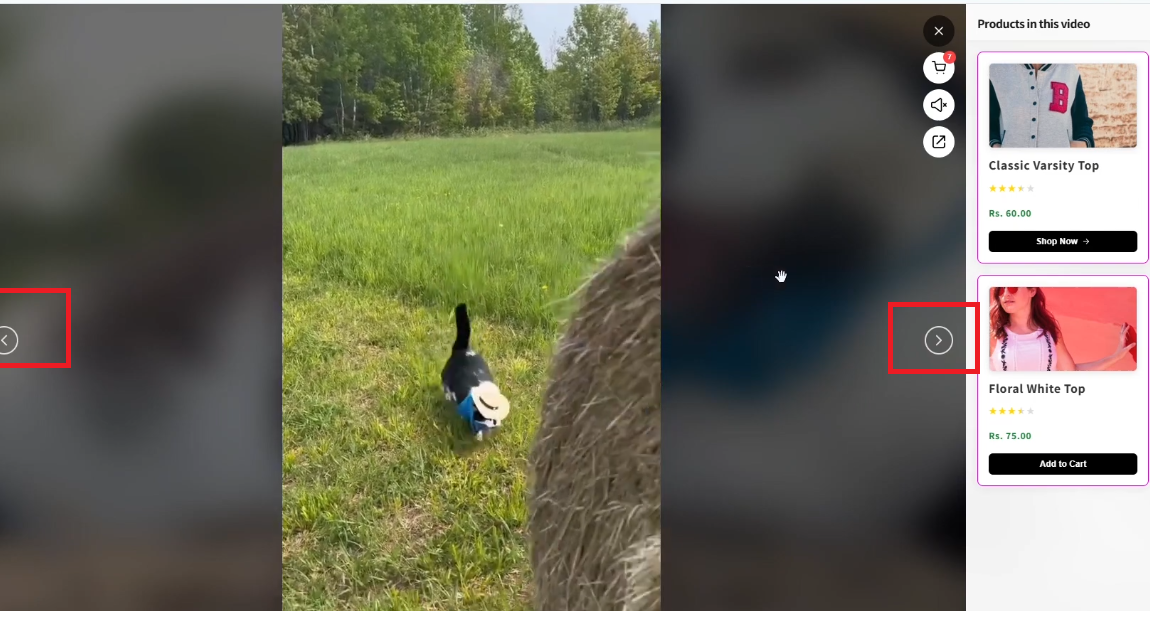
- Swipe or navigate through the rest of the videos in the playlist
This ensures the playlist is functioning correctly on the live storefront.
2. Interact With Tagged Products
Inside the video popup:
- Tap on any tagged product
- View the product details shown in the overlay
- Add the product directly to your cart
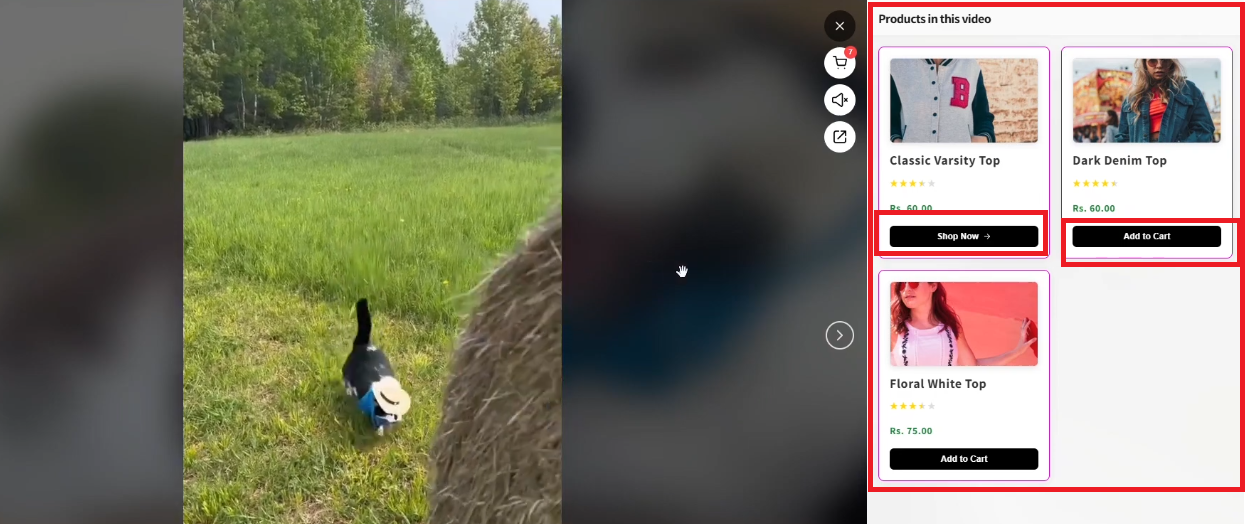
This confirms that product tagging and shoppable interactions are working properly.
3. Mute/Unmute Video Audio
Use the audio toggle to mute or unmute the video.
Make sure the sound control responds correctly and maintains the preferred state when navigating between videos.
4. Verify Videos on the Product Detail Page (PDP)
If you want videos to appear on product pages:
- Open Theme Customizer
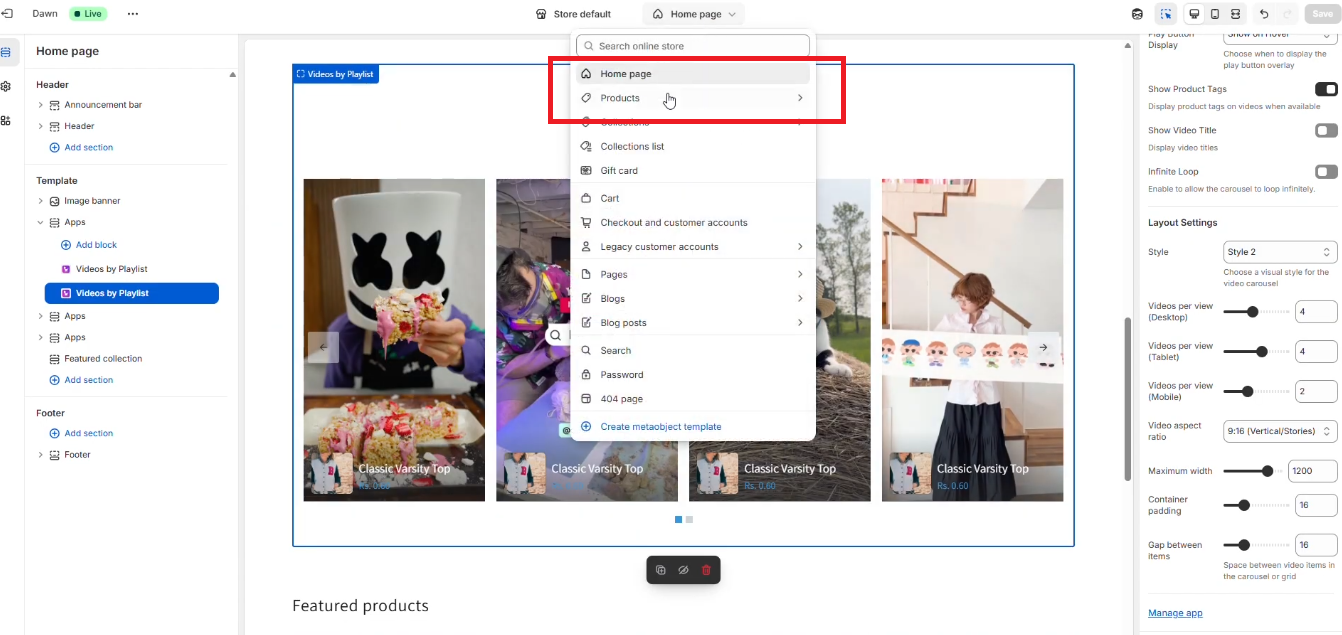
- Select the Product Template
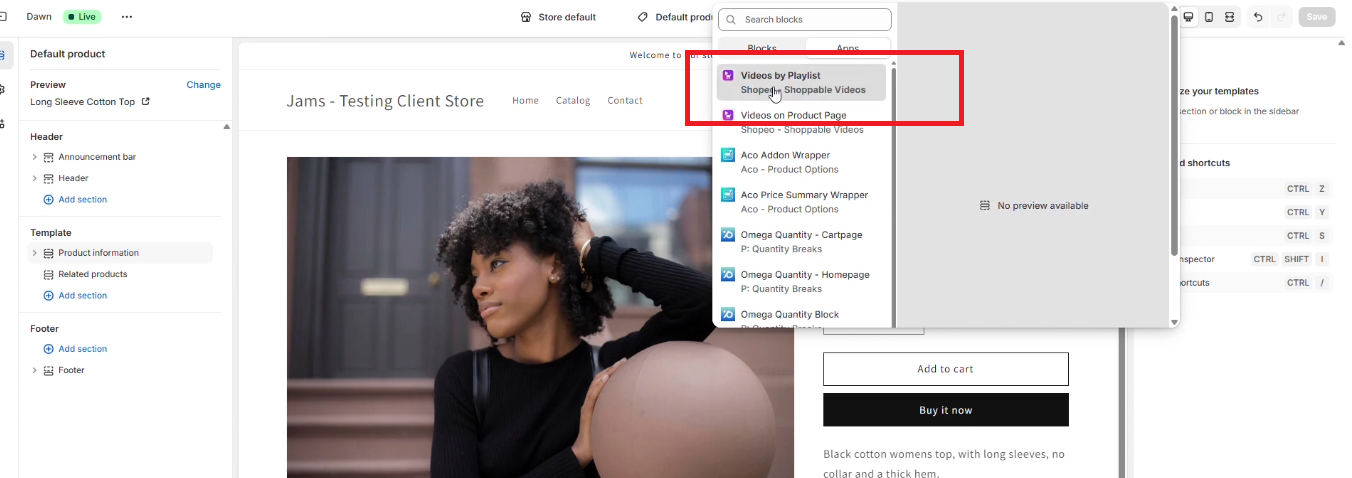
- Add the Videos on Product Page block (Shopeo app block)
- Save the template
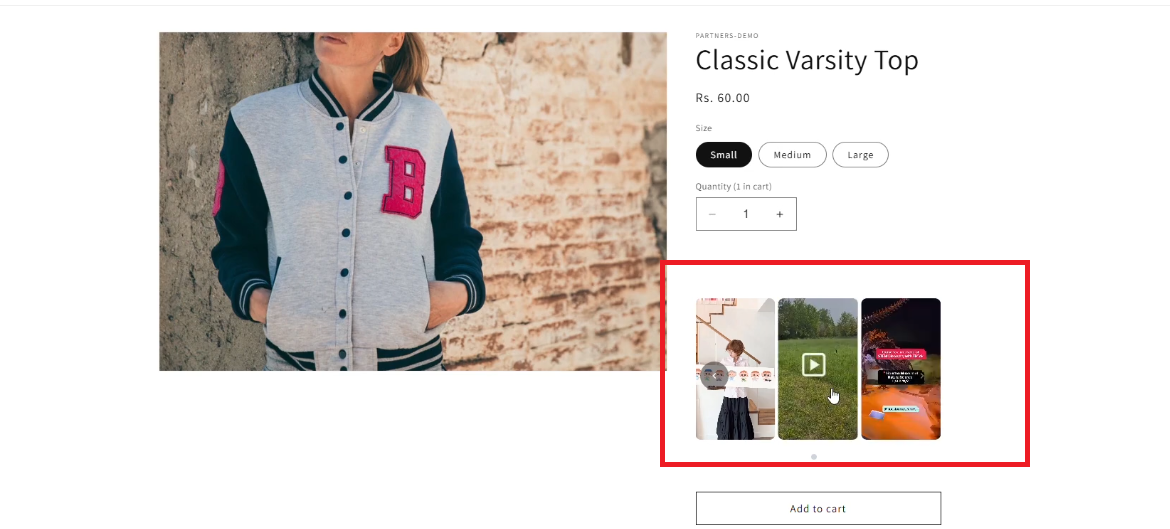
Now, visit the product detail page on your storefront:
- You will see videos tagged to that specific product displayed correctly
- Verify that these videos play smoothly and show relevant tagged products
Was this article helpful?
Thanks for letting us know.
Sorry about that. Ask our support team and we will help you set it up.