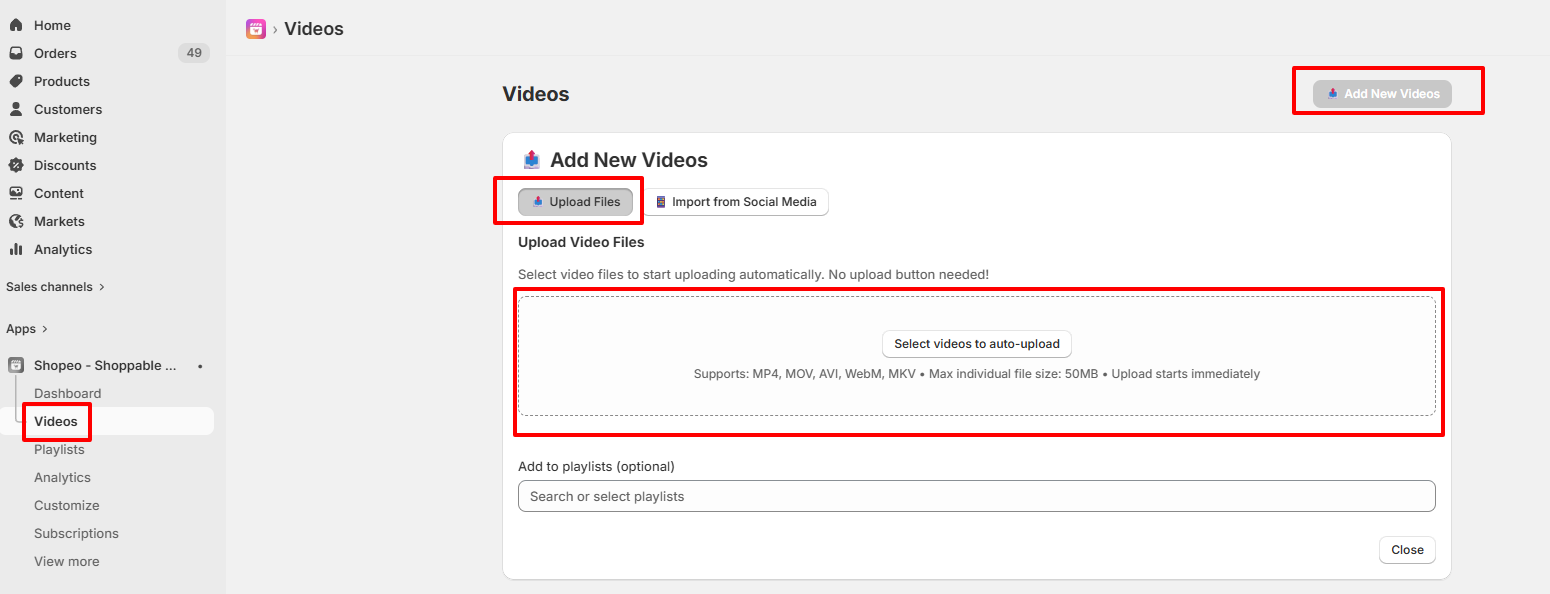
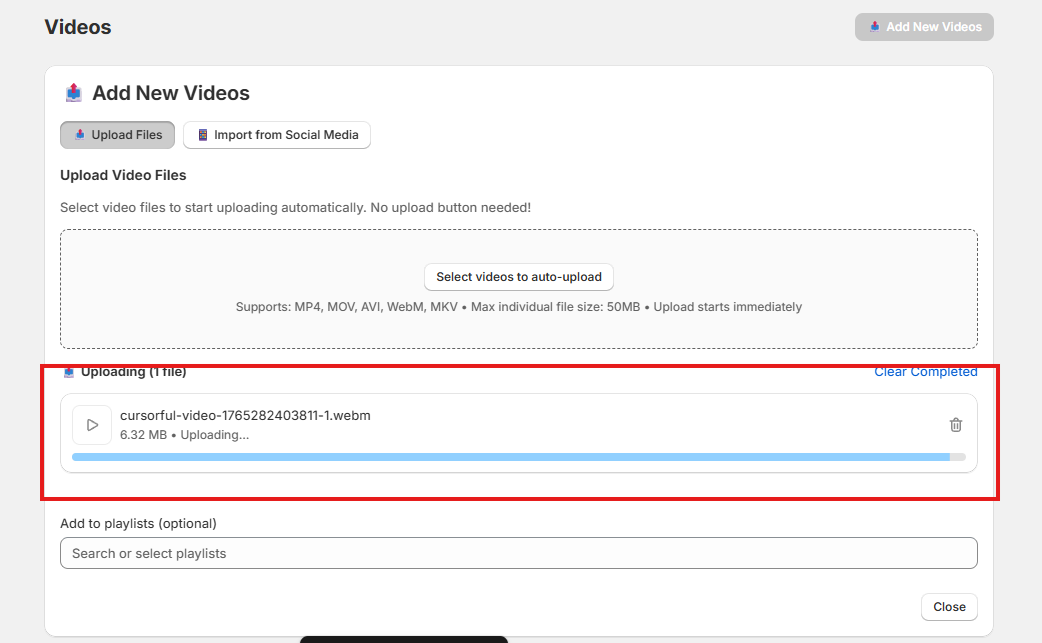
To start adding media, navigate to the Videos tab on your Shopeo dashboard panel and locate the Add New Videos section card.
Use this method if you have raw or edited vertical video files (such as MP4 or MOV formats) saved locally on your computer or workstation.
Playlists help you organize your videos in a structured way and control how they appear on your storefront. Below is the step-by-step workflow for creating and managing playlists.
Navigate to the Playlists section from the dashboard.Here, you will see a default playlist already created for you
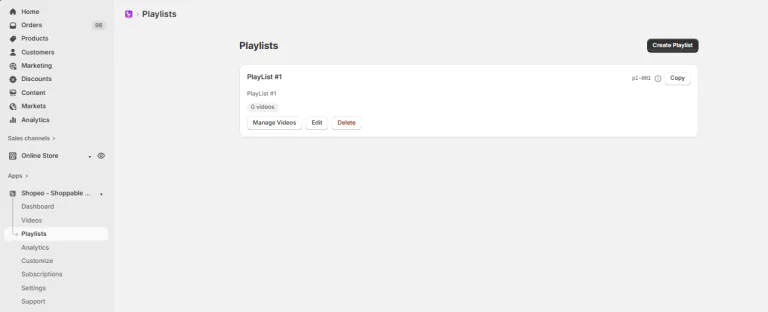
Click Create Playlist on the playlist to open its details.
Since the playlist is empty initially, click the Create Playlist button to start creating a new one. Add the playlist name and description
When you click Add Video, a modal appears displaying all your uploaded or imported videos.
The selected videos will be instantly added to the playlist.
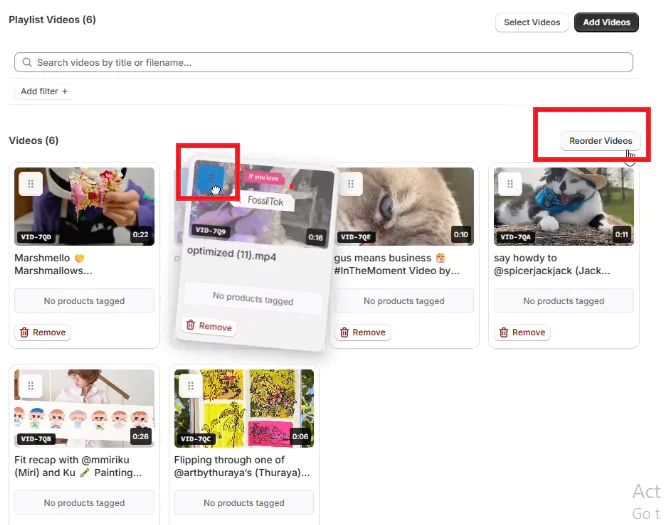
Inside the playlist, you can drag and reorder the videos.
This allows you to control the exact display order on the storefront, ensuring your most important videos appear first.
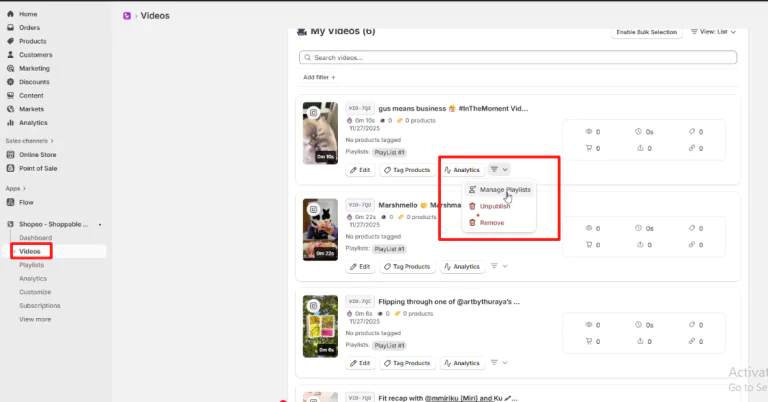
Alternatively, you can assign a video to a playlist directly from the Videos page. Each video has a playlist selection dropdown.
Simply choose the desired playlist, and the video will be added automatically.
If you have questions about our plugin(s), are experiencing issues with any of our plugin






















 Login
Login
 Cart
Cart