Shopeo offers multiple ways to build your interactive media library. You can upload custom video assets directly from your computer or import existing high-engagement content from social channels.
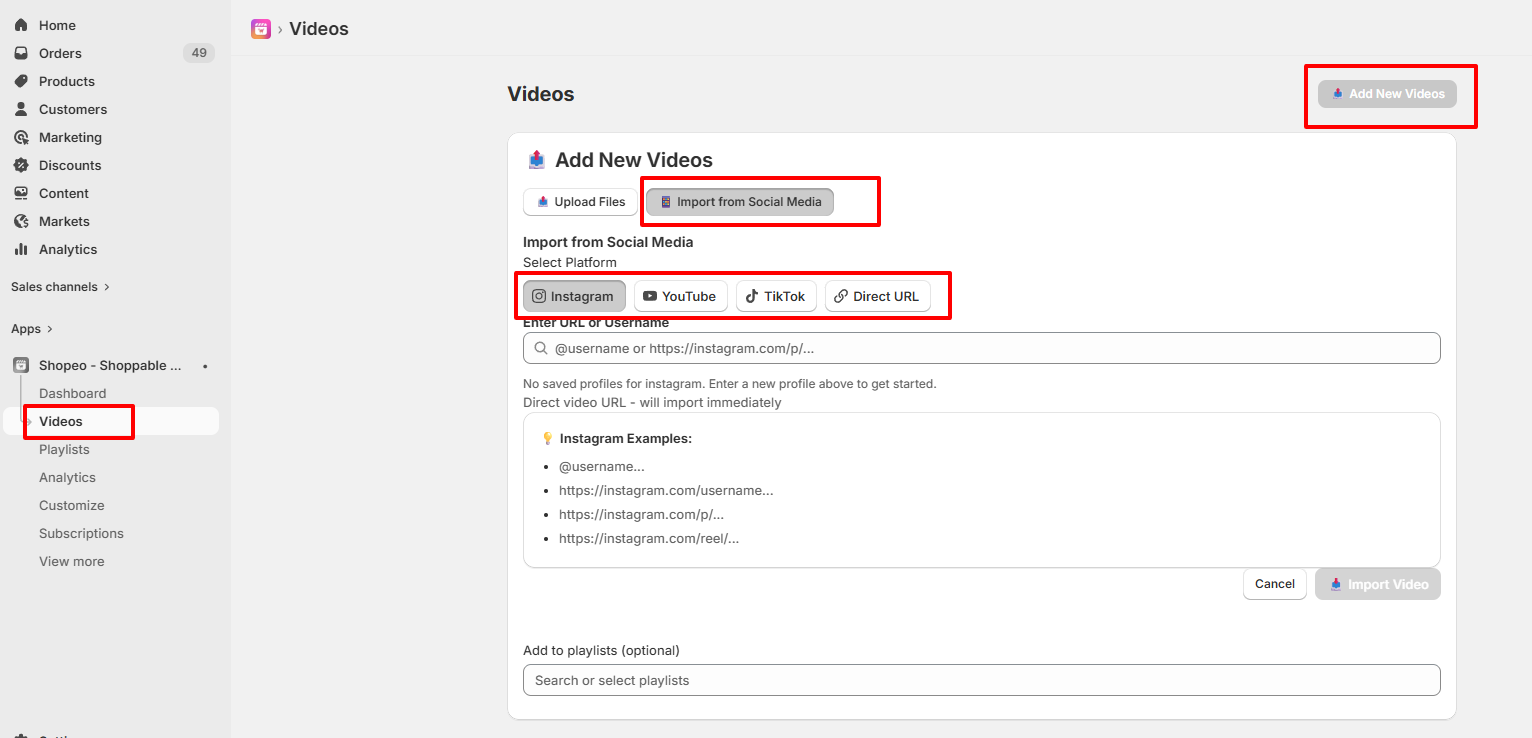
To start adding media, navigate to the Videos tab on your Shopeo dashboard panel and locate the Add New Videos section card.
Importing from Social Media Platforms & Direct URLs
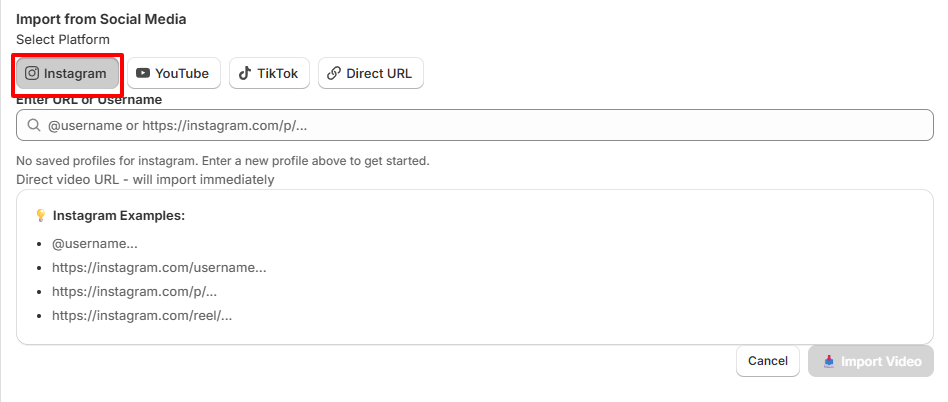
To leverage pre-existing marketing content or user-generated clips, click the Import from Social Media tab element. Under the Select Platform.
1. Importing from Instagram
You can parse Instagram content using two distinct methods:
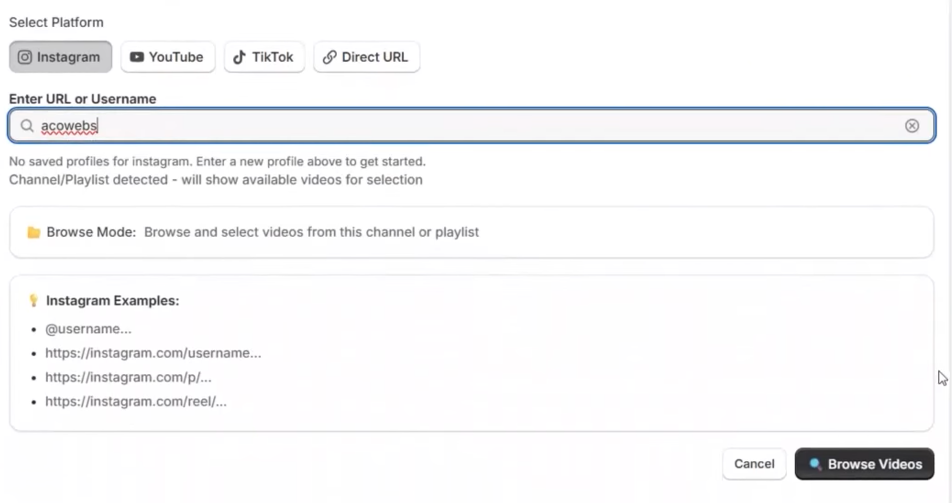
Import via Instagram Channel Username:
Enter the target Instagram public profile handle name into the input box and click Browse Videos.
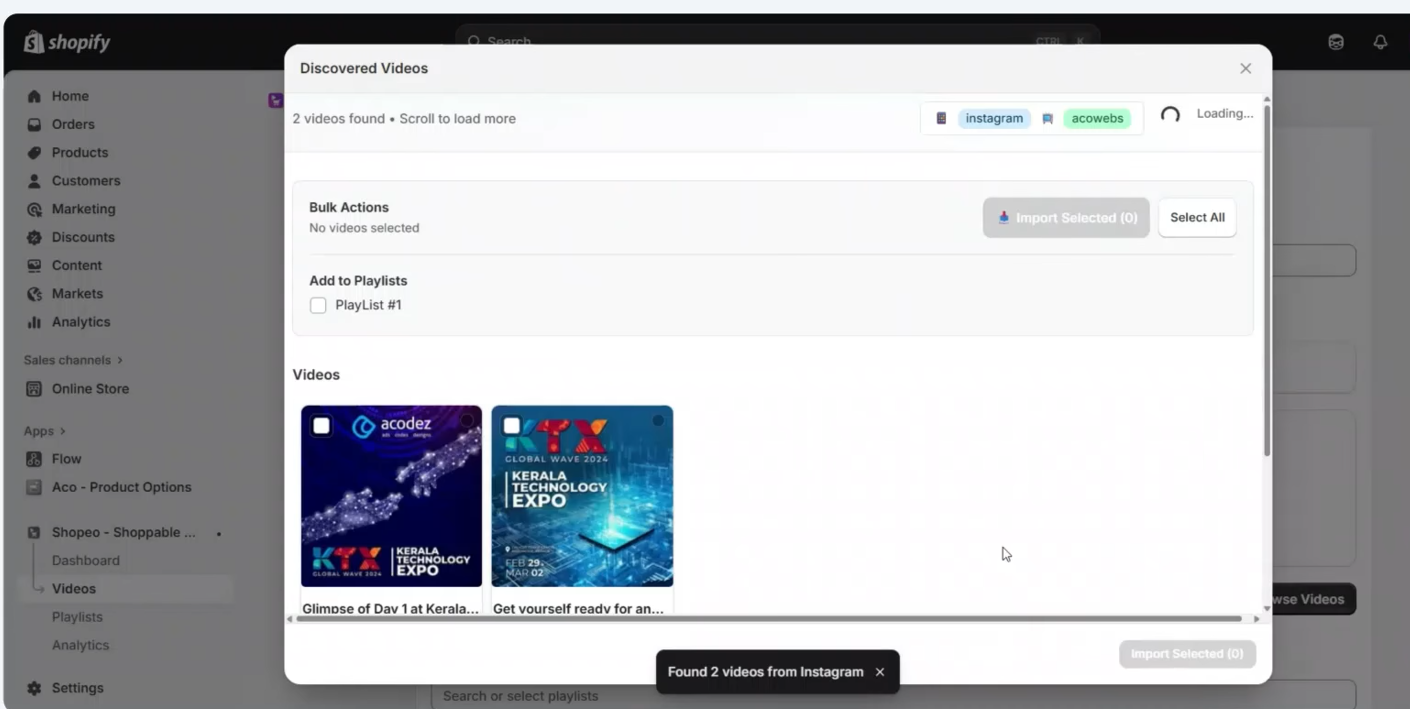
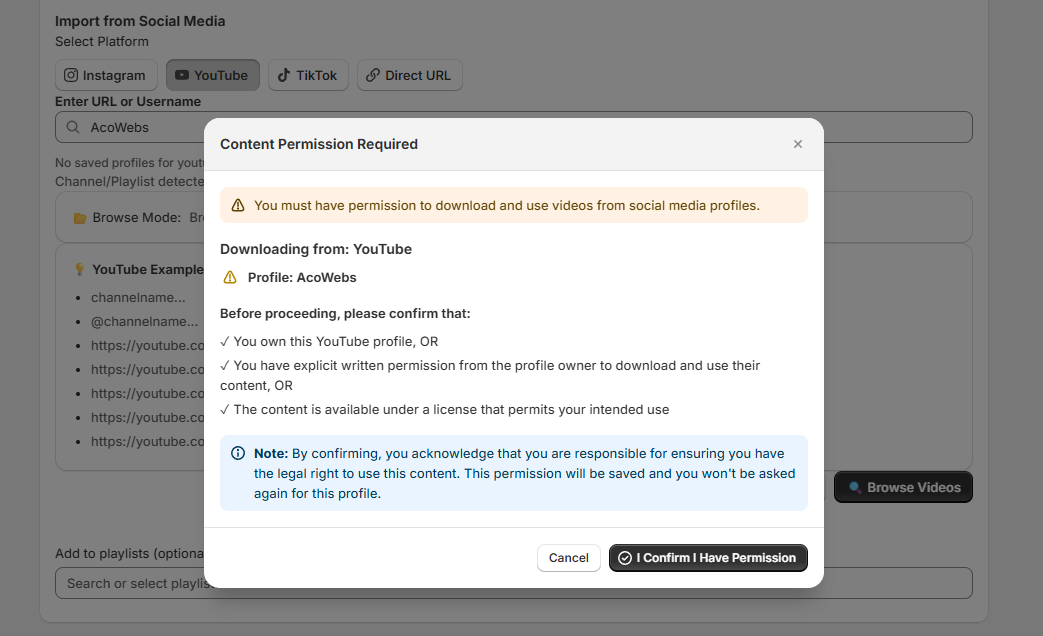
A legal consent pop-up window will prompt you—click Proceed. The app fetches public feed videos into a Discovered Videos modal layer
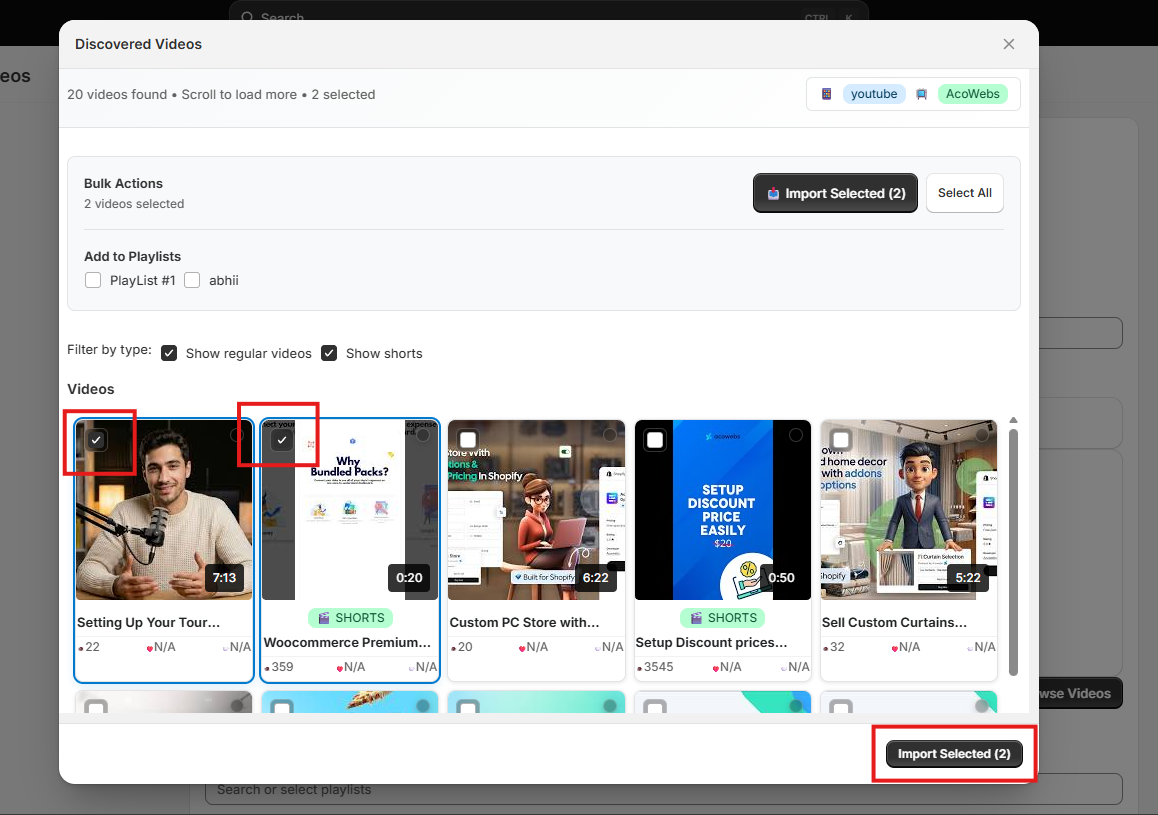
Simply checkmark your desired items and click Import Selected to queue them into your main library.
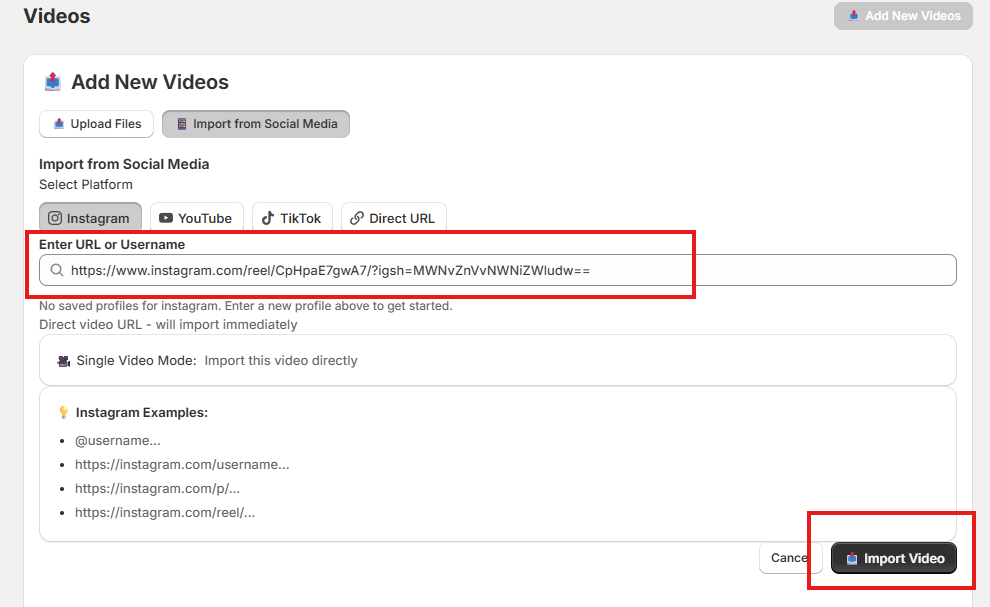
Import via Direct Reel Link:
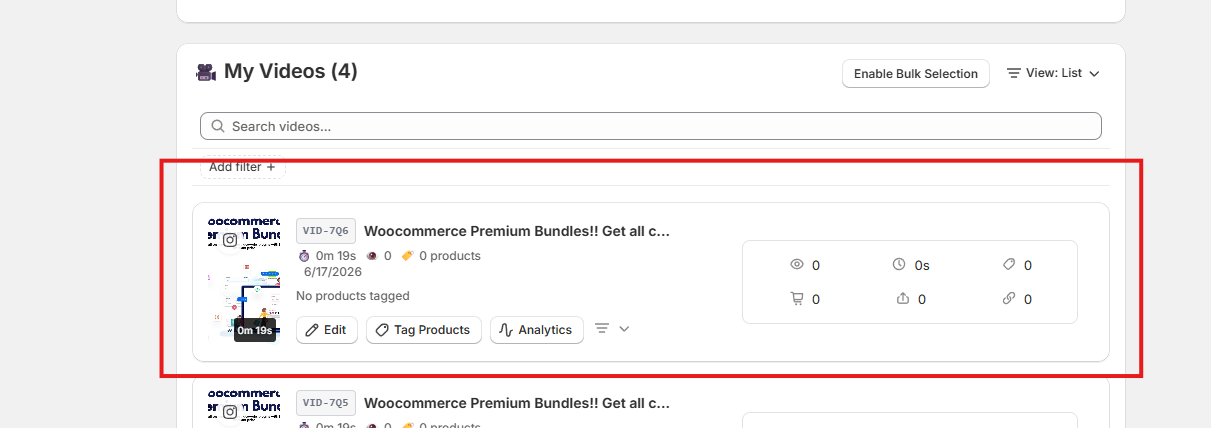
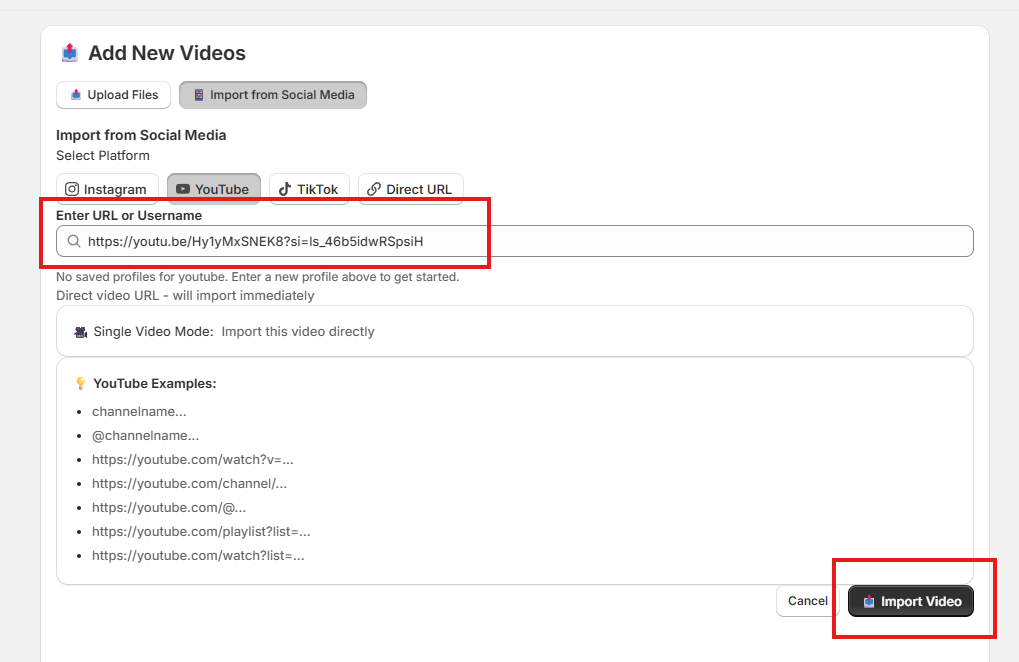
Paste a direct, single Instagram Reel web link into the text box and click Import Video.
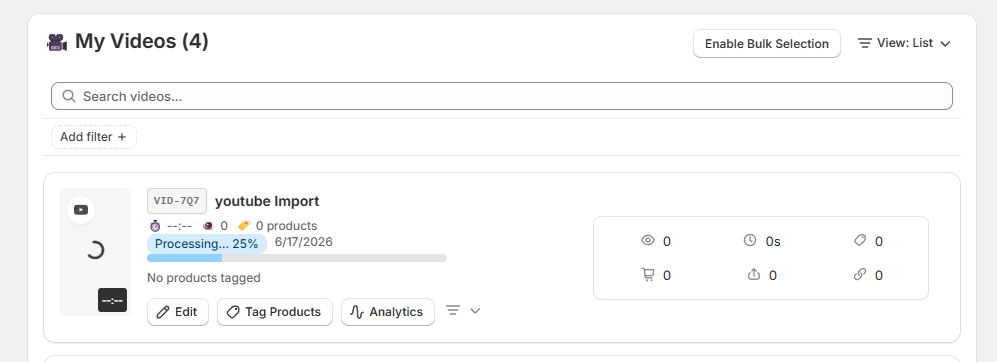
The system bypasses the catalog selection stage and immediately begins processing that individual asset.
2. Importing from YouTube
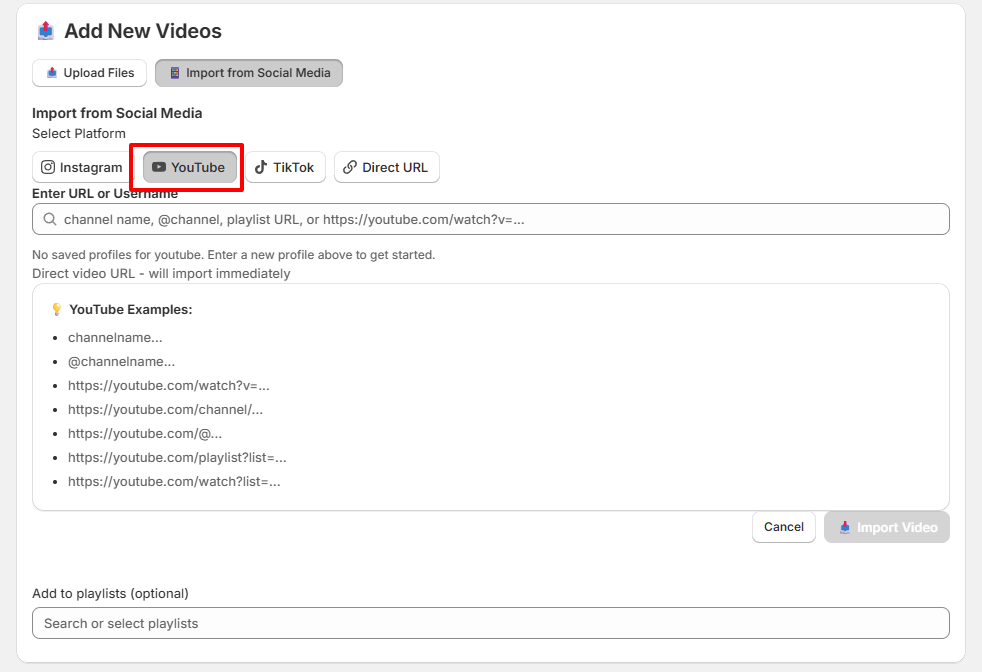
Shopeo fully reads standard long-form YouTube URLs, localized Shorts channels, and curated playlists:
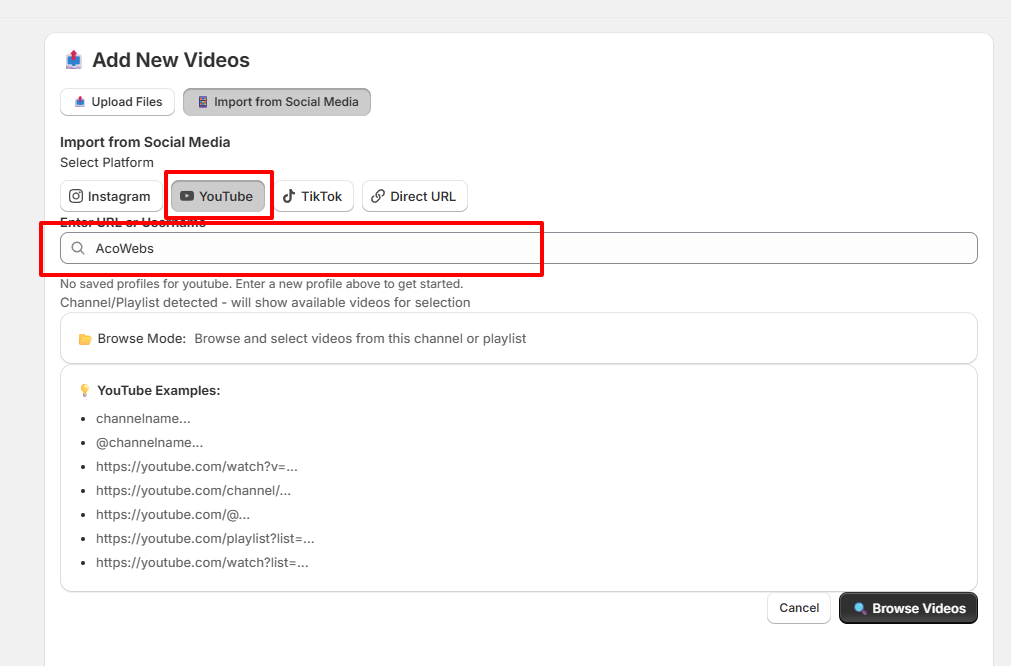
Import via YouTube Channel or Handle:
Enter a channel handle format (e.g., channelname or @channelname) or paste a direct channel string link ([https://youtube.com/channel/](https://youtube.com/channel/)… or [https://youtube.com/](https://youtube.com/)@…).
Hit Import Video, approve the access prompt
Select your preferred video clips from the discovered media modal grid, and click on import video
Import via Direct Video
Paste an individual video link ([https://youtube.com/watch?v=](https://youtube.com/watch?v=)…) or a public playlist share link ([https://youtube.com/playlist?list=](https://youtube.com/playlist?list=)…) to immediately pull targeted assets into your dashboard rendering engine without downloading files.
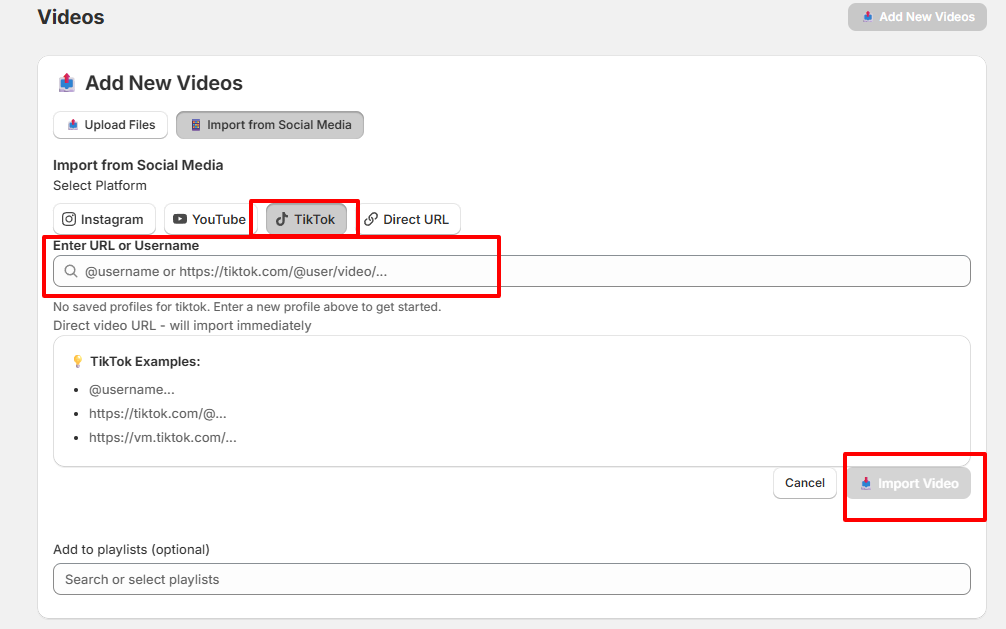
3. Importing from TikTok
Repurpose trending TikTok clips to boost on-site store conversions:
Import via TikTok Profile Username: Enter a public TikTok creator profile username into the input card field. Click Import Video and review the discovered video streams. Select the specific clips you want to feature on your storefront layout and push them to the system import queue.
Import via Direct TikTok Video Link: Copy a single specific TikTok video link directly out of your phone or desktop browser. Paste it into the input field and select Import Video to begin automatic server-side processing.
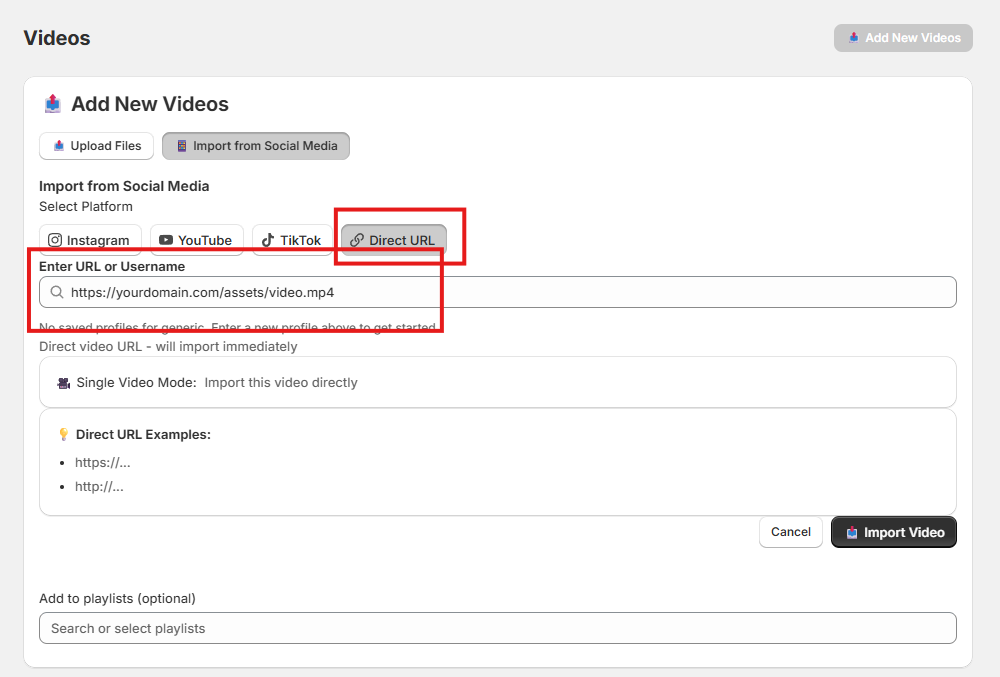
4. Importing from Video URL
If you host your optimized web assets externally on alternative cloud storage servers
Select the Direct URL button from the platform matrix line.
Paste the absolute, direct web link ending in a raw video extension (e.g., [https://yourdomain.com/assets/video.mp4](https://yourdomain.com/assets/video.mp4)).
Click the Import Video button.
The system will map the raw link source and instantly register the card within your library profile for tagging layout setups.























 Login
Login
 Cart
Cart