To make your shoppable video playlists live and visible to customers on your storefront, you must enable the theme app extension and map the dedicated app block inside the Shopify Theme Customizer. This straightforward, code-free setup allows you to render interactive video layouts on Homepages, Product Pages, Collection Pages, and Landing Pages.
Activate the Theme App Extension
Before adding any video elements to your layouts, you must ensure Shopeo’s background framework is activated in your active theme core.
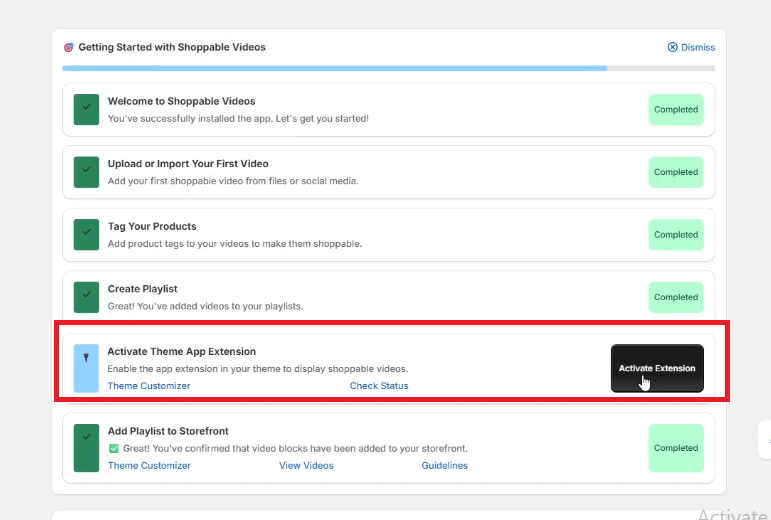
Navigate to the onboarding checklist or general setup card on your Shopeo app dashboard panel.
Locate the Activate Theme App Extension module and click the black Activate Extension button, as illustrated in the below image
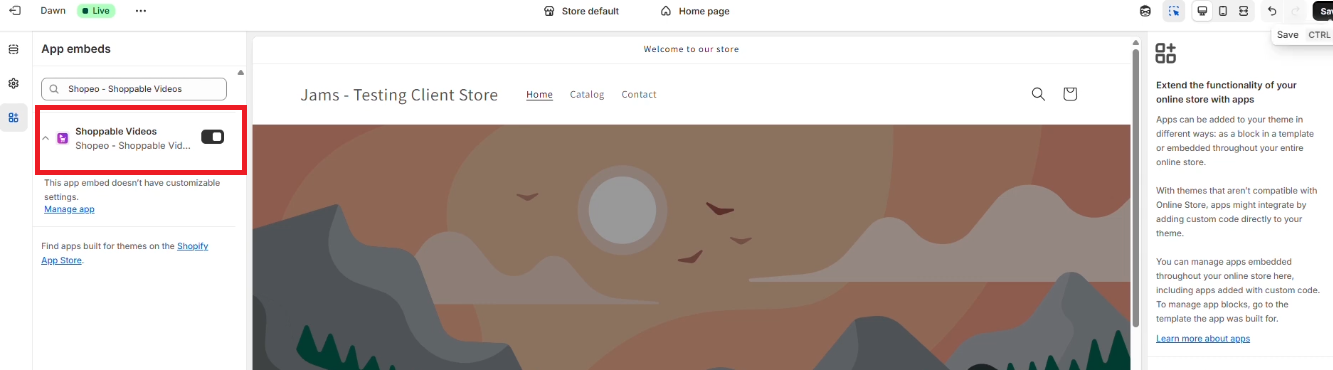
This action automatically opens your live Shopify Theme Customizer workspace in a new browser tab.
On the left-hand sidebar menu, look under the App embeds layer tab to find the Shoppable Videos extension toggle.
Toggle the switch to ON and click the Save button in the top right-hand corner of the screen to permanently register the engine.
Add the Shopeo App Block to Your Layout Sections
Once the global embed is configured, you can inject video containers directly into your page sections.
Inside your Shopify Theme Customizer tab, look at the page drop-down field at the top of the interface and select your target page type (e.g., Home page).
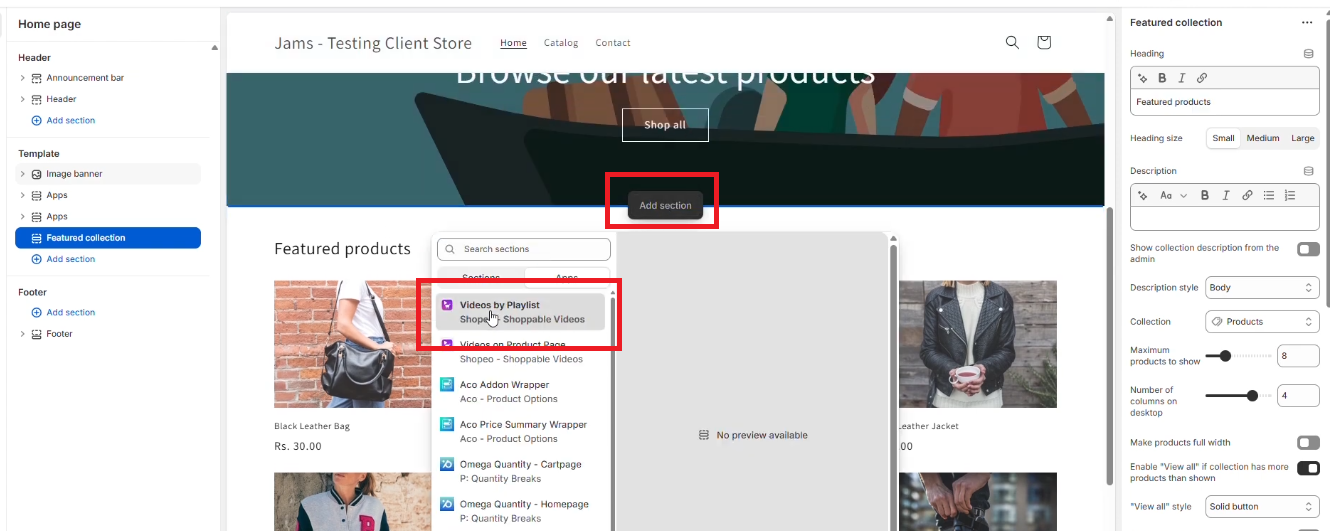
Go to the left section control panel and click Add Section (or click the floating canvas inline button Add section).
Scroll or navigate to the Apps classification category in the resulting elements pop-up block menu card.
Click on Videos by Playlist (Shopeo App Block) to drop a fresh placeholder widget instance into your store layout tree.
Link Your Content Using Playlist IDs
To populate the blank app block canvas, you need to map a specific collection of videos using its identification code.
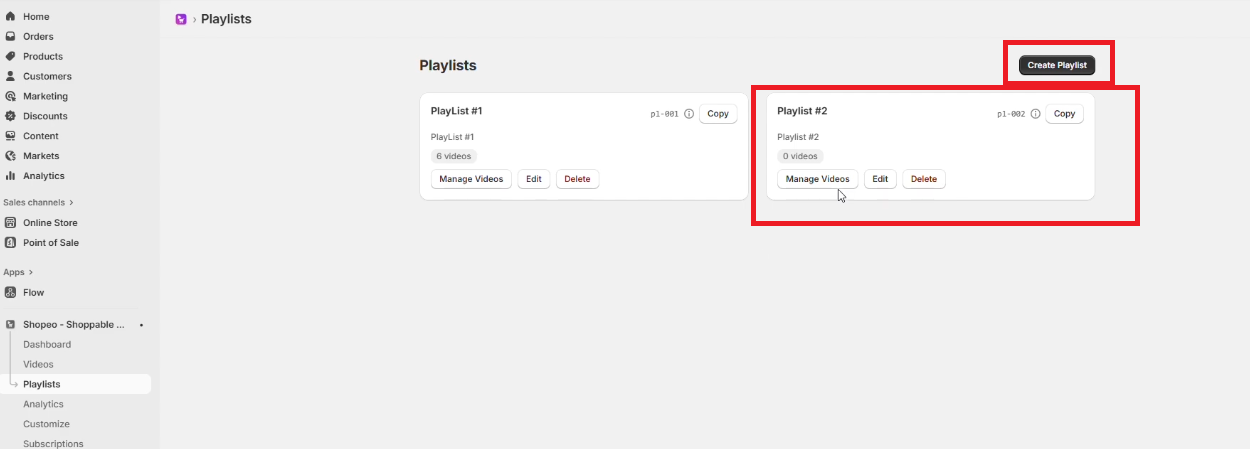
Go to the Playlists menu page in your main Shopeo app dashboard panel.
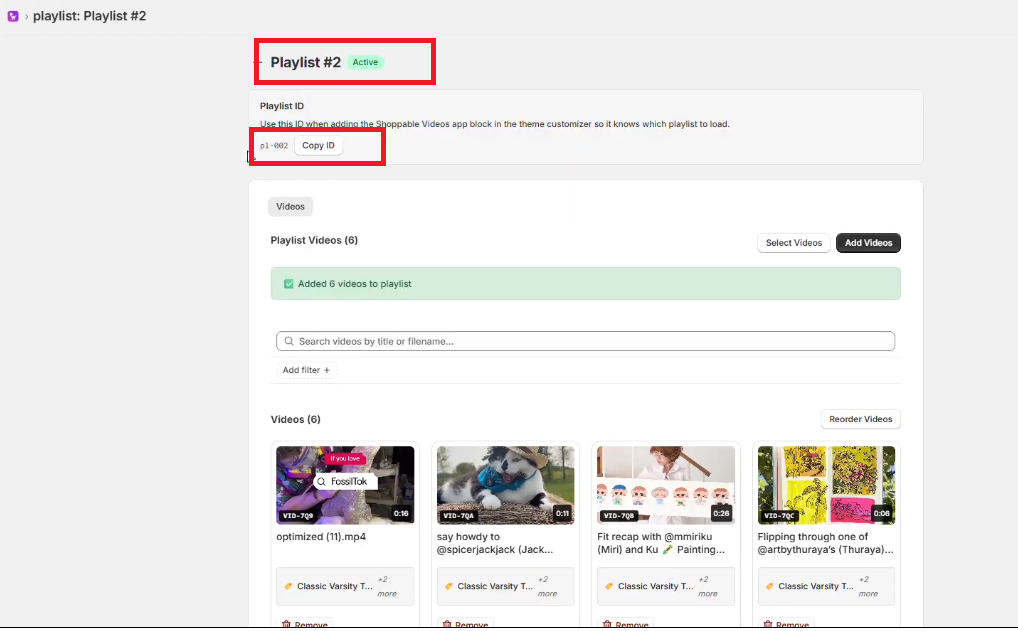
Find your target content library (e.g., Playlist #1 or Playlist #2) and click the Copy button next to its alphanumeric identification string (e.g., pl-001)
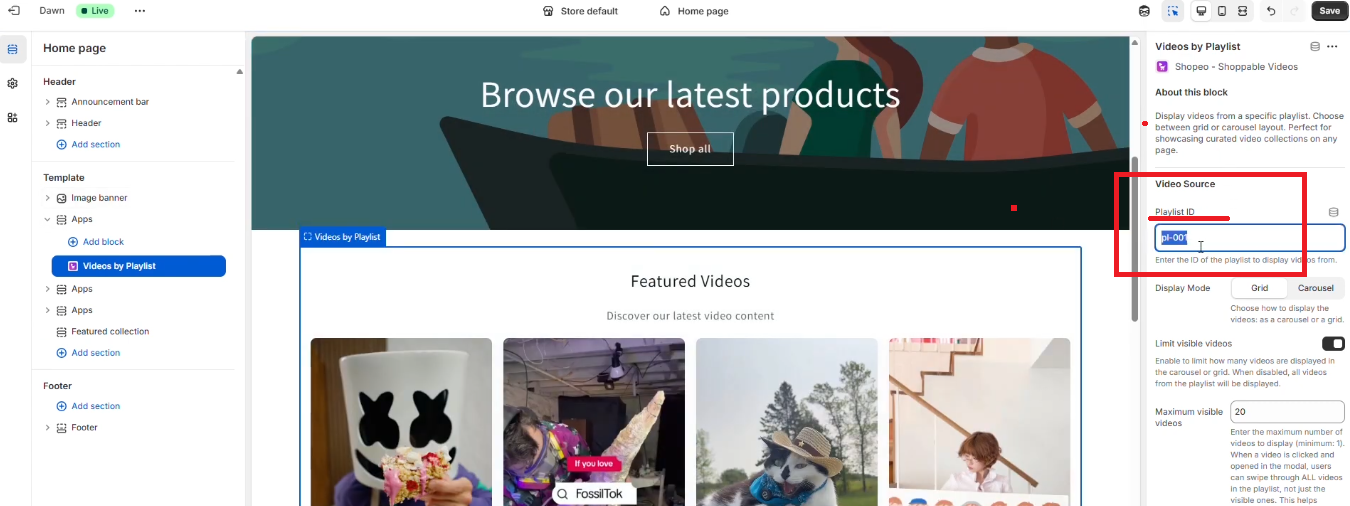
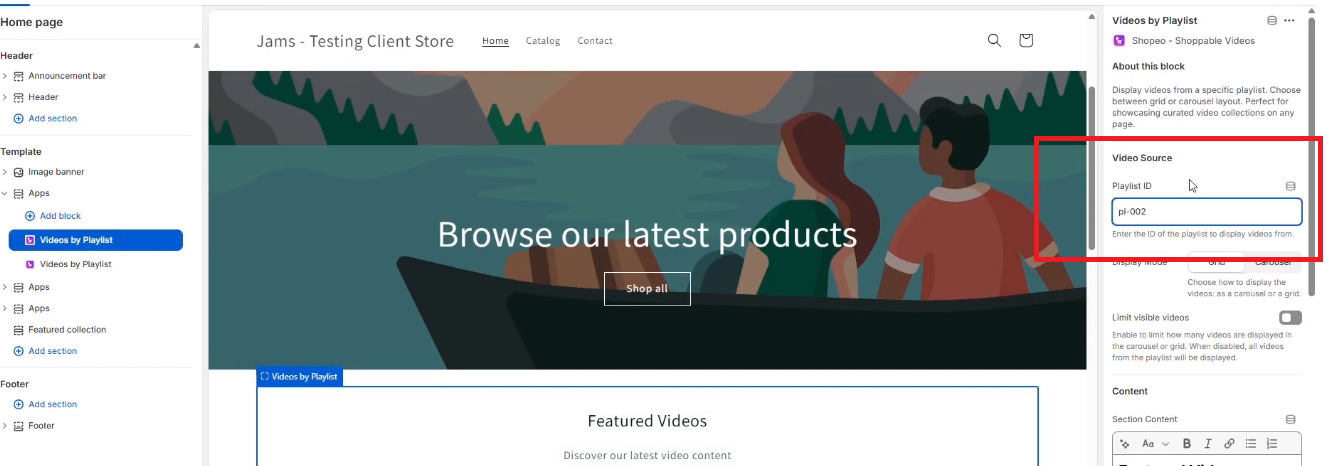
Return to your open Shopify Theme Customizer workspace and click on the newly added Videos by Playlist block layer to review its unique settings configuration drawer on the right.
Locate the Video Source group box fields
Paste your copied key string into the Playlist ID input textbox field. Your mapped videos will instantly render inside the main visual canvas preview. You can update this identifier text field at any time to instantly rotate product groupings or seasonal media campaigns.
You can easily replace the identifier (e.g., swapping pl-001 with pl-002) to project alternate grids seamlessly.
Adapt Layouts Across Custom Page Templates
You can replicate this implementation pattern across all key customer interaction funnels:
Product Templates :
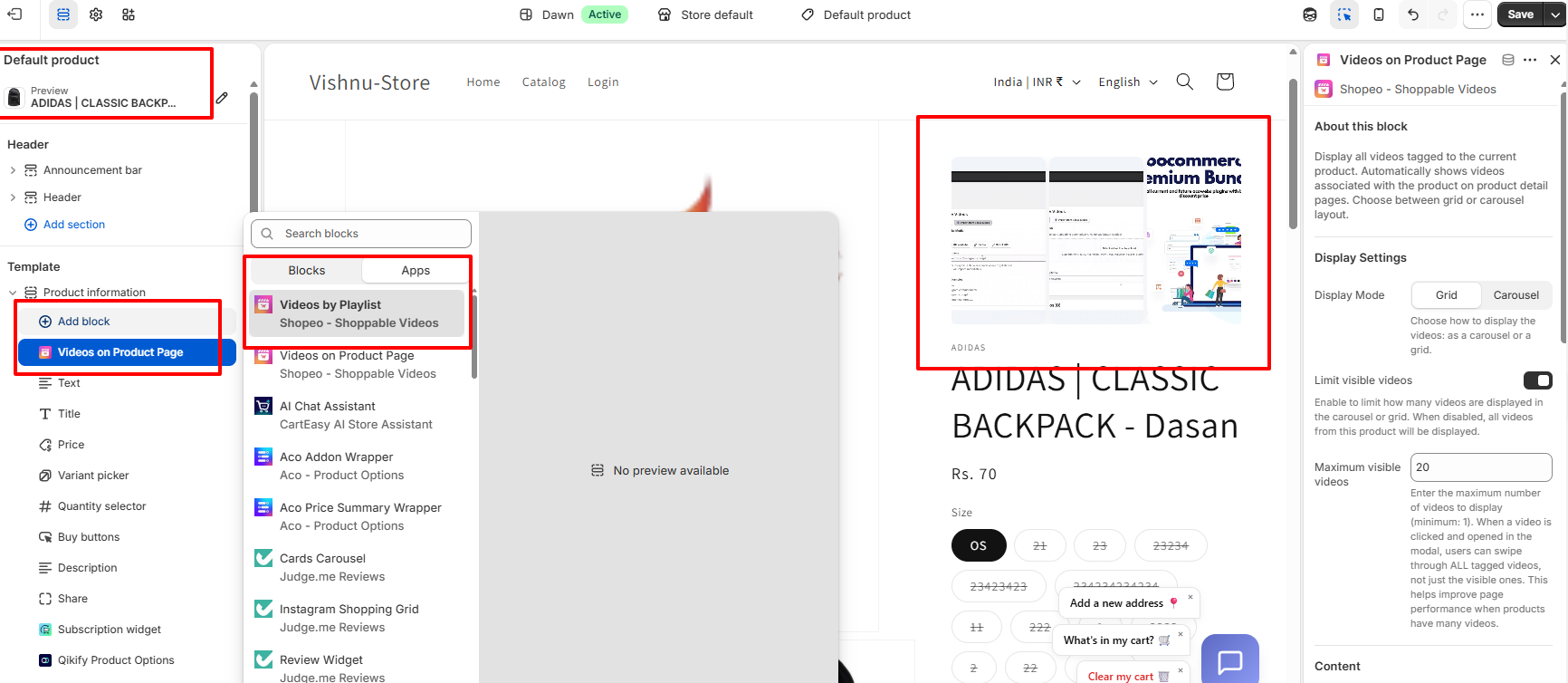
Product Templates: Navigate to the top template select dropdown in the theme editor and pick Products ➔ Default product ( Under the Product information template section in the left sidebar.
Click Add block to open the element choices pop-up menu. Switch the pop-up tab to Apps (or view the app suggestions under Blocks) and select Videos on Product Page or Videos by Playlist from the Shopeo options
Drag the new block into your description sidebar layout—positioning it right above your product title or close to your buy buttons.
Collection Pages:
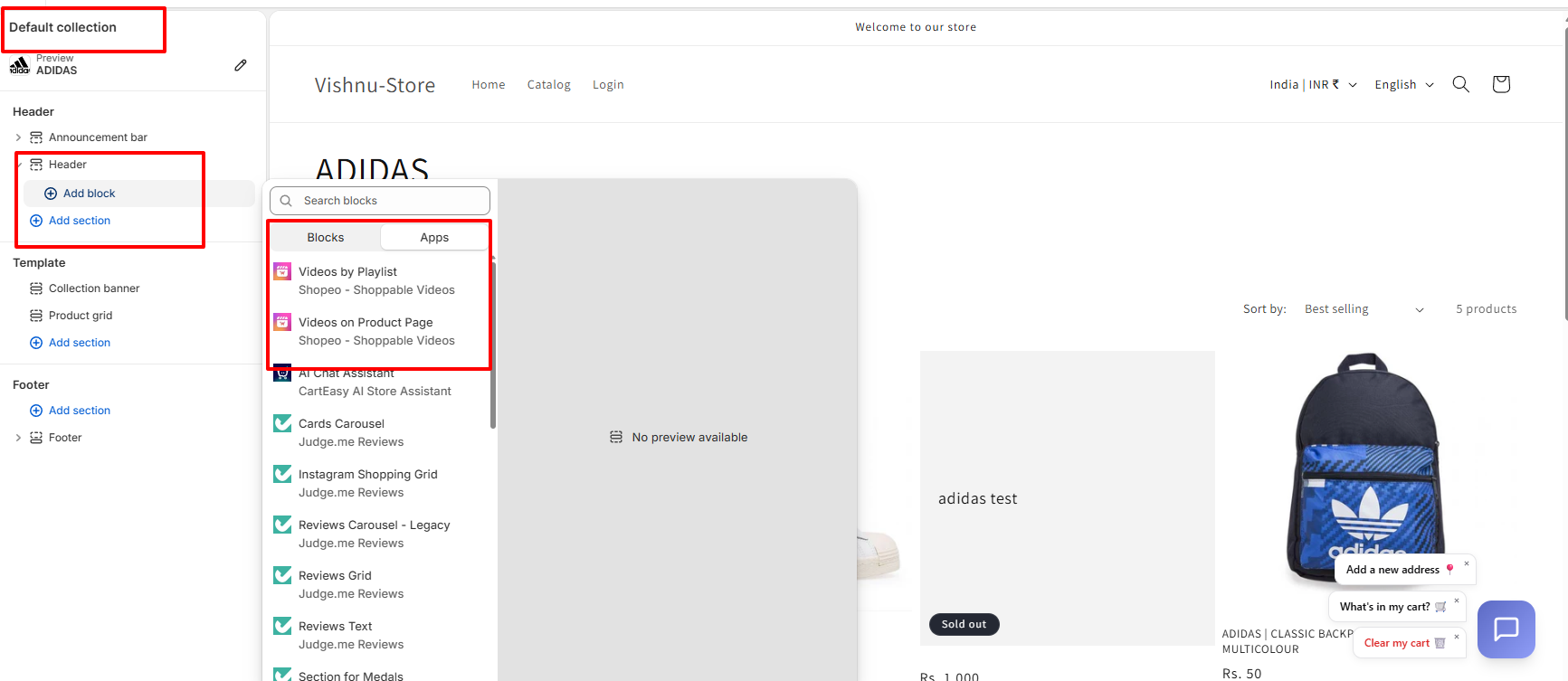
Switch your page layout dropdown at the top left of the editor to Default collection
In the left-hand sidebar layout menu under the Template zone, click Add section or Add block to bring up the app selections menu panel.
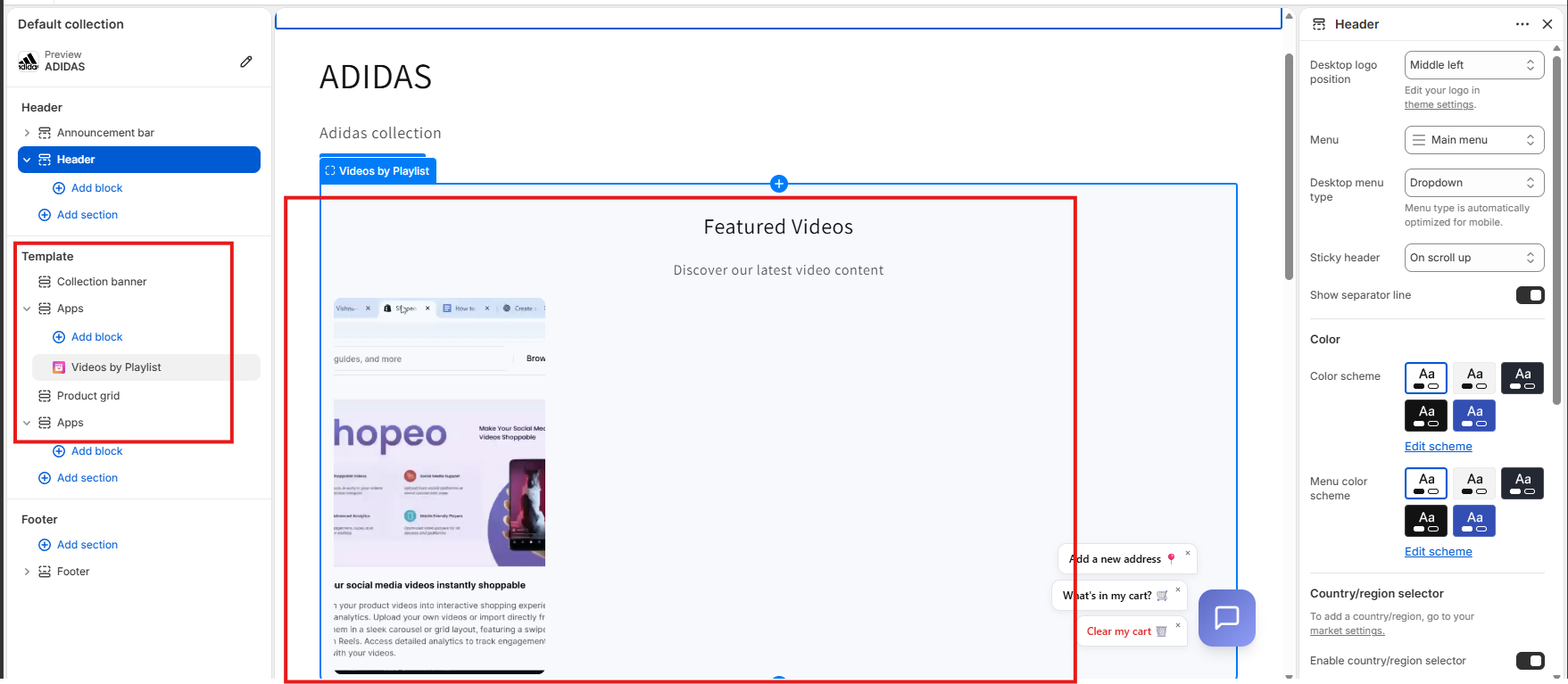
Select Videos by Playlist from the Shopeo app offerings to drop the element onto your canvas.
You can drag the interactive layout container directly between your Collection banner and Product grid.























 Login
Login
 Cart
Cart