
- Woocommerce
- Shopify Apps
- WordPress
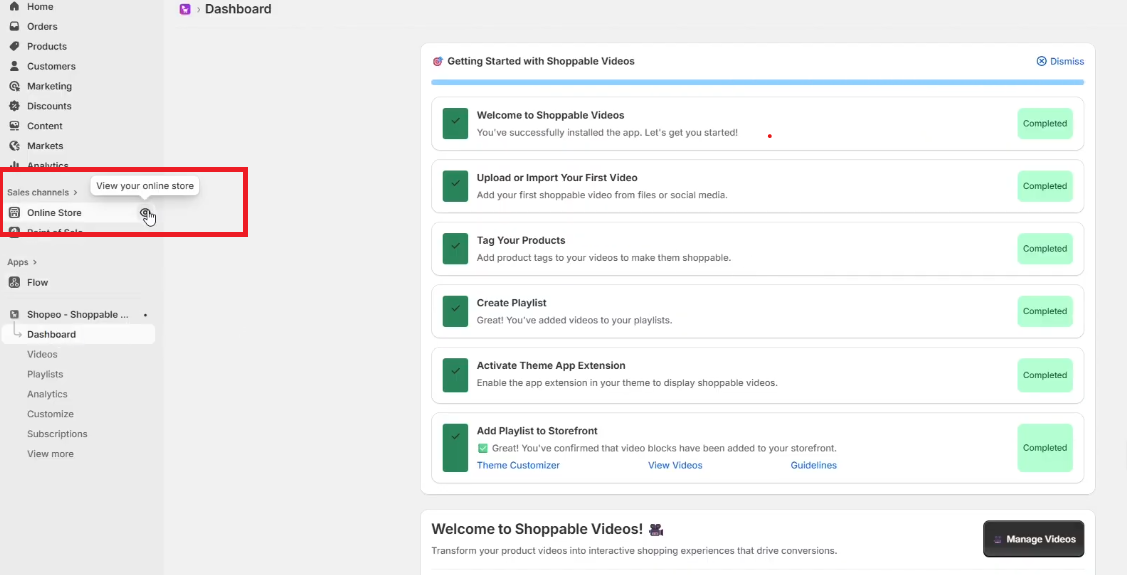
Once your playlists, tagging, and theme setup are complete, it’s important to verify how everything appears and functions on your storefront. Follow the steps below to ensure the videos and shopping experience work smoothly.
1. Open Videos on the Storefront
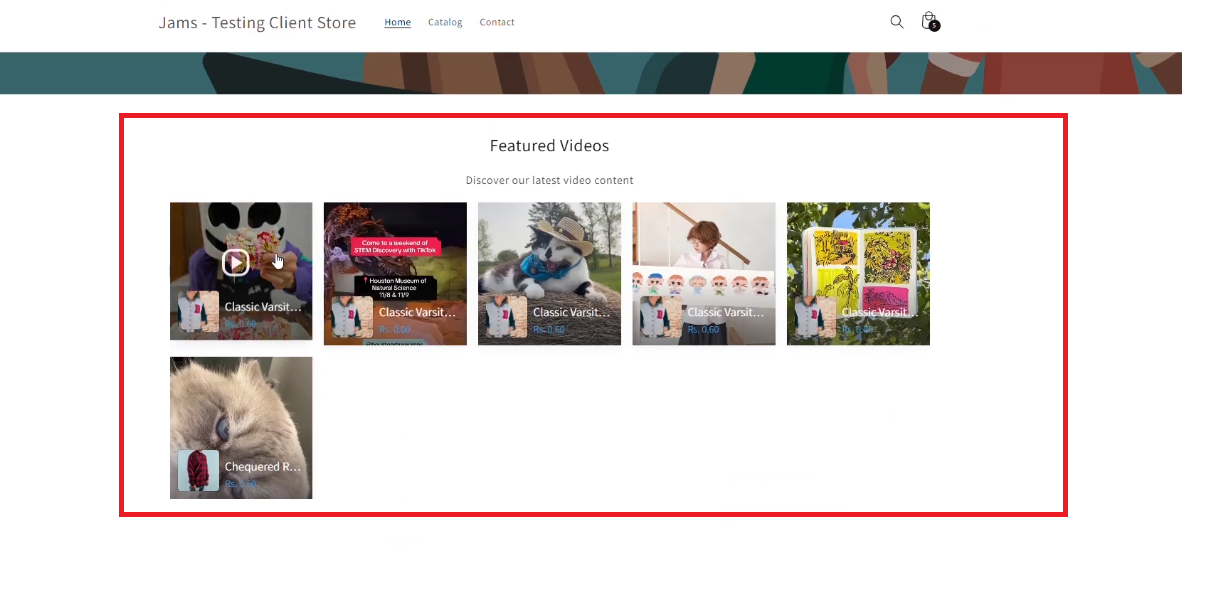
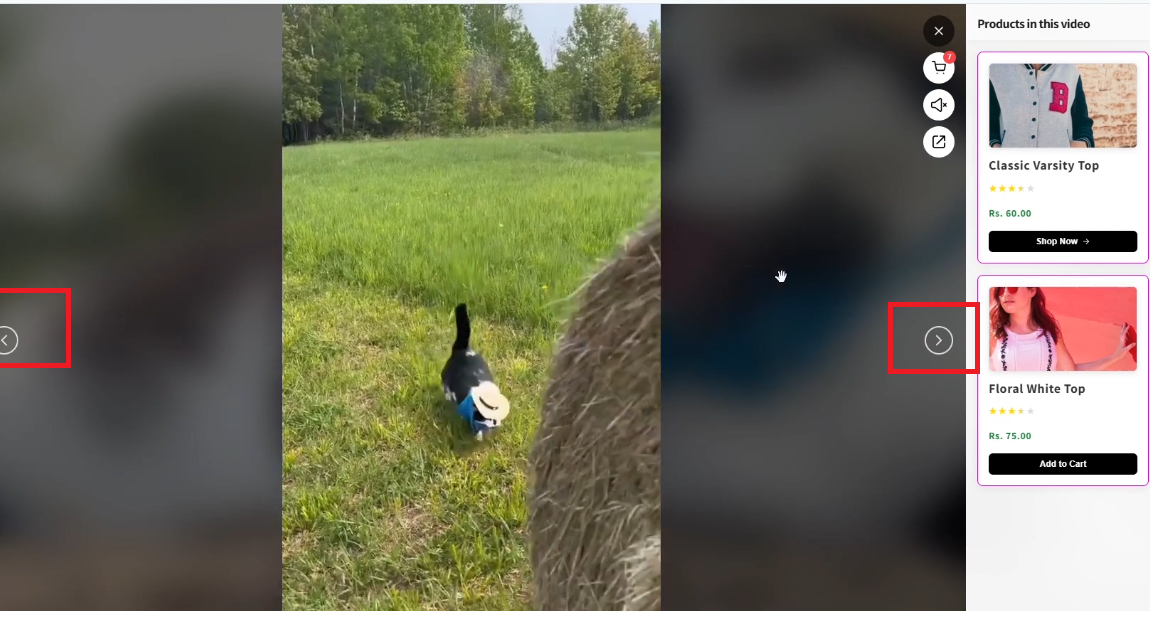
2. Interact With Tagged Products
Inside the video popup:
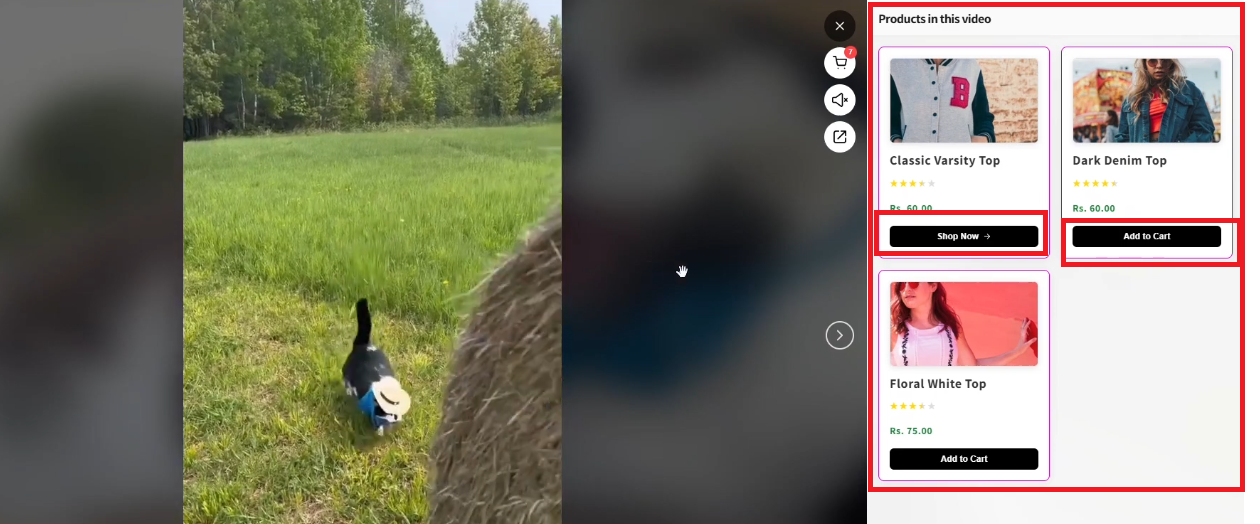
This confirms that product tagging and shoppable interactions are working properly.
3. Mute/Unmute Video Audio
Use the audio toggle to mute or unmute the video.
Make sure the sound control responds correctly and maintains the preferred state when navigating between videos.
4. Verify Videos on the Product Detail Page (PDP)
If you want videos to appear on product pages:
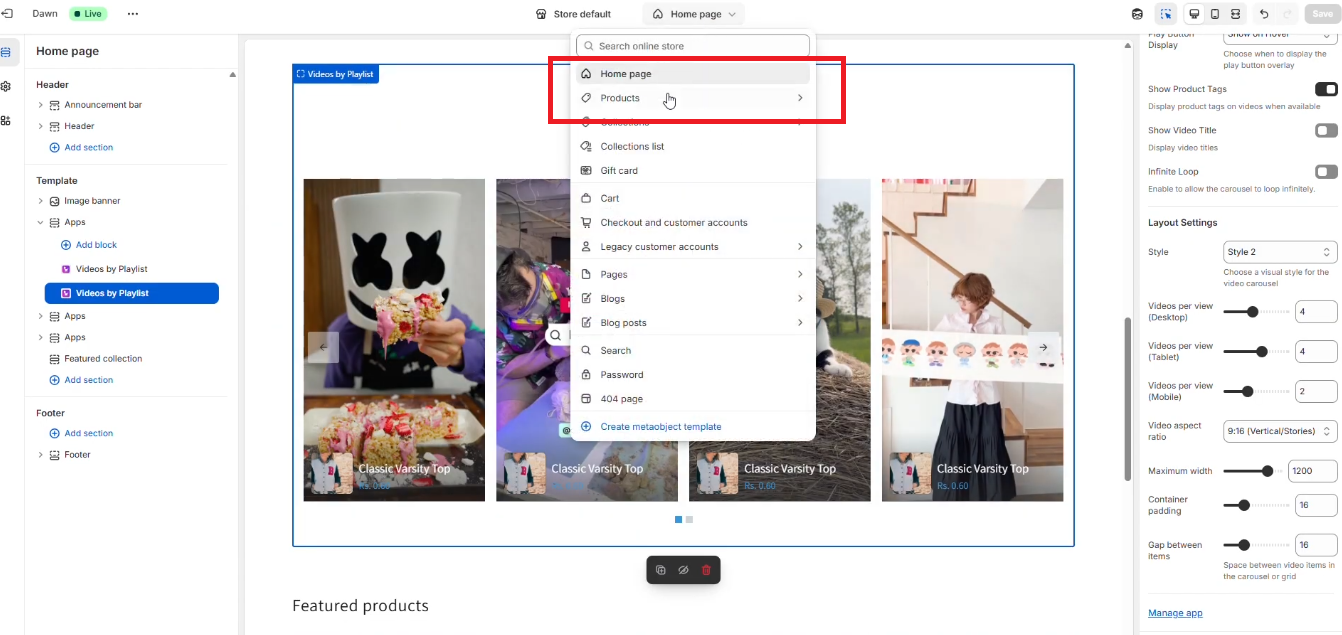
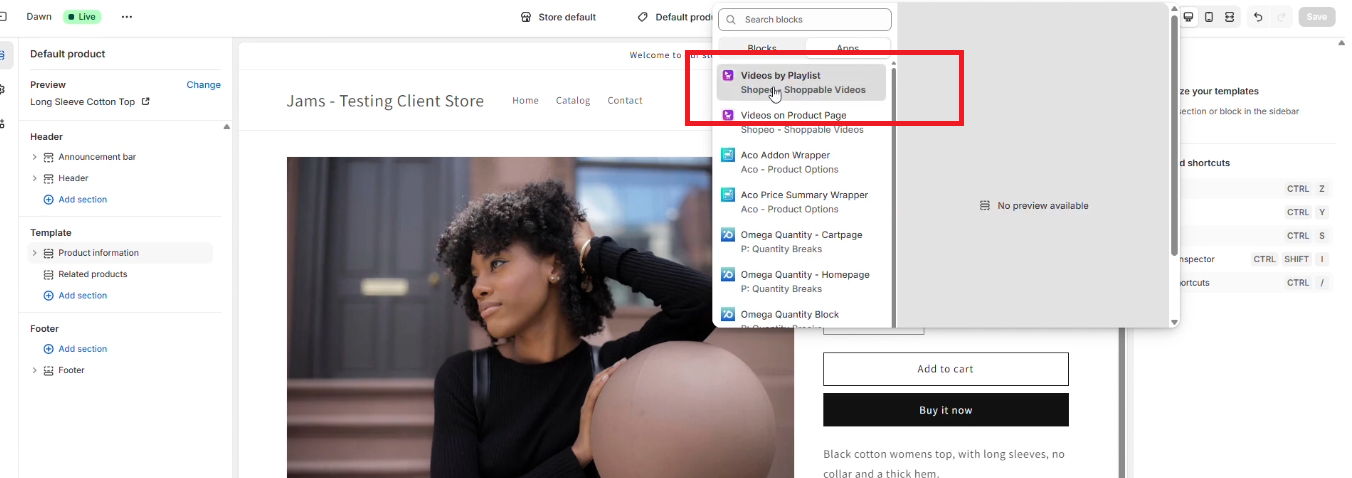
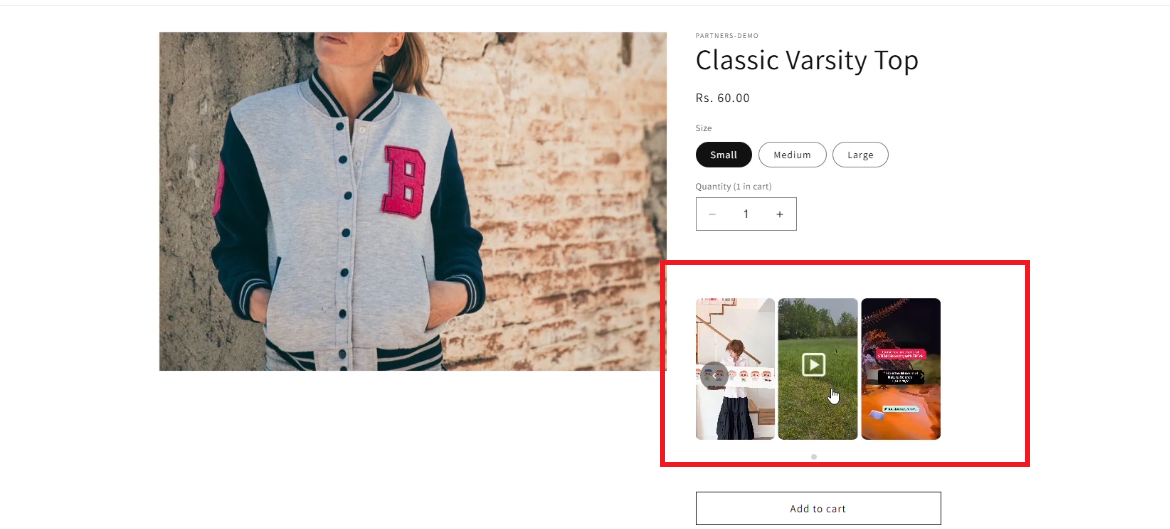
Now, visit the product detail page on your storefront:
If you have questions about our plugin(s), are experiencing issues with any of our plugin




















 Login
Login
 Cart
Cart