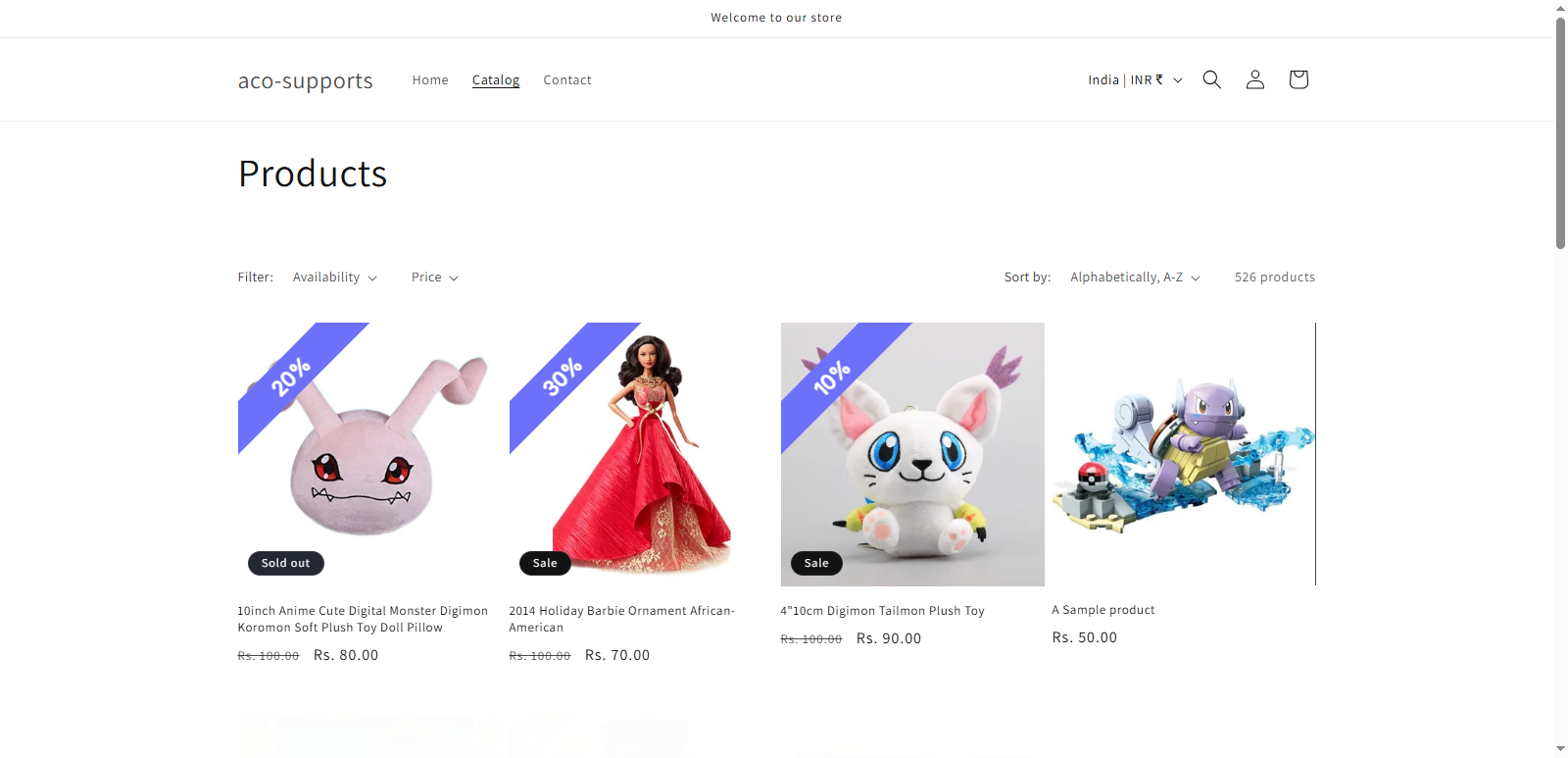
The Sale On Badge feature in Labeler allows you to display a badge that dynamically shows the discount percentage based on the product’s sale price. You can select a badge design and define a percentage range for which the badge should be displayed.
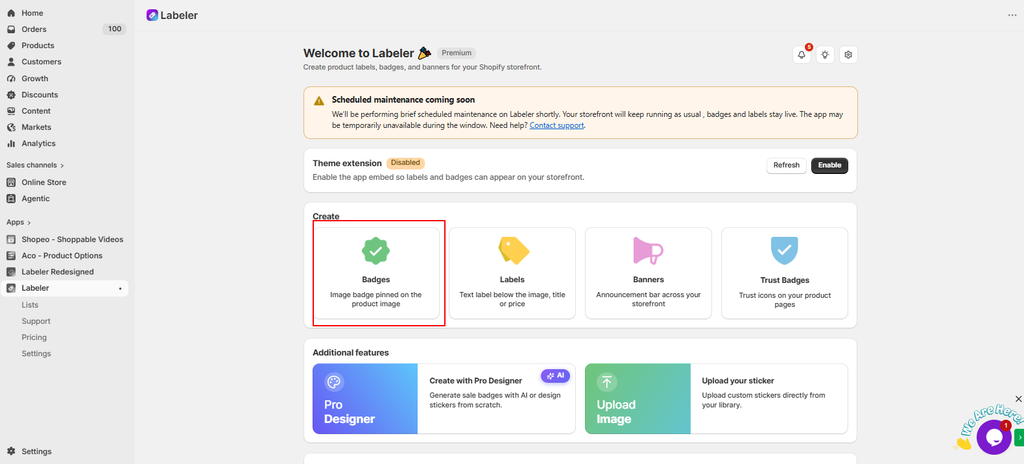
From your Shopify Admin, go to Apps → Labeler. Under the Create section, click Badges to open the badge settings..
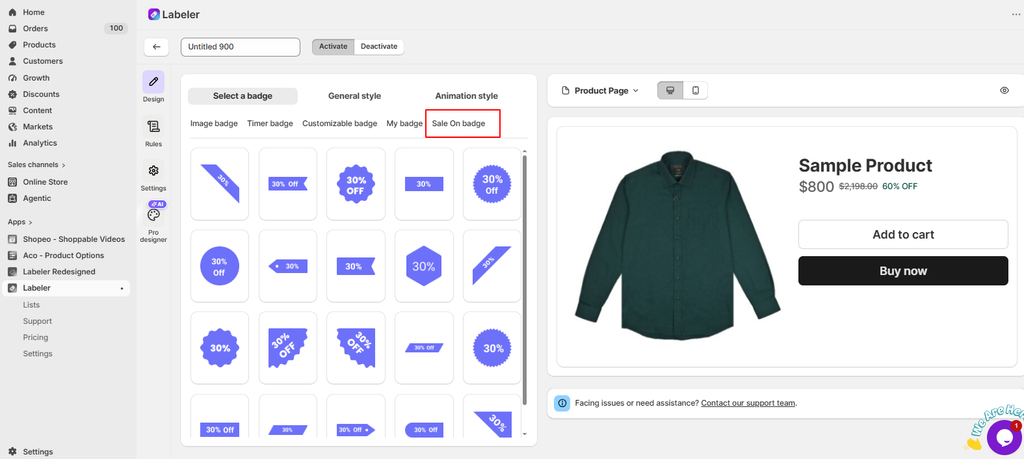
In the badge design page, go to the Sale On badge tab. You will find different badge designs that can display the sale percentage.
Select the badge design you want to use. The selected badge will be shown in the product preview.
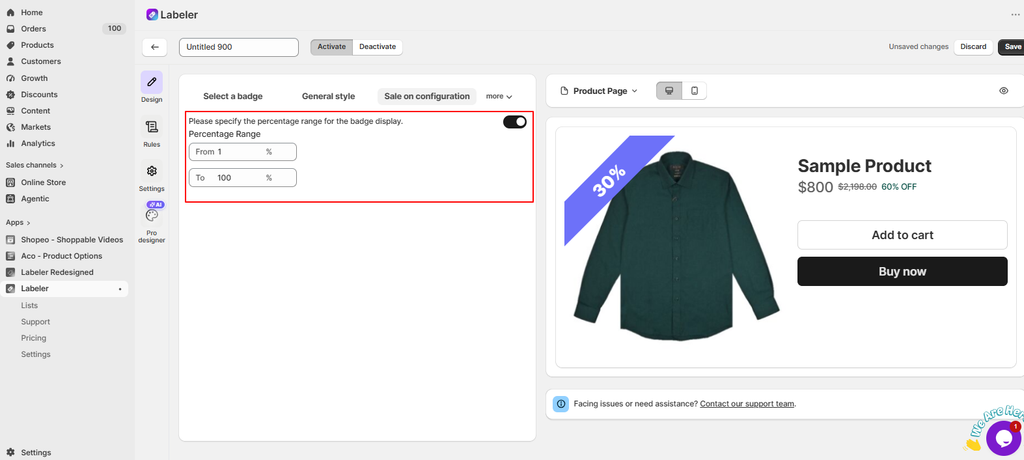
After selecting the badge, open the Sale on configuration section.
Enable the percentage range option and enter the From and To percentage values. The badge will be displayed for products whose discount percentage falls within the configured range.
For example, if you set the range from 1% to 100%, the Sale On badge can be displayed for products with a discount percentage within that range.
Once you have selected the badge design and configured the required percentage range, click Save in the top-right corner.
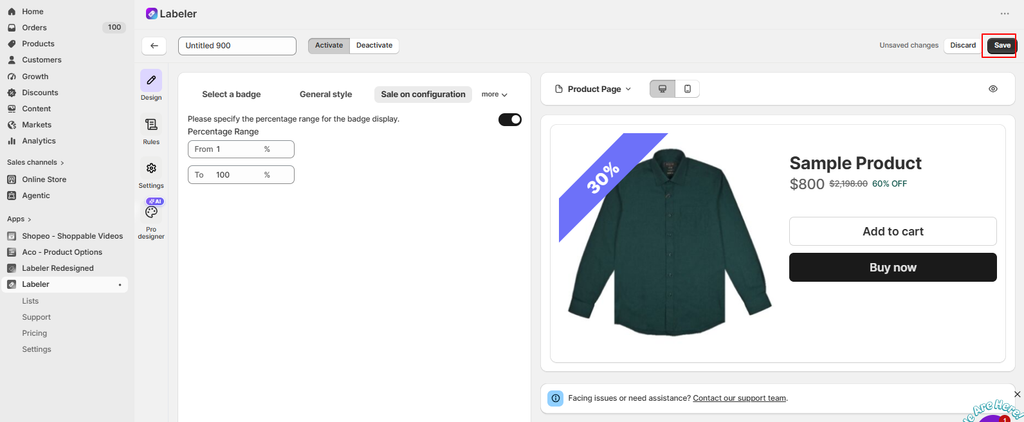
The Sale On badge will then be saved and can be activated and applied to the required products using the available Rules settings.
If you have questions about our plugin(s), are experiencing issues with any of our plugin






















 Login
Login
 Cart
Cart BUY THIS PLUGIN