



















 Login

 Cart
Want to show or hide badges on your site without deleting them?
Follow the steps below to activate or deactivate a badge.
Open the Labeler Dashboard in your app.
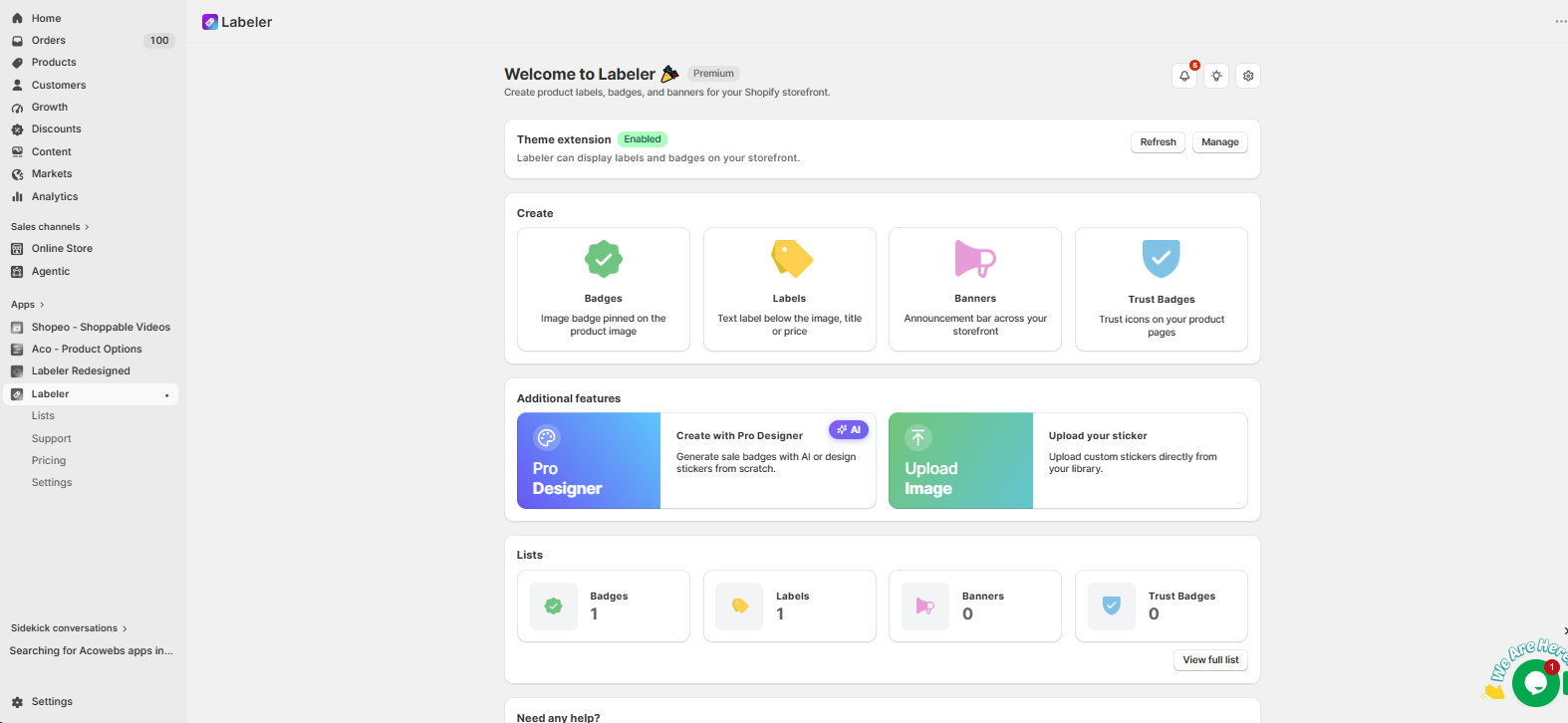
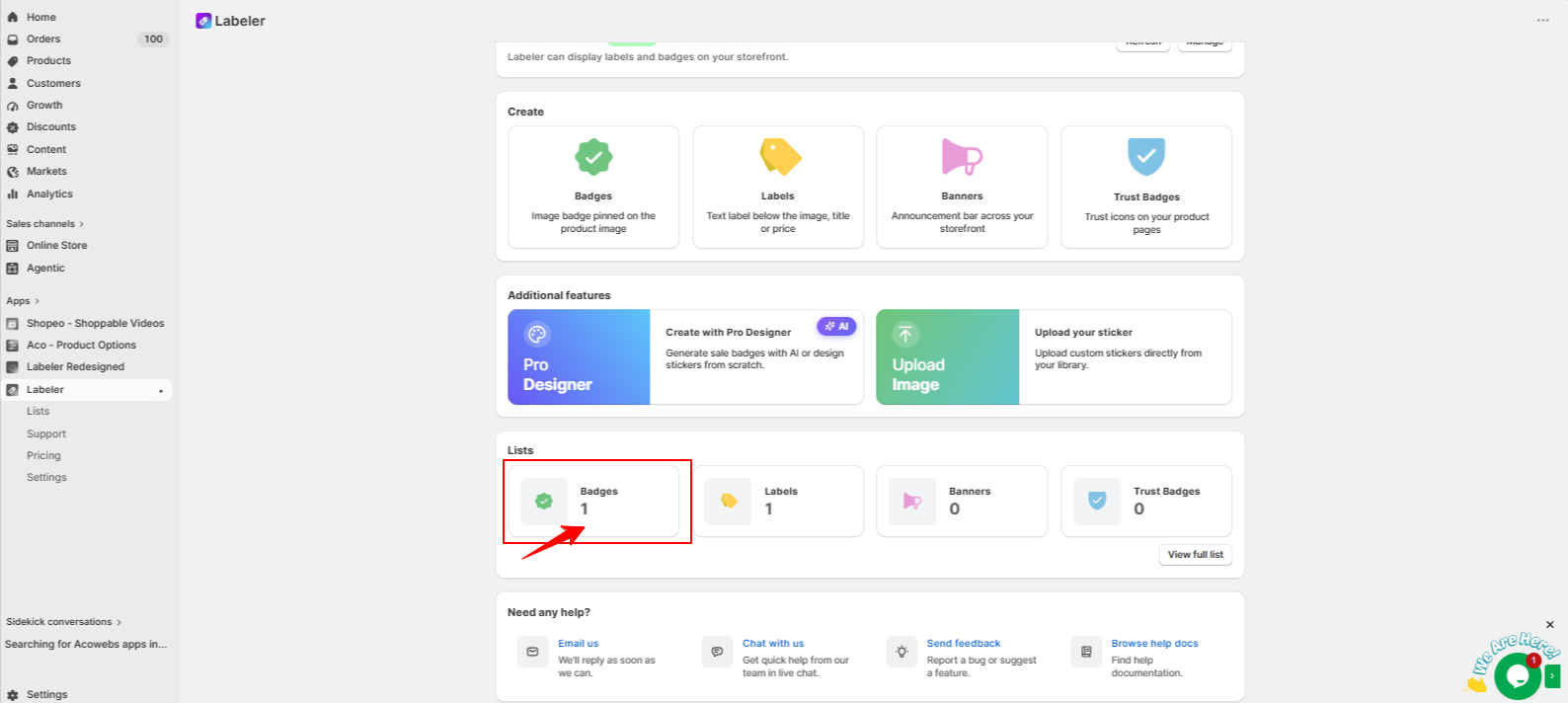
Scroll down and click on the Badges/Labels from Lists section.
You’ll see a list of badges you’ve created. Then, you can scroll through the list to find the badge you want to activate or deactivate. Each badge will have a checkbox next to it.Click the checkbox next to the badge you wish to activate or deactivate. Once selected, options to Activate or Deactivate the badge will appear.
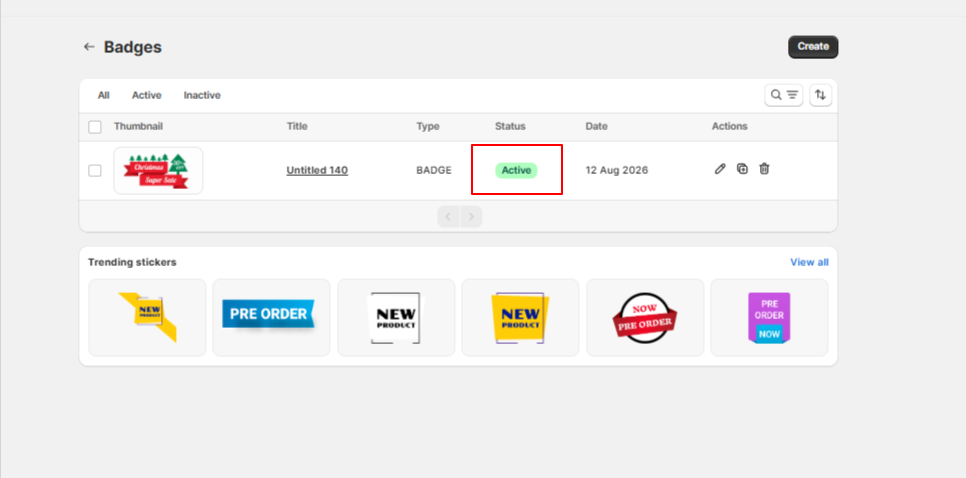
Click Activate to enable the badge and display it on your product listings. To temporarily hide a badge without deleting it, click Deactivate. This will disable the badge but keep it saved in your list for future
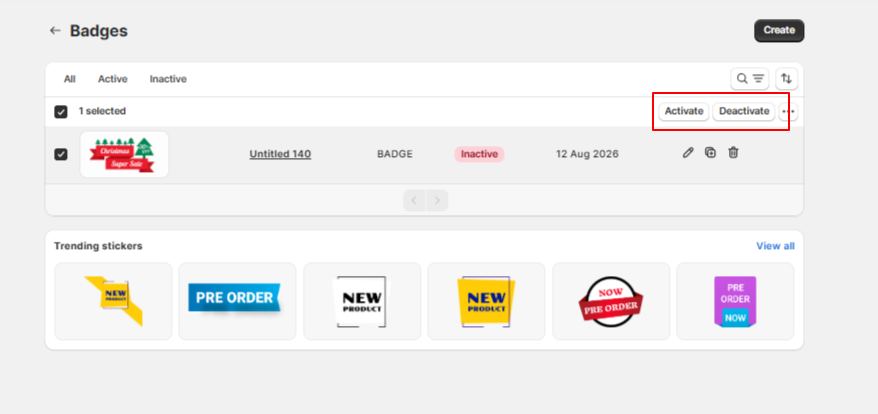
Status After Badge Activation
Was this article helpful?
Thanks for letting us know.
Sorry about that. Ask our support team and we will help you set it up.