Knowledge Base

Hi, How can we help?

Where can I add my own Gemini API key for customer AI replies?

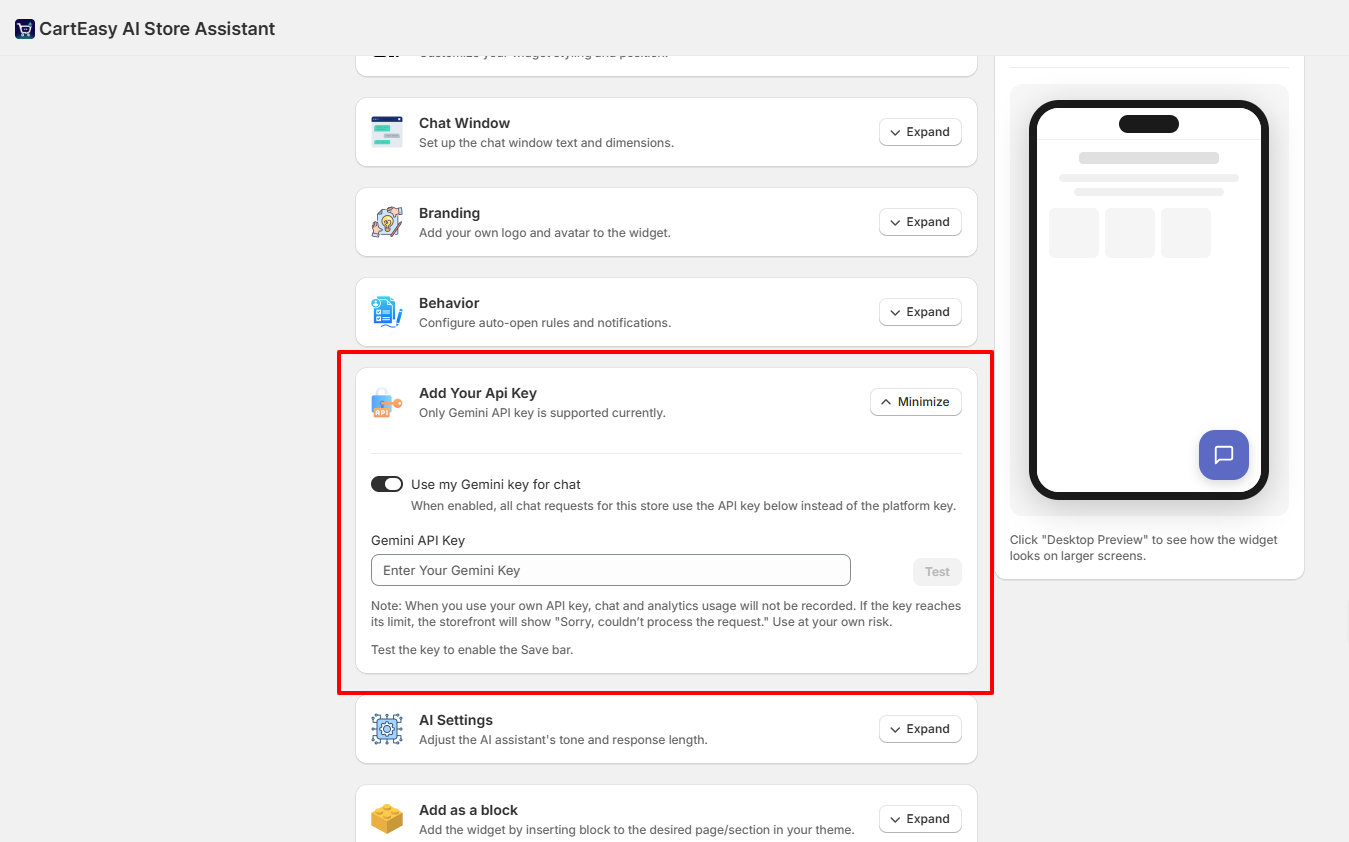
By default, the app uses its own platform key to process assistant replies. If you prefer to use your own Google Gemini API key to bypass default usage limits or gain more direct control, you can connect it directly in your dashboard.

Important Note: When you use your own API key, chat and analytics usage will not be recorded by the app. Furthermore, if your custom key reaches its Google quota or billing limit, the storefront assistant will display the error: “Sorry, couldn’t process the request.”
Step 1: Enable Custom Key Usage

  1. Open the CartEasy AI Assistant app in your Shopify admin.
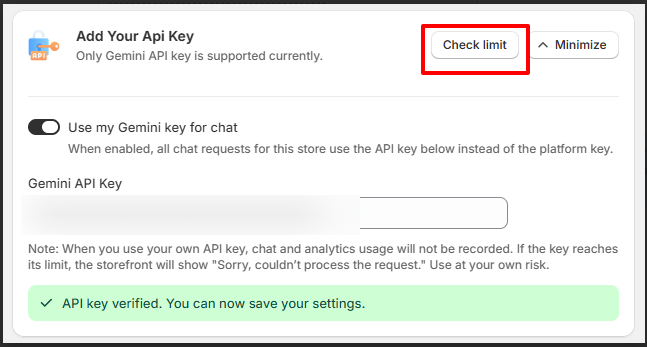
  2. Scroll to the Add Your Api Key section.
  3. Toggle the switch to enable Use my Gemini key for chat. When turned on, all chat requests for your store will route through your personal key instead of the default platform key.

Step 2: Input and Verify Your Key

  1. Paste your valid Gemini API token into the Gemini API Key text field.
  2. The app will automatically check the validity of your token.
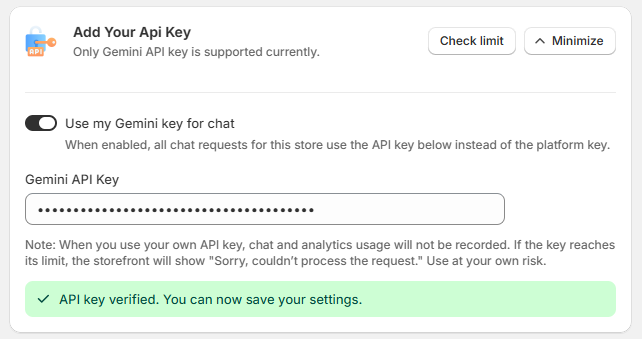
  3. Look for the green confirmation banner at the bottom that states: “✓ API key verified. You can now save your settings.”
  4. Click Save in your dashboard settings to finalise the integration.

Step 3: Monitoring Key Quotas & Limits

  • Checking Your Limits: You can check the current usage limits and status of your added Gemini key directly within this settings panel by clicking the Check limit button located at the top right of the section card.
  • Limit Notifications: Please note that the app does not handle or trigger external notifications when your custom API key runs out of quota. It is highly recommended to set up billing alerts or usage thresholds directly inside your Google AI Studio / Google Cloud Console to avoid unexpected service interruptions on your storefront.
Customer Support

If you have questions about our plugin(s), are experiencing issues with any of our plugin