
1. Open the Shopify App Store and search for CartEasy ‑ AI Store Assistant :
Go to the Shopify App Store and type CartEasy ‑ AI Store Assistant in the search bar. From the search results, click on the app listing to open the app details page. Here, you can review the features, screenshots, and description to understand what the app offers.
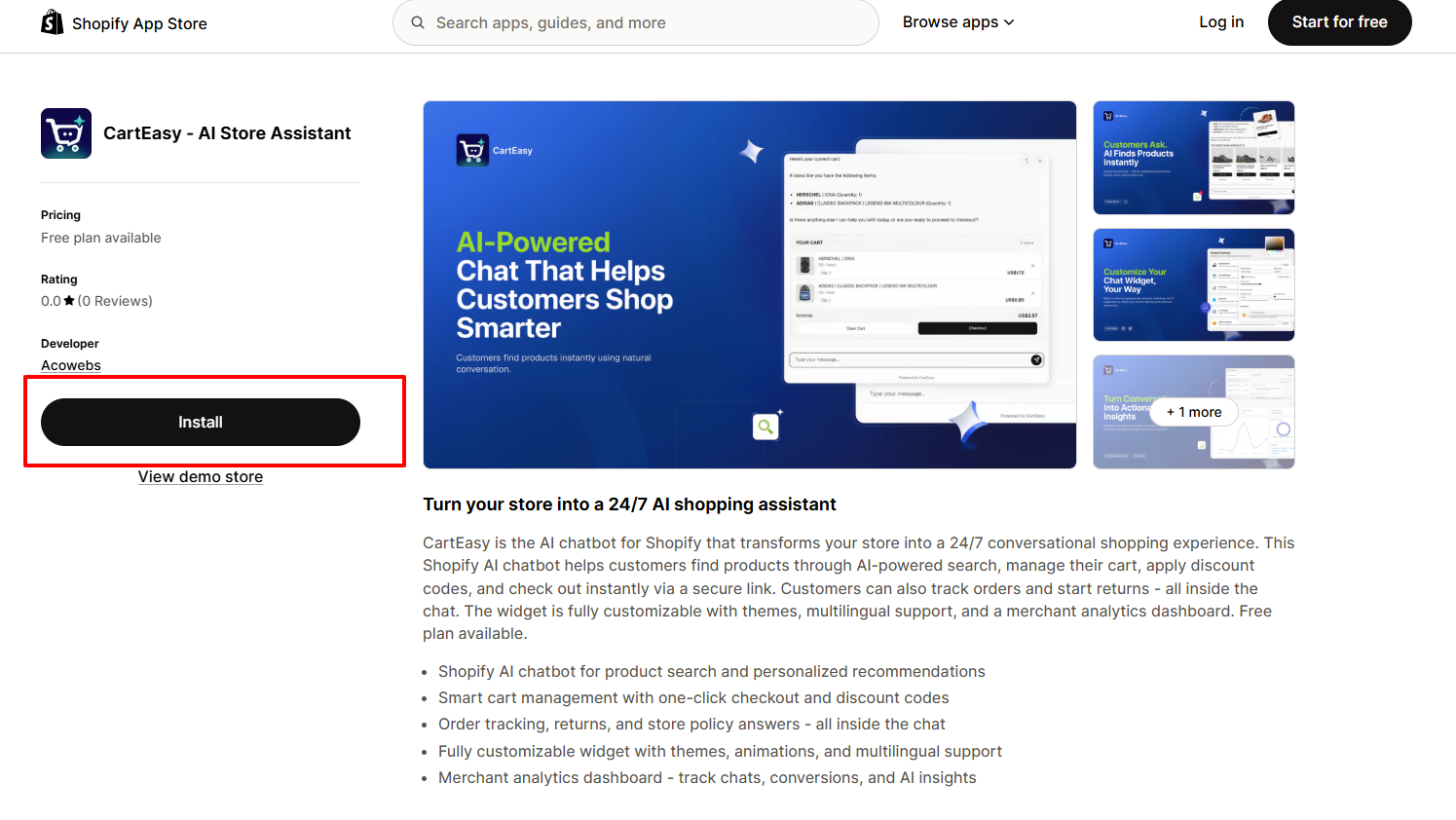
2. Click “Install App”
Once you’re on the app page, click the Install App button.
You will be redirected to your Shopify admin, where Shopify will request permission for the app to access necessary store data.
3. Review Pricing Plans and Their Limits
After installation, you will be shown the available subscription plans. Each plan includes different limits and features:
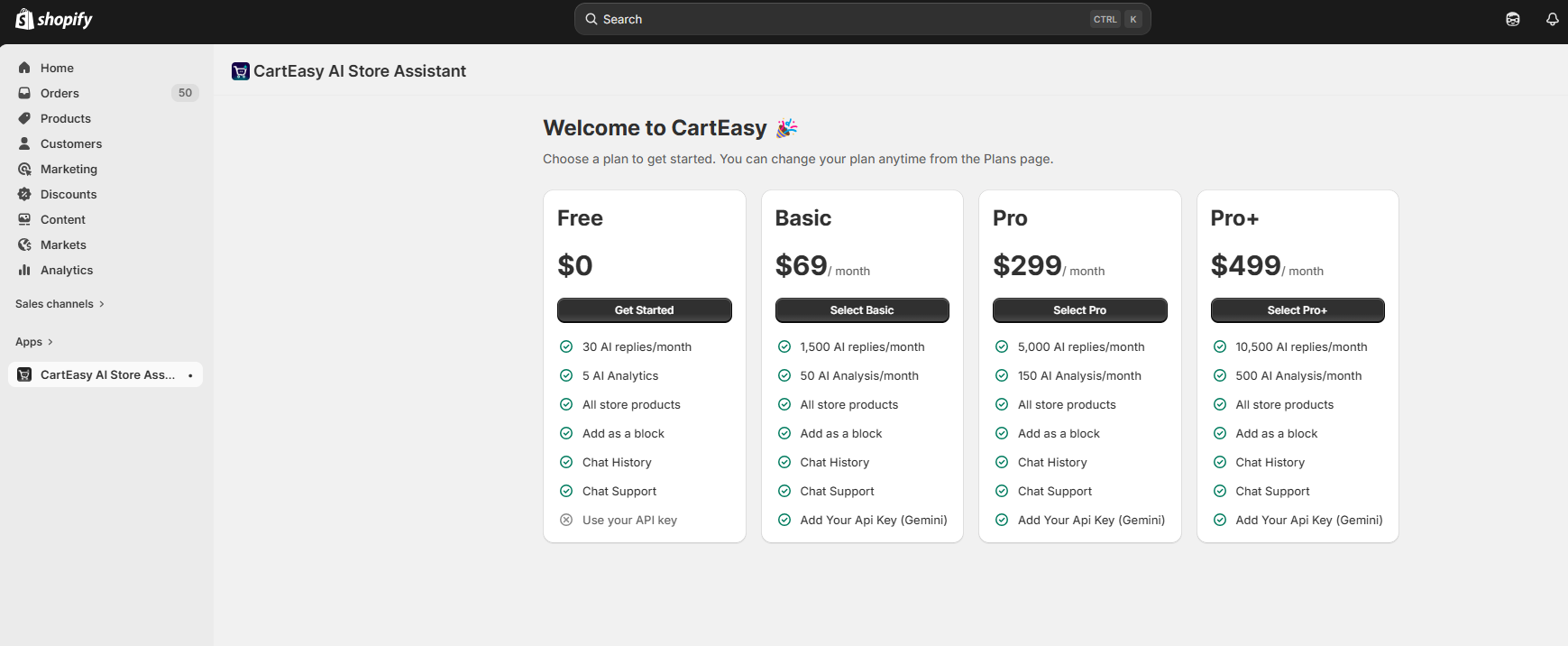
Free Plan –
Best for:
Includes 30 AI replies and 5 AI analytics reports per month.
Basic Plan ($69/month)
Best for:
Includes 1,500 AI replies and 50 AI analytics reports per month.
Pro Plan ($299/month)
Best for:
Includes 5,000 AI replies and 150 AI analytics reports per month.
Pro+ Plan ($499/month)
Best for:
Includes 10,500 AI replies and 300 AI analytics reports per month.
Carefully review each plan to understand what best suits your store’s scale and requirements.
4. Choose a Plan That Fits Your Requirement
Select the plan that aligns with your expected usage (number of AI replies, AI analytics, etc.). Click Choose Plan to continue.
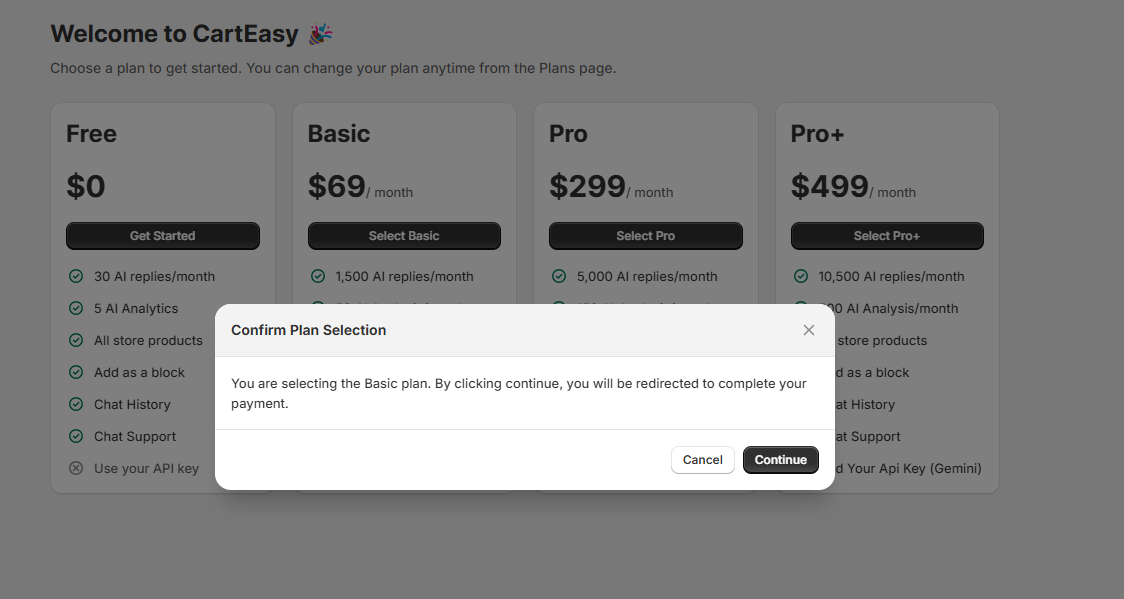
5. Complete the Payment Step
For paid plans, you will be taken to a secure Shopify billing confirmation page. Confirm and approve the charge to activate the selected plan.
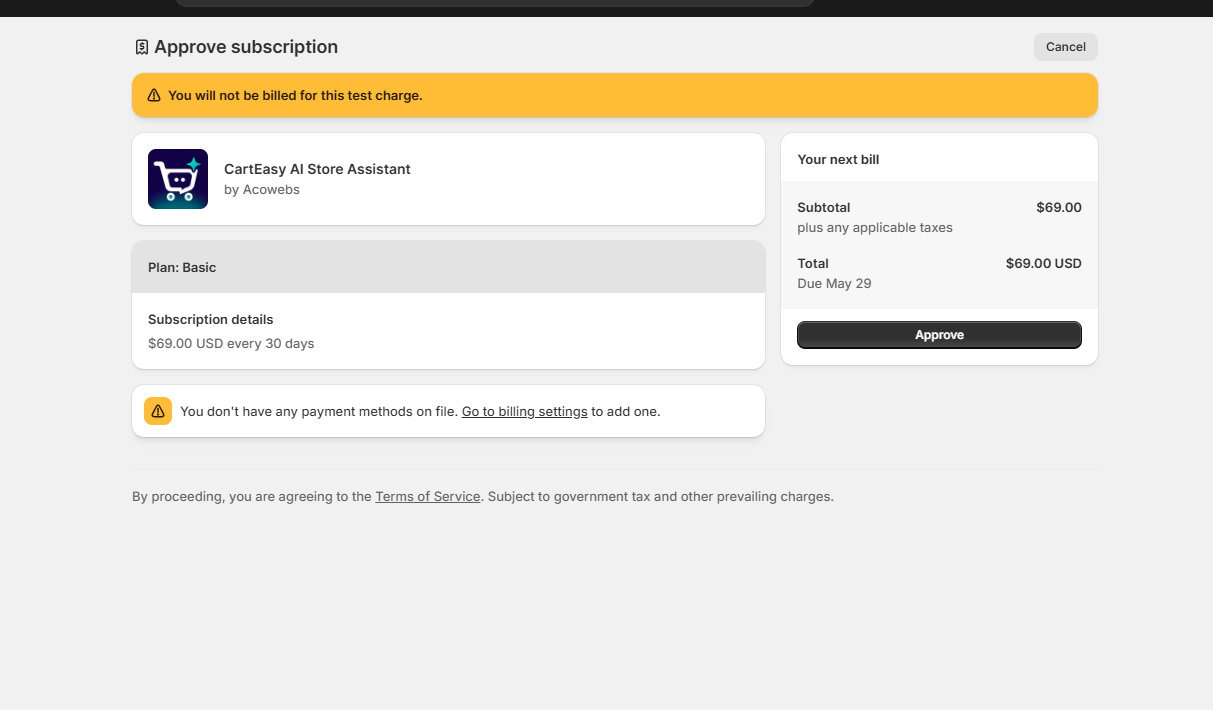
6. Get Redirected and Open the App Dashboard
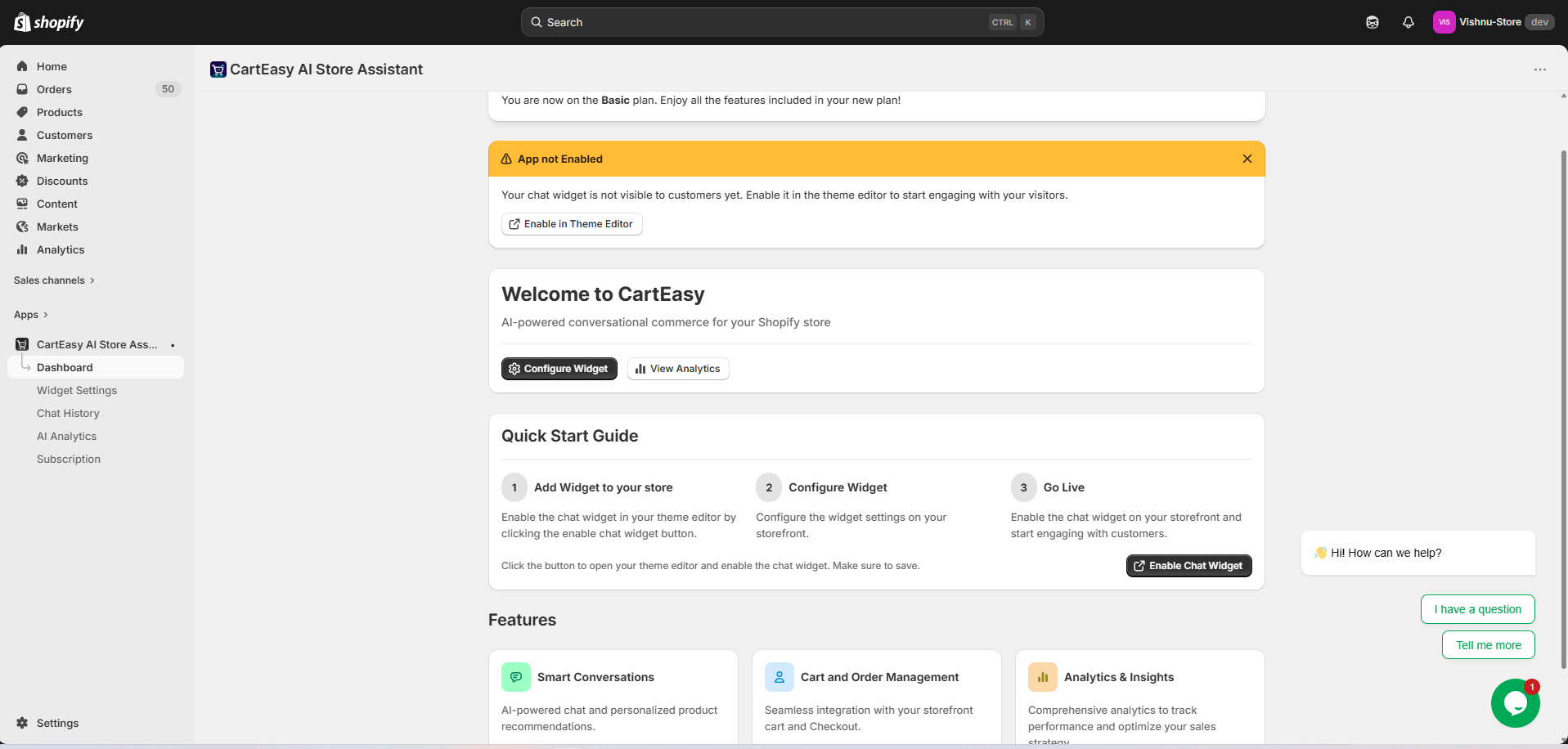
Once the billing step is completed, you will be automatically redirected to the app.
The CartEasy App Dashboard will now be accessible from your Shopify → Apps section, where you can configure your AI assistant, customise the chat widget, manage AI settings, and monitor customer interactions.
If you have questions about our plugin(s), are experiencing issues with any of our plugin










 Login
Login
 Cart
Cart