Knowledge Base

Hi, How can we help?

How do I customize the chat widget’s colors, position, and welcome message?

Customizing Colors and Position

You can customise the appearance and behaviour of your chat widget from the Widget Settings section.
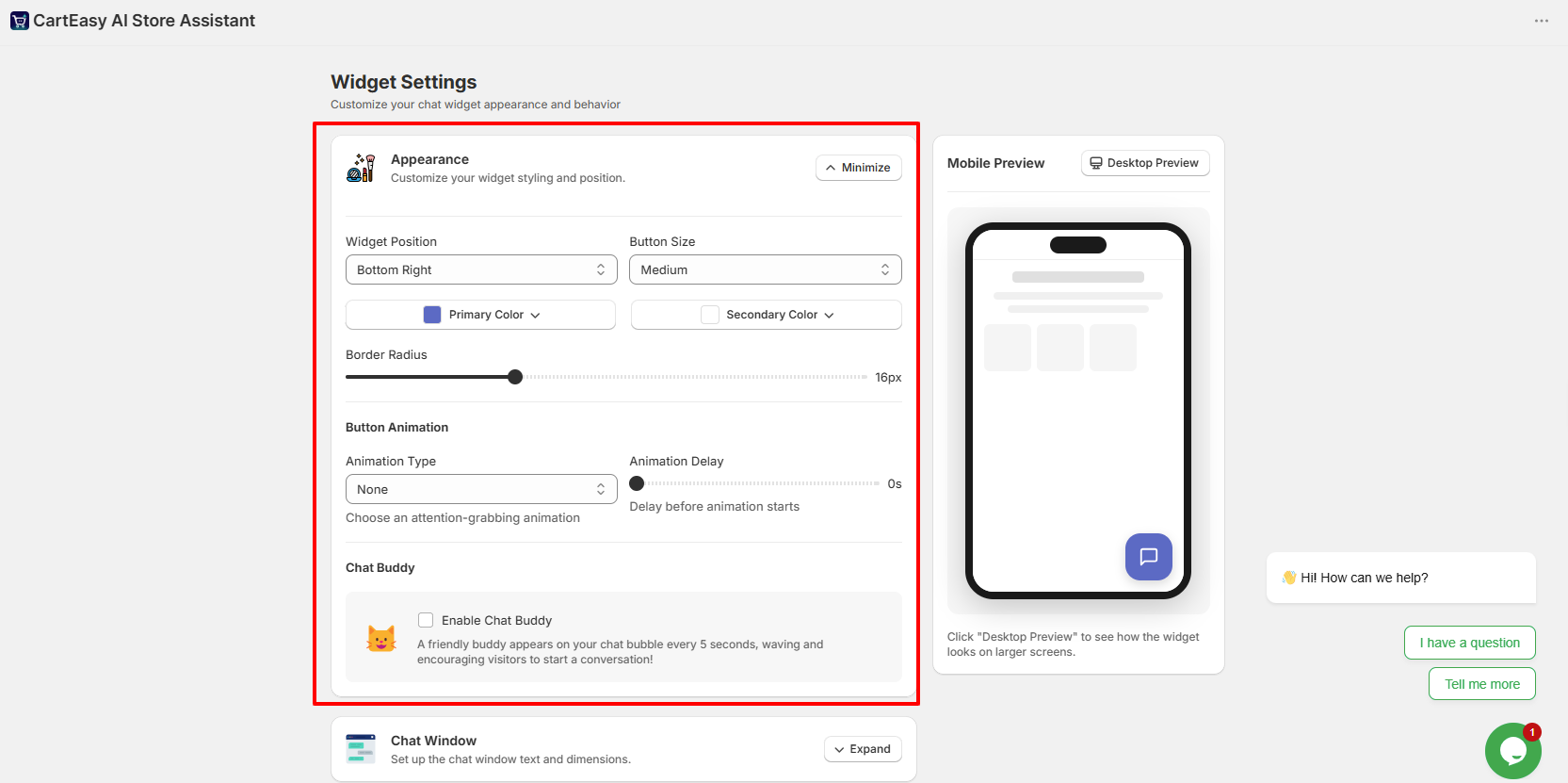
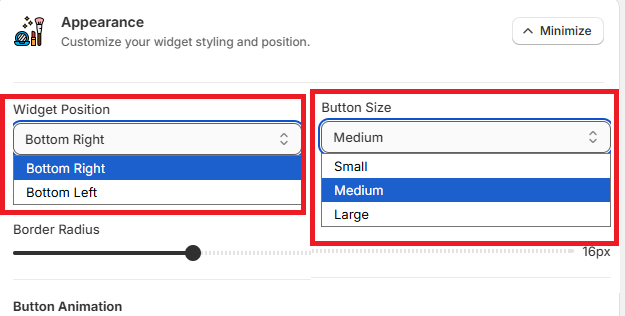
  1. Navigate to Widget Settings → Appearance.
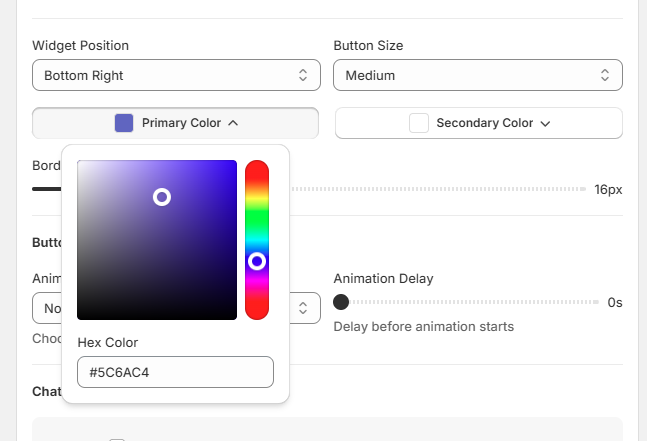
  2. Here, you can customize:
    • Widget Position (bottom left or right of the screen)
    • Button Size (small, medium, large )
    • Primary Color
    • Secondary Color
  • Border Radius
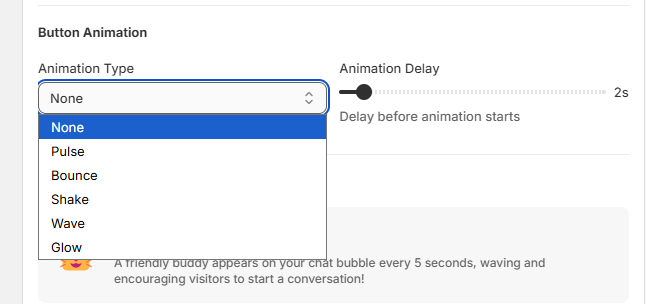
  • Button Animations


These settings allow you to match the chat widget with your store’s branding and design.
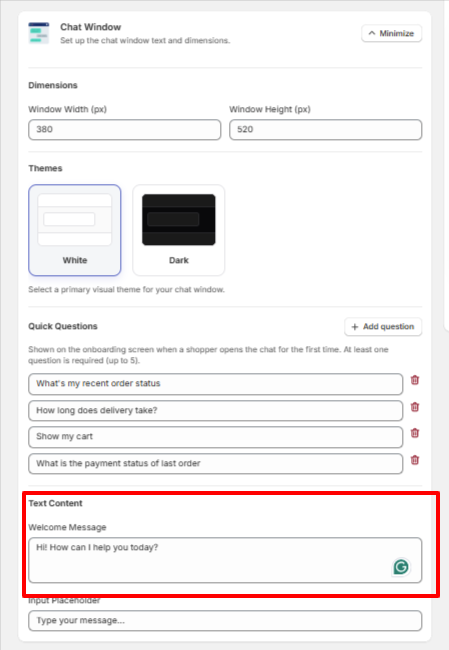

Customising the Welcome Message

  1. Navigate to Widget Settings → Chat Window.
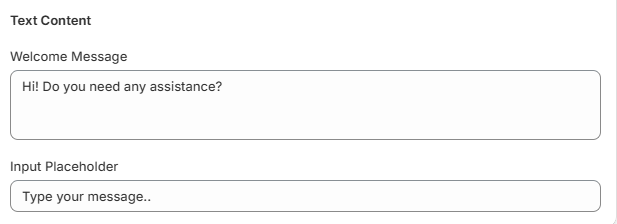
  1. Scroll down to the Text Content section.
  2. Locate the Welcome Message field.
  3. Enter your preferred greeting or introductory message.
  1. Save your changes.

The customised welcome message will be displayed to shoppers when they open the chat widget, helping create a more personalised shopping experience.

Customer Support

If you have questions about our plugin(s), are experiencing issues with any of our plugin