A gadget store sells fast-moving products such as wireless earbuds, smartwatches, gaming accessories, power banks, and portable speakers. As these products become popular, their inventory can decrease rapidly throughout the day.
The merchant wants a Low Stock badge to automatically appear whenever a product’s inventory drops to 10 units or less, helping customers recognise that stock is running out and encouraging them to complete their purchase before the product sells out.
Monitoring inventory levels and manually updating badges every time stock changes is difficult, especially for stores that process orders throughout the day.
Without a visible low-stock indicator, customers may not realise that only a limited number of units remain, reducing the urgency to purchase. The merchant needs an automated way to notify shoppers when inventory reaches a critical level without constantly managing badges.
Acowebs Shopify Labeler includes the Low Stock Smart Rule, which automatically displays a Low Stock badge whenever a product’s inventory reaches or falls below a configured threshold.
The merchant simply creates a Low Stock badge, sets the inventory threshold, and publishes the badge.
From that point onwards, Labeler continuously monitors inventory levels across the store. Whenever a product reaches the configured stock quantity, the badge is displayed automatically. If inventory is replenished above the threshold, the badge is removed automatically without any manual updates.
Open the Labeler app and click Create New Badge.
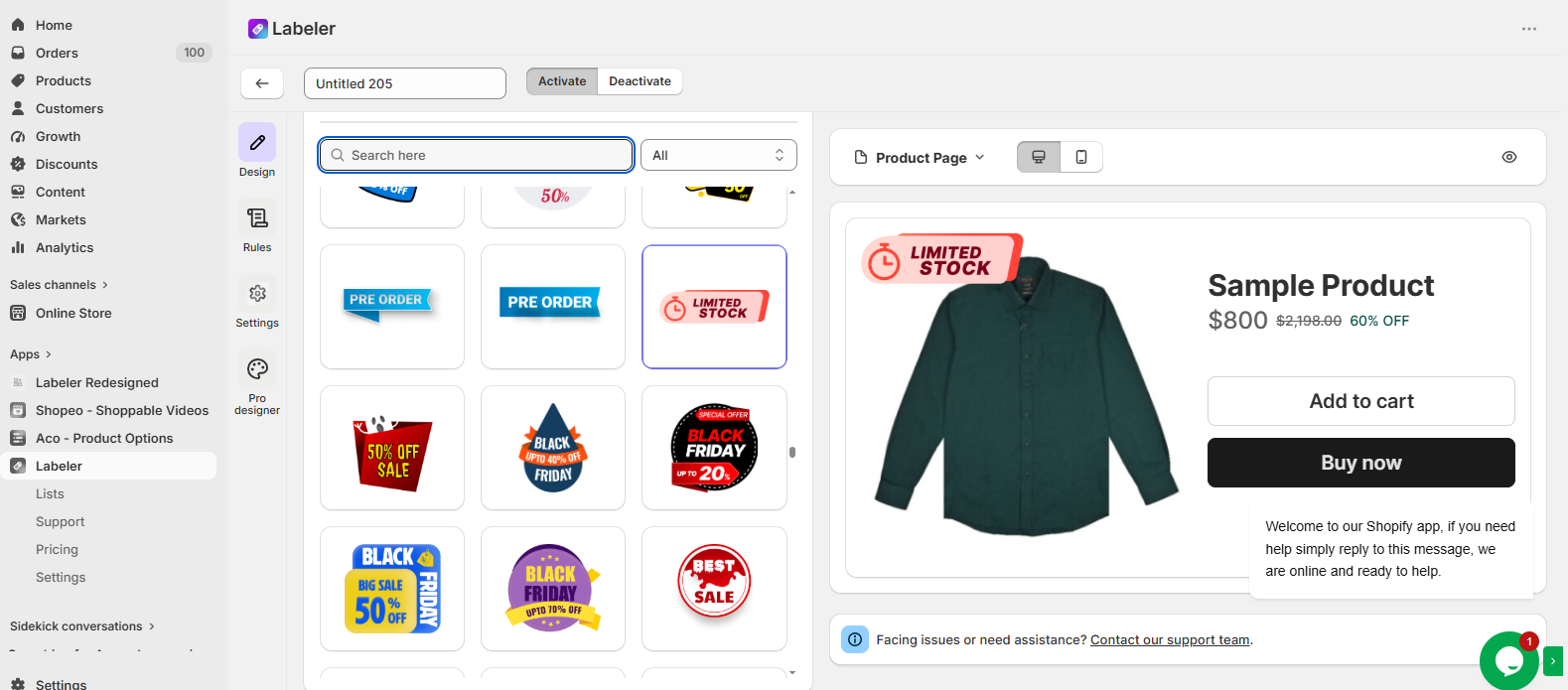
Go to the Design tab and select a badge with the text Low Stock/Limited Stock. You can customise the badge style, colours, position, opacity, and size to match your storefront branding.
Screenshot: Limited Stock badge selected in the Design tab.
Open the Rules tab.
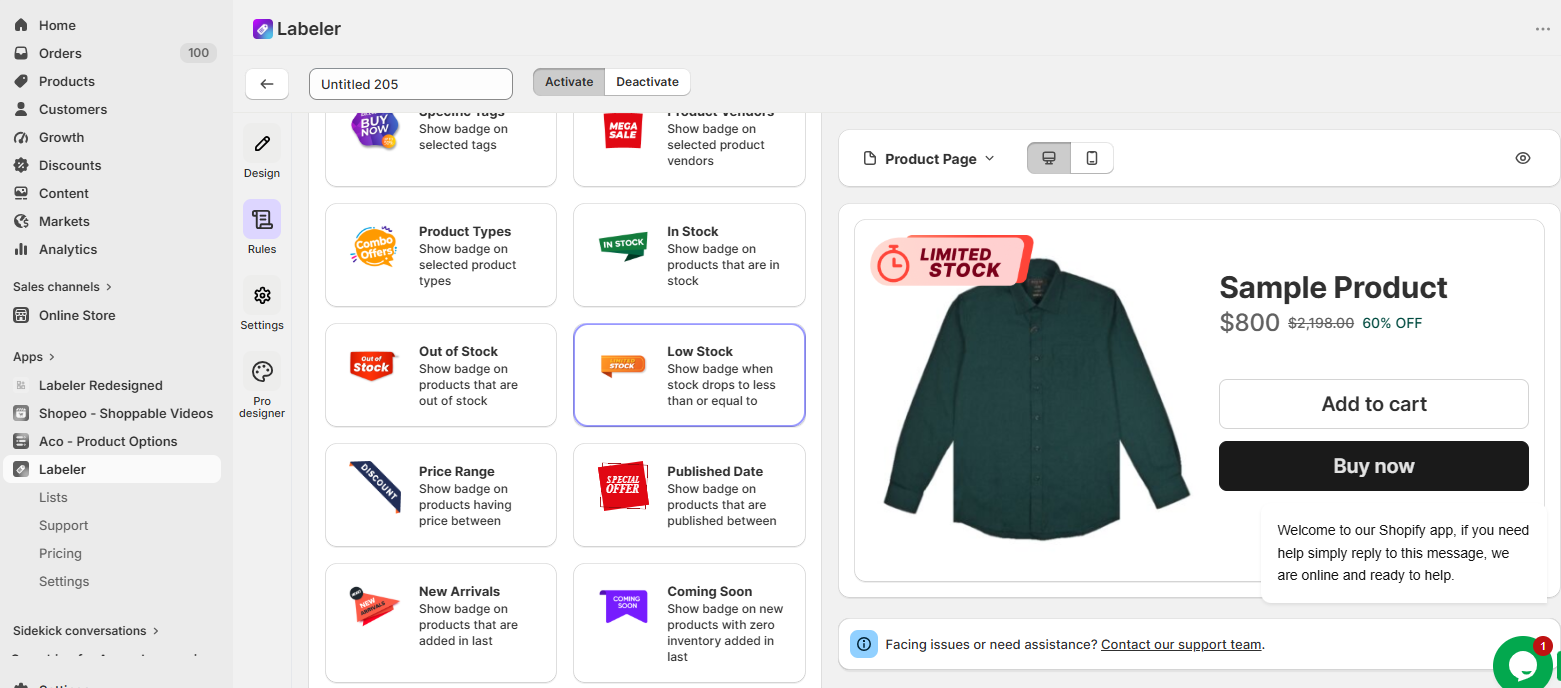
Under Conditions, select Low Stock.
This Smart Rule automatically monitors product inventory and allows the badge to be displayed whenever stock reaches the configured threshold.
Instead of manually checking inventory and assigning badges, Labeler continuously tracks stock levels for every product.
Screenshot: Low Stock Smart Rule selected.
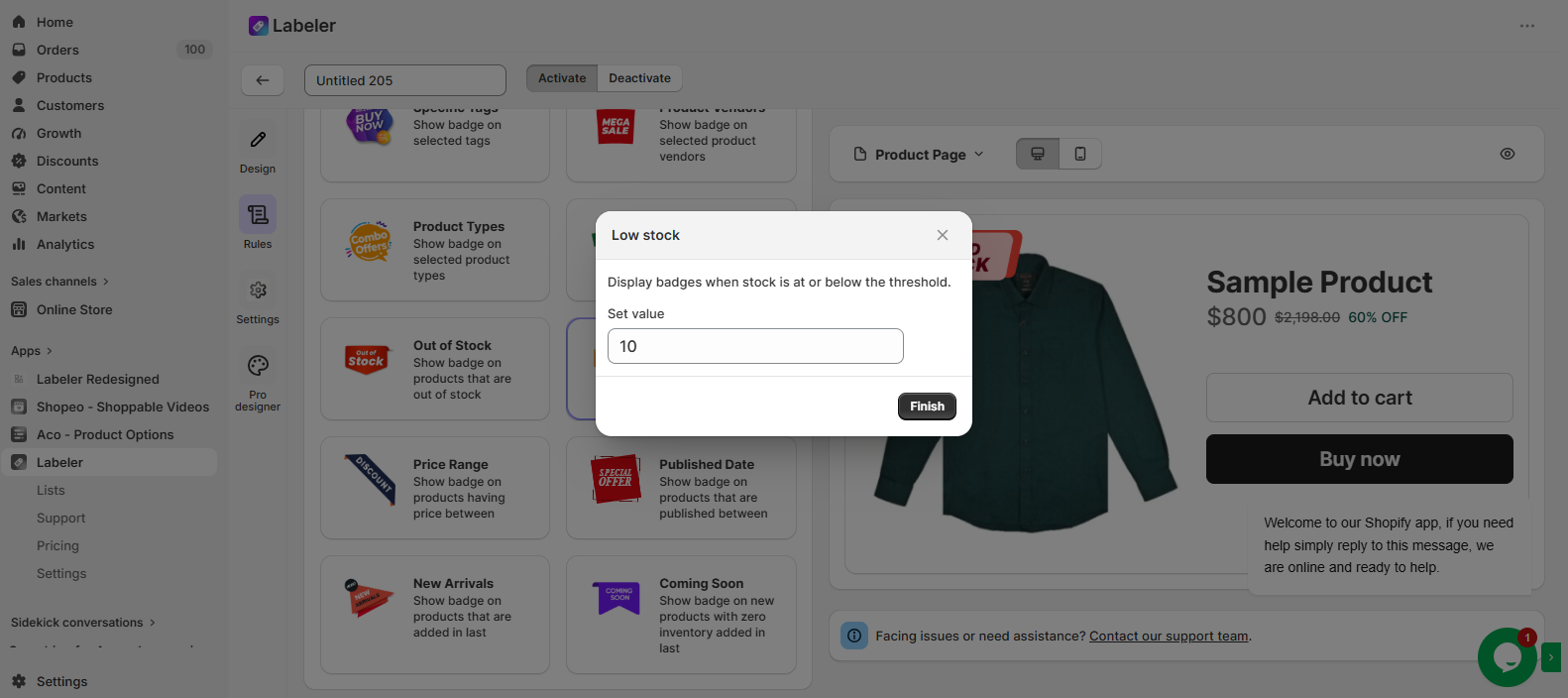
In the Low Stock settings, enter the inventory threshold.
For this example, enter 10.
This tells Labeler to automatically display the Low Stock badge whenever a product’s inventory drops to 10 units or below. As customers purchase, the inventory is reduced. The Labeler continuously checks the stock quantity and automatically displays the badge as soon as the threshold is reached.
If inventory is replenished above 10 units, the badge is automatically removed, ensuring the storefront always reflects the current stock status.
Click Apply to save the Smart Rule.
Screenshot: Low Stock Smart Rule configuration.
Click Save to publish the badge.
From this point onwards, every product in the store is monitored automatically. Whenever inventory drops to 10 units or less, Labeler immediately displays the Low Stock badge on the configured storefront pages. As products are restocked above the configured threshold, the badge is automatically removed without requiring any manual intervention.
Screenshot: Low Stock badge displayed on the storefront.
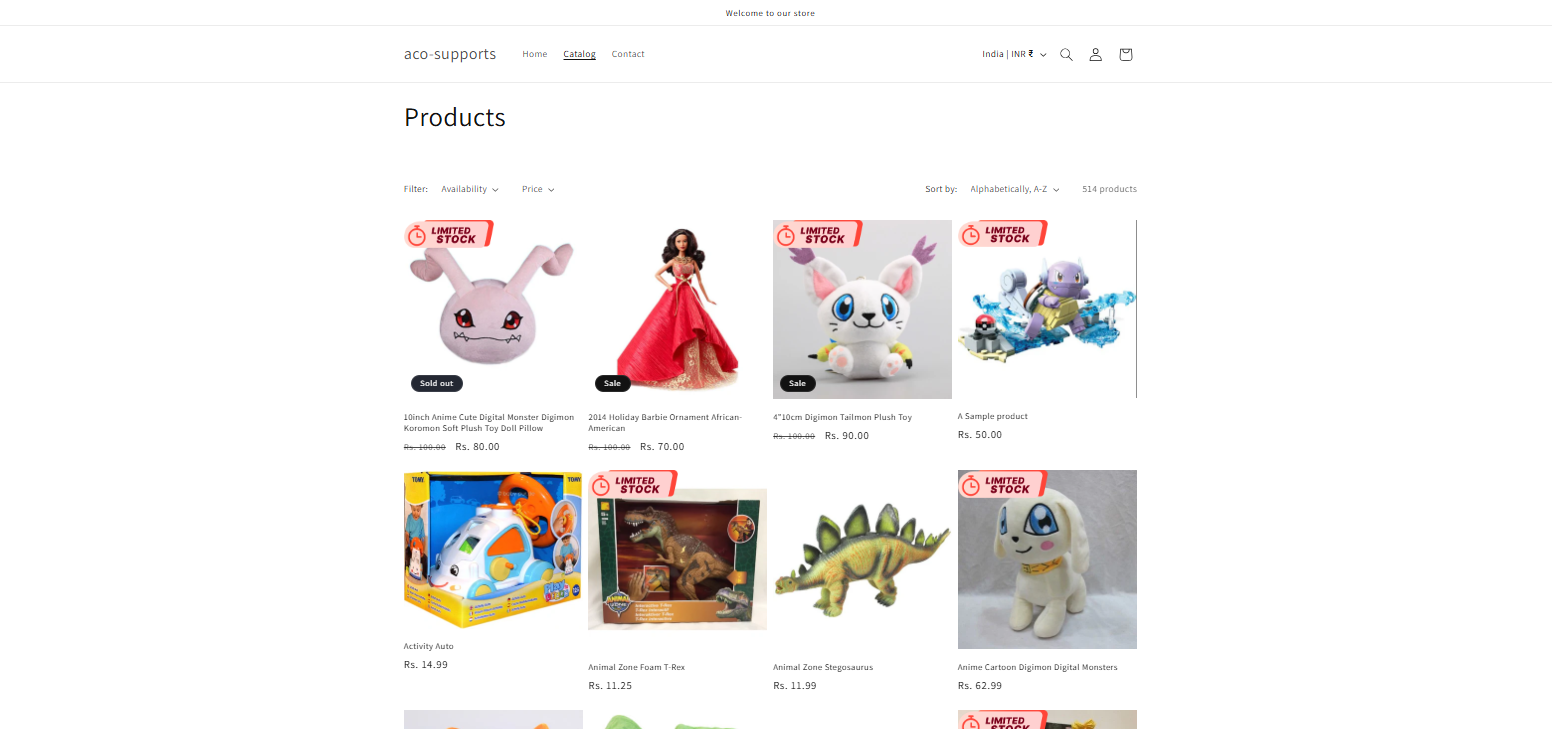
Once the configuration is complete, products with limited inventory are automatically highlighted with a Low Stock badge as stock levels change.
Customers can immediately recognise when products are nearly sold out, creating a stronger sense of urgency that encourages faster purchasing decisions. At the same time, the merchant no longer needs to manually monitor inventory or update badges, ensuring the storefront always reflects live inventory levels automatically.
If you have questions about our plugin(s), are experiencing issues with any of our plugin






















 Login
Login
 Cart
Cart BUY THIS PLUGIN