A fitness store sells a wide range of products, including treadmills, dumbbells, resistance bands, exercise bikes, and gym accessories. The merchant wants popular products to stand out so customers can quickly identify the store’s best-selling equipment.
Instead of manually adding badges to every popular product, the merchant tags these products with Best Seller in Shopify and wants them to automatically display a Best Seller badge.
As customer demand changes, new products become best sellers while others are replaced. Manually assigning and removing badges for every product is time-consuming and difficult to maintain.
The merchant needs an automated way to highlight products tagged Best Seller without manually updating badges.
Acowebs Shopify Labeler allows merchants to automatically display badges using the Product Tag Rule.
The merchant simply creates a Best Seller badge and applies it to products tagged Best Seller.
From that point onwards, Labeler automatically displays the badge on every product with the Best Seller tag. Any new products assigned the same tag will also receive the badge automatically.
Open the Labeler app and click Create Badge.
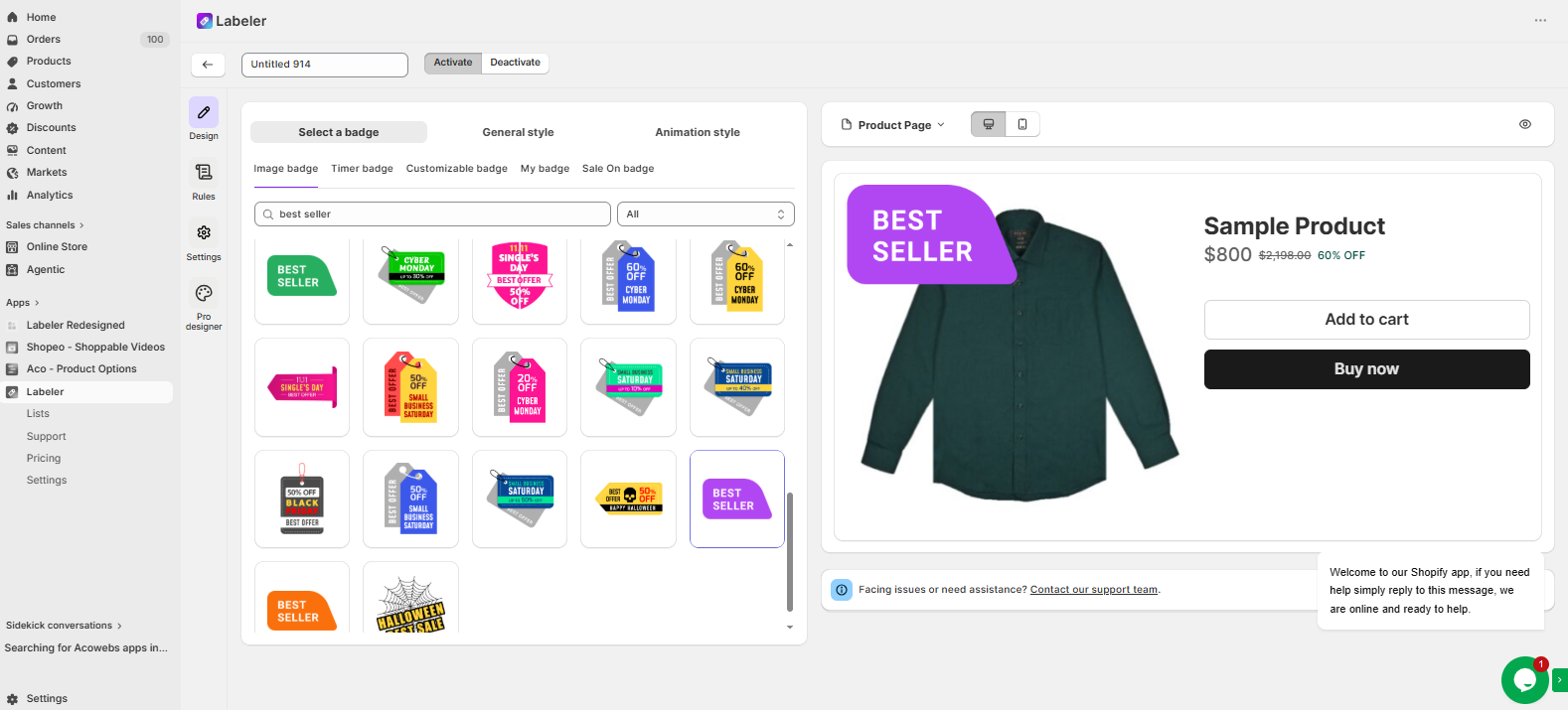
Go to the Design tab and select or create a badge with the text Best Seller.
Screenshot: Best Seller badge selected in the Design tab.
Open the Rules tab.
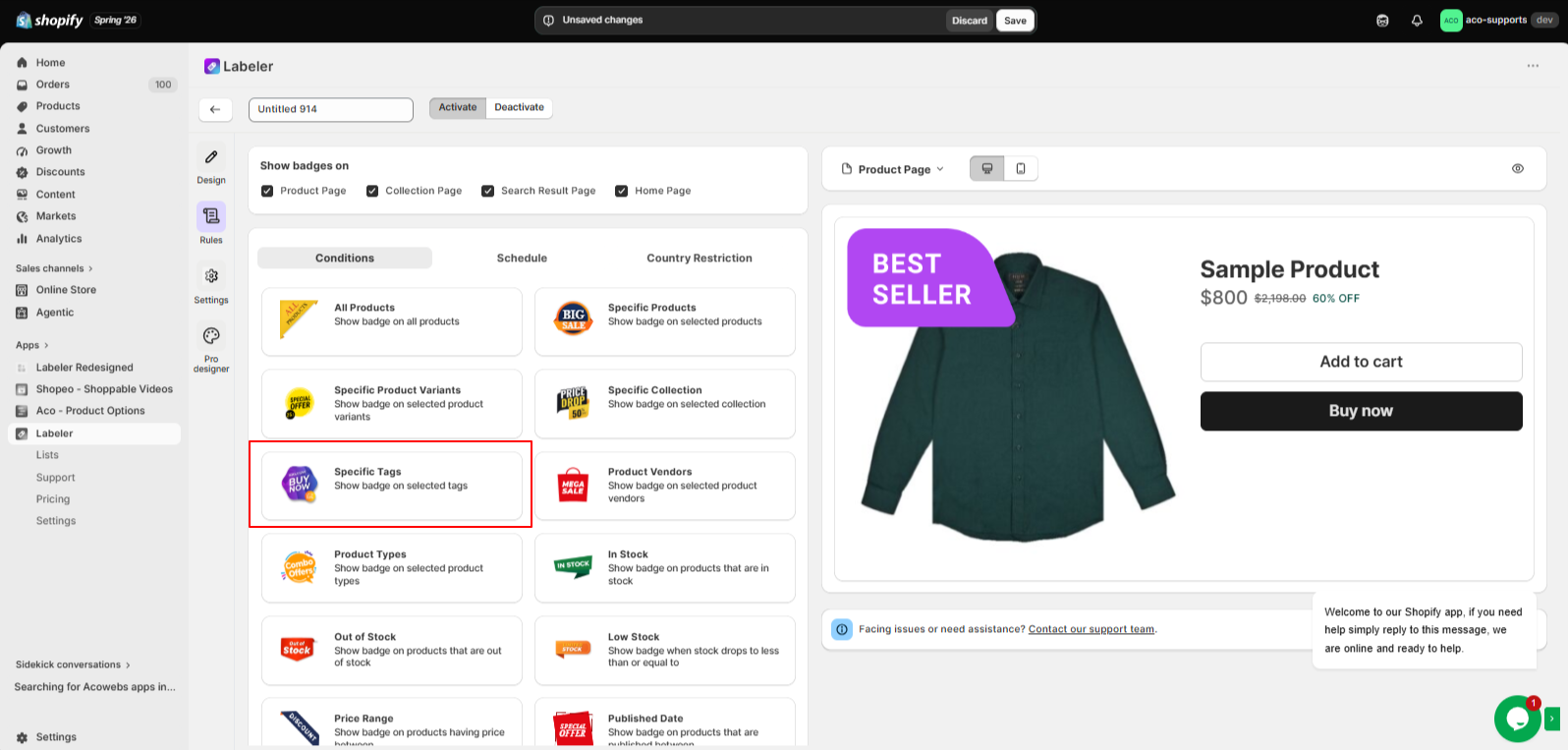
Under Conditions, select Product Tags. Choose the Best Seller product tag and click Finish.
This tells Labeler to automatically display the Best Seller badge on every product tagged Best Seller. Whenever another product is assigned the same tag, Labeler automatically applies the badge without any additional configuration.
Screenshot: Product Tag Rule selected.
Click Save to publish the badge.
From this point onwards, every product tagged Best Seller automatically displays the badge across the configured storefront pages. If the Best Seller tag is removed from a product, the badge is automatically removed as well.
Screenshot: Best Seller badge displayed on the Home page.
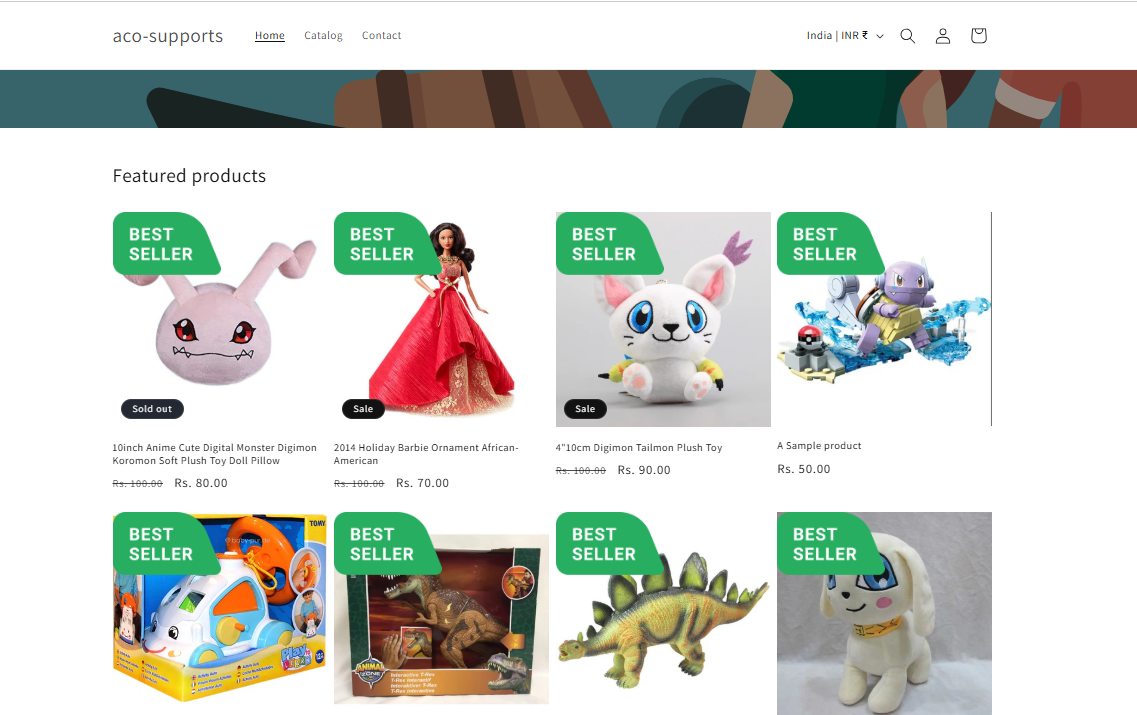
Once the configuration is complete, all products tagged Best Seller are automatically highlighted with a Best Seller badge.
Customers can quickly identify your most popular fitness equipment while browsing, helping increase product visibility and encouraging more purchases. At the same time, the merchant no longer needs to manually manage badges, ensuring best-selling products are always highlighted automatically.
If you have questions about our plugin(s), are experiencing issues with any of our plugin






















 Login
Login
 Cart
Cart BUY THIS PLUGIN