A fashion and apparel store launches around 30 new products every Friday. The team wants every new product to automatically display a New Arrival badge as soon as it goes live, without manually assigning badges one by one. They also want the badge to disappear automatically after 14 days, ensuring shoppers always see the latest arrivals while older products are no longer marked as new.
As weekly product launches become a regular part of the business, managing badges manually becomes difficult.
Someone has to assign the New Arrival badge to every product after each launch. The same process has to be repeated every Friday, taking up valuable time that could be spent on merchandising or customer support.
It is also easy to miss a product, apply the wrong badge, or forget to remove badges from older products. Over time, outdated badges make it harder for shoppers to identify the latest arrivals, reducing the effectiveness of the badge.
Acowebs Shopify Labeler app automates the entire process using the New Arrivals Smart Rule.
The merchant creates the New Arrival badge once and configures how long it should remain visible.
After that, Labeler automatically applies the badge to every product added within the selected number of days.
Whenever around 30 new products are added during the weekly Friday launch, each product automatically displays the New Arrival badge. Every product keeps the badge for 14 days from the date it is added, and the badge is removed automatically once that period ends.
The merchant simply continues adding products to Shopify as usual while Labeler manages the complete badge lifecycle.
Open the Labeler app and click Create New Badge.
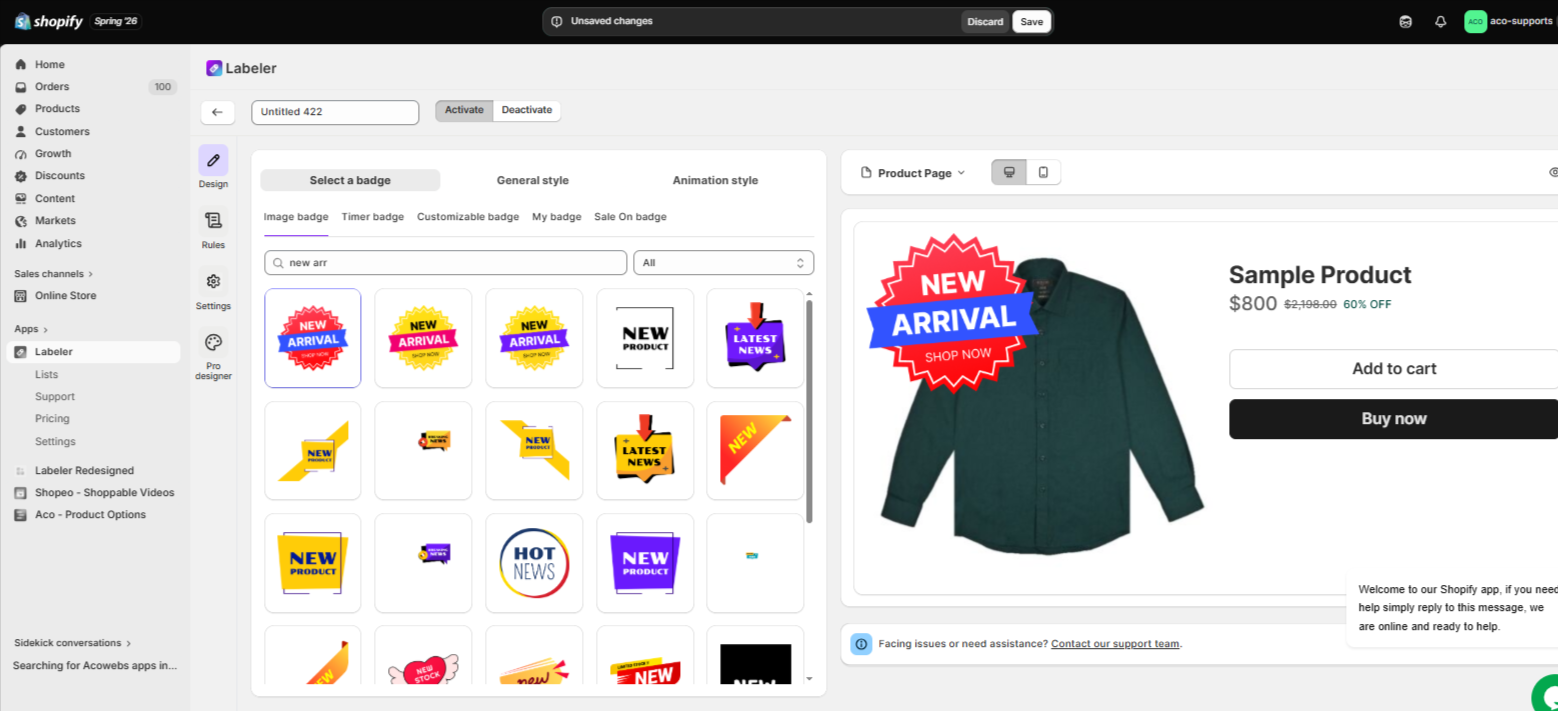
Go to the Design tab, choose the Image Badge category, and select the NEW ARRIVAL ribbon badge.
Additionally, you can also customise the badge by adjusting its position, size, margin, opacity, and rotation to match your storefront from the General style.
Screenshot: New Arrival badge selected in the Design tab.
Open the Rules tab.
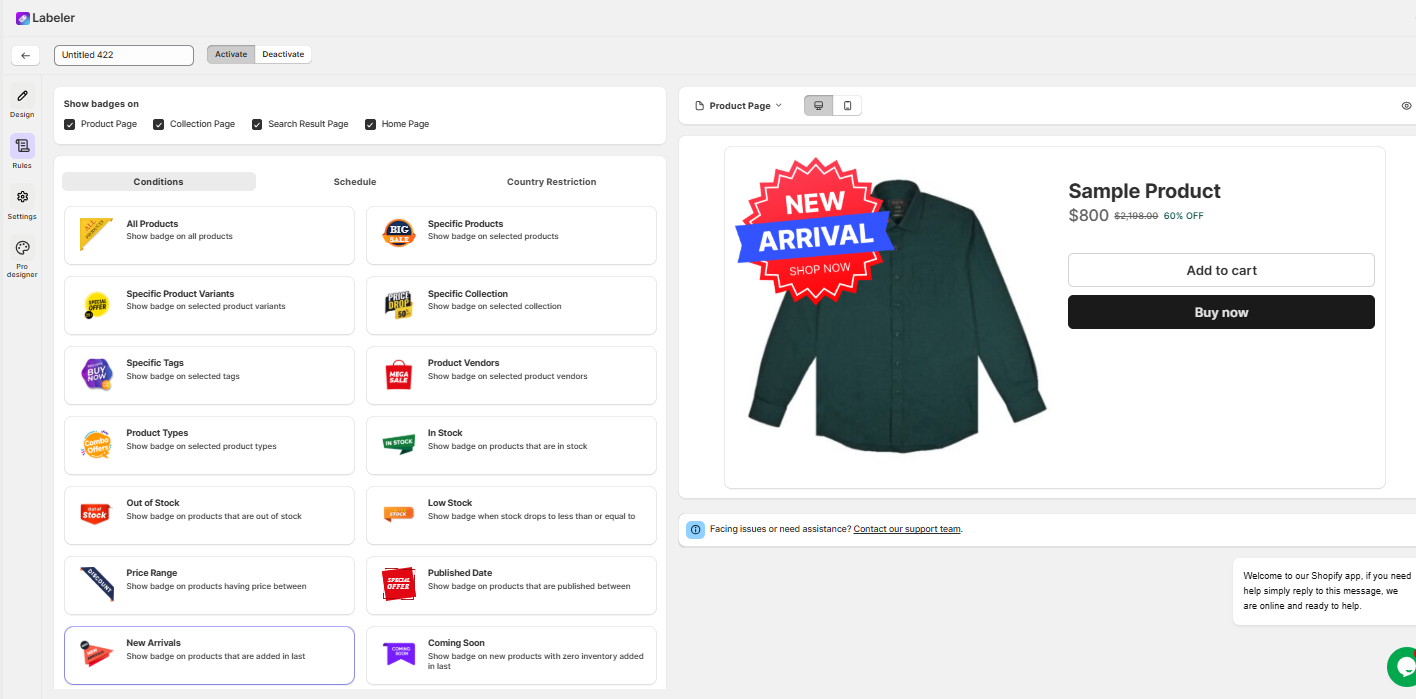
Under Show Badges On, select the pages where you want the badge to appear. In this example, enable the Product Page, Collection Page, Search Result Page, and Home Page.
Next, open the Conditions section and select New Arrivals.
This Smart Rule automatically identifies products based on when they were added to Shopify, so the merchant no longer needs to manually assign badges during every Friday product launch.
Screenshot: New Arrivals Smart Rule selected.
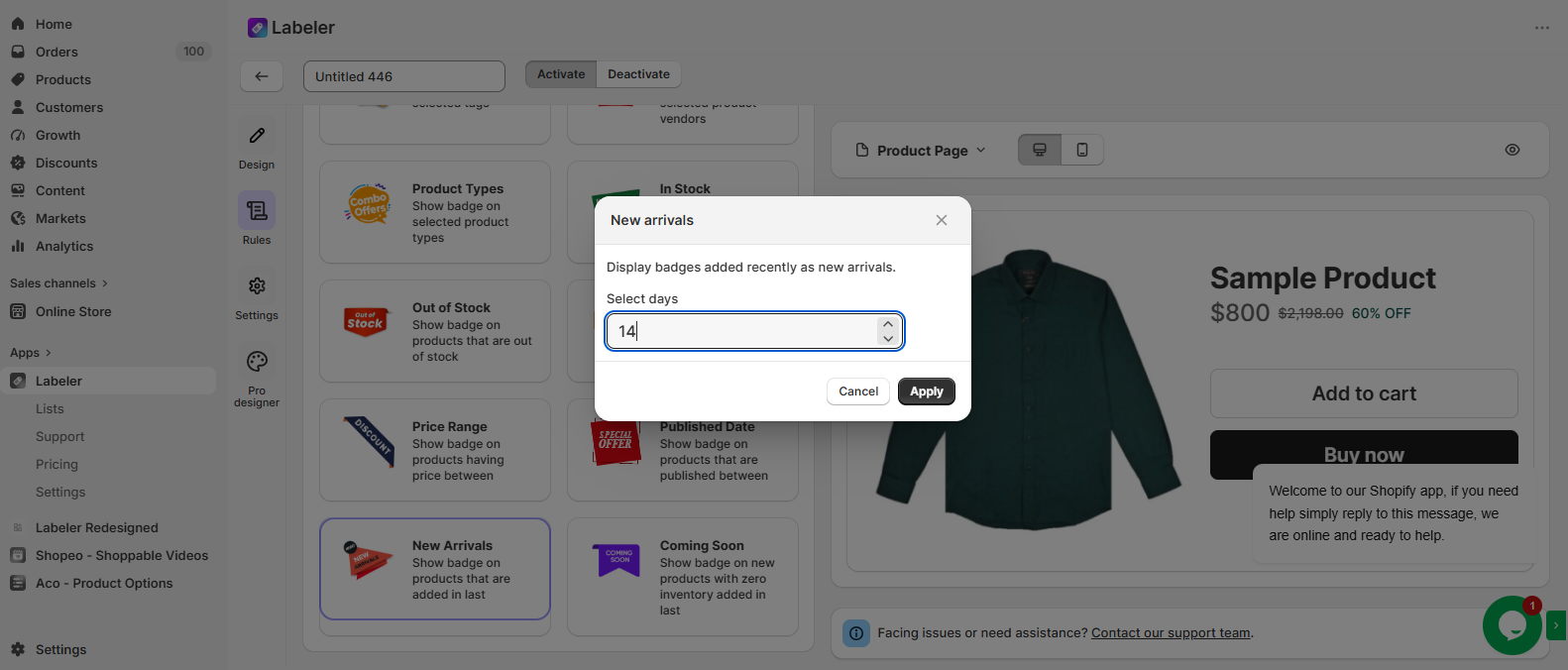
Click the New Arrivals condition to open its configuration.
In the Select days field, enter 14, then click Apply.
This tells Labeler to automatically display the New Arrival badge on every product added within the last 14 days. As a result, all 30 products added during each Friday launch automatically receive the badge. Each product keeps the badge for 14 days, after which Labeler removes it automatically based on its added date.
Screenshot: New Arrivals rule configured with a 14-day duration.
Click Save to apply the changes and activate the badge.
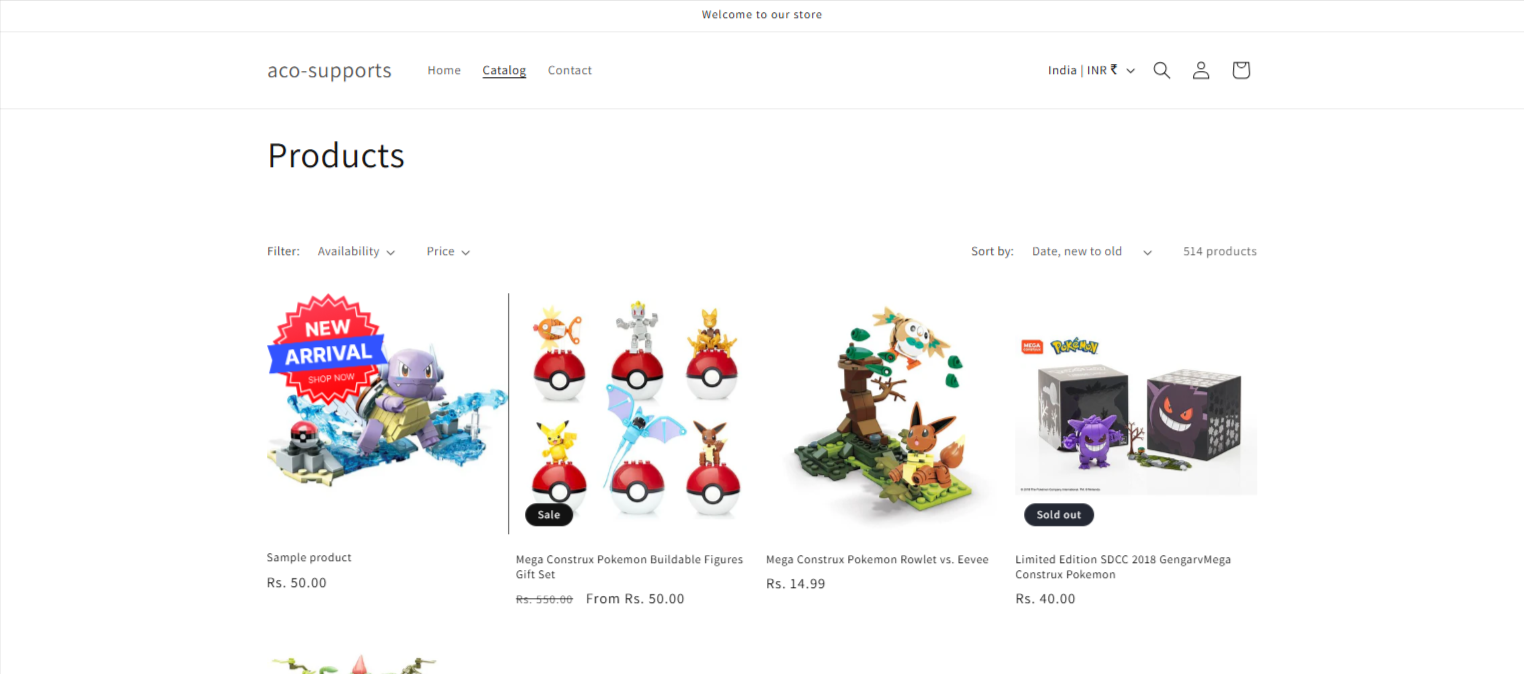
From this point onwards, every weekly product launch is handled automatically. Newly added products receive the New Arrival badge immediately, and the badge is removed automatically after 14 days without any manual intervention.
Screenshot: Badge activated successfully.
Once the configuration is complete, the merchant no longer needs to manually assign or remove New Arrival badges.
Every Friday, all newly launched products automatically display the New Arrival badge across the selected storefront pages. Each product keeps the badge for 14 days before the badge is removed automatically.
This ensures the storefront always highlights genuine new arrivals, reduces repetitive manual work, and provides shoppers with an accurate and consistent browsing experience.
If you have questions about our plugin(s), are experiencing issues with any of our plugin






















 Login
Login
 Cart
Cart BUY THIS PLUGIN