A pharmacy sells a wide range of healthcare products, including vitamins, pain relief medicines, allergy tablets, and first-aid supplies. The merchant wants customers to quickly identify products that can be purchased without a prescription.
Instead of manually adding labels to every eligible product, the merchant wants all Over-the-Counter products to automatically display a No Prescription Required label.
As new healthcare products are added to the store, manually assigning labels becomes repetitive and time-consuming.
Without a clear No Prescription Required label, customers may be unsure whether a product requires a prescription before purchasing.
The merchant needs an automated way to highlight eligible over-the-counter products.
Acowebs Shopify Labeler allows merchants to automatically display labels using the Product Types rule.
The merchant simply creates a No Prescription Required label, selects the Over-the-Counter product type, and publishes it.
From that point onwards, Labeler automatically displays the label on every product with the selected product type. Any new products added under the same product type automatically receive the label.
Open the Labeler app and click Create Badges.
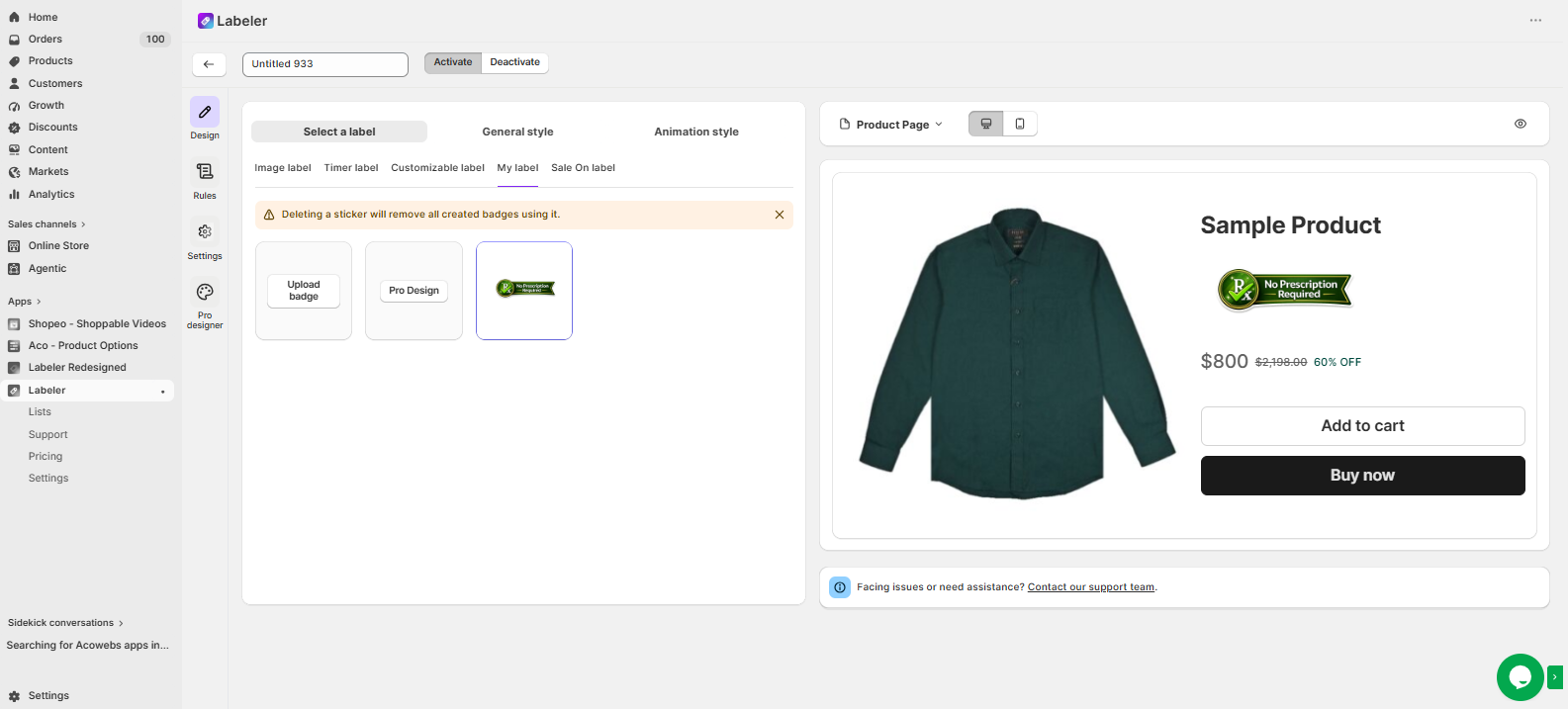
Go to the Design tab and select/create a label with the text No Prescription Required.
This creates the label that will automatically appear on eligible over-the-counter products.
Screenshot: No Prescription Required label selected in the Design tab.
Open the Rules tab.
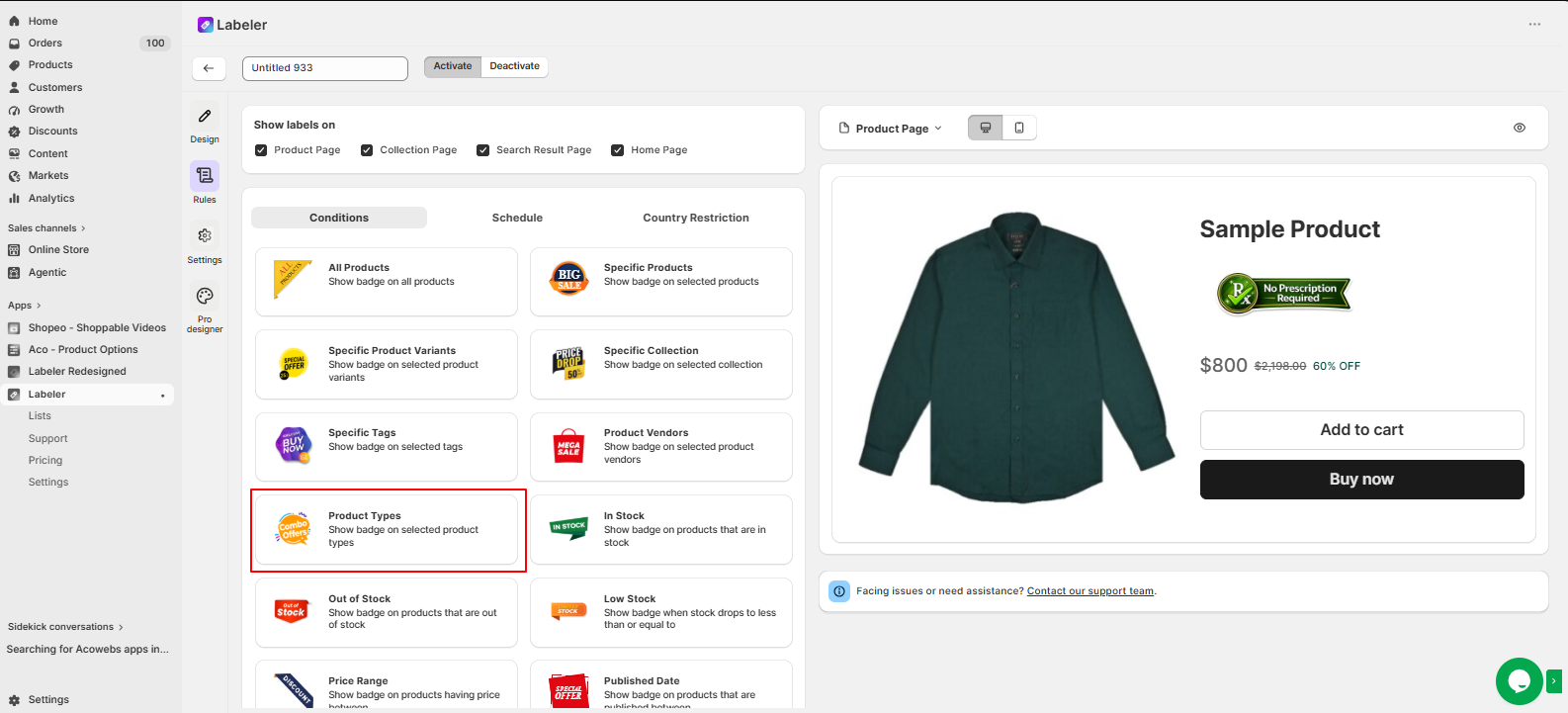
Under Conditions, select Product Types.
This rule allows Labeler to automatically identify products based on their Shopify product type instead of manually selecting individual products.
Screenshot: Product Types rule selected.
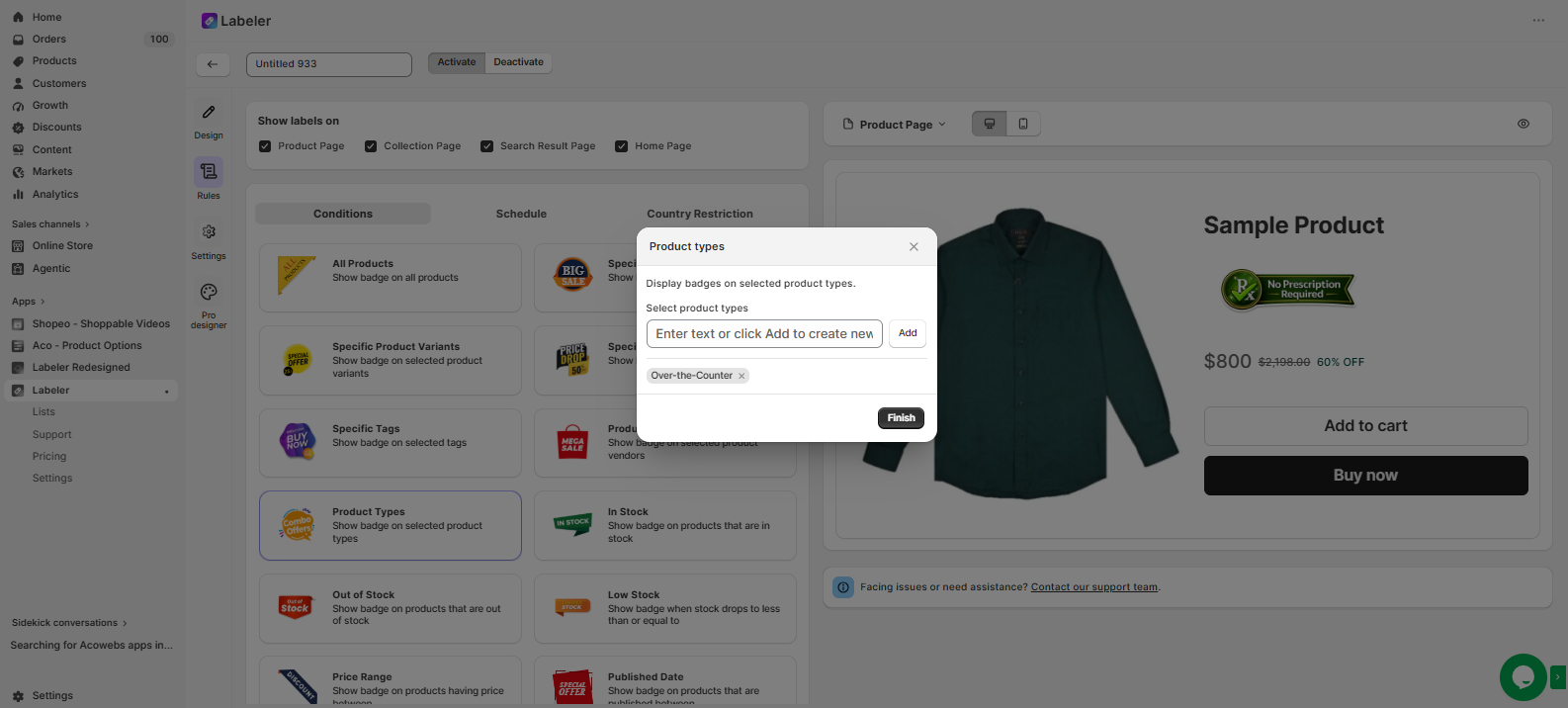
Choose the Over-the-Counter product type and click Finish.
This tells Labeler to automatically display the No Prescription Required label on every product with the Over-the-Counter product type. Whenever a new product is added with the same product type, Labeler automatically applies the label.
Screenshot: Over-the-Counter product type selected.
Click Save to publish the label.
From this point onwards, every product with the Over-the-Counter product type automatically displays the No Prescription Required label across the configured storefront pages. If the product type is changed, the label is updated automatically.
Screenshot: No Prescription Required label displayed on the product page.
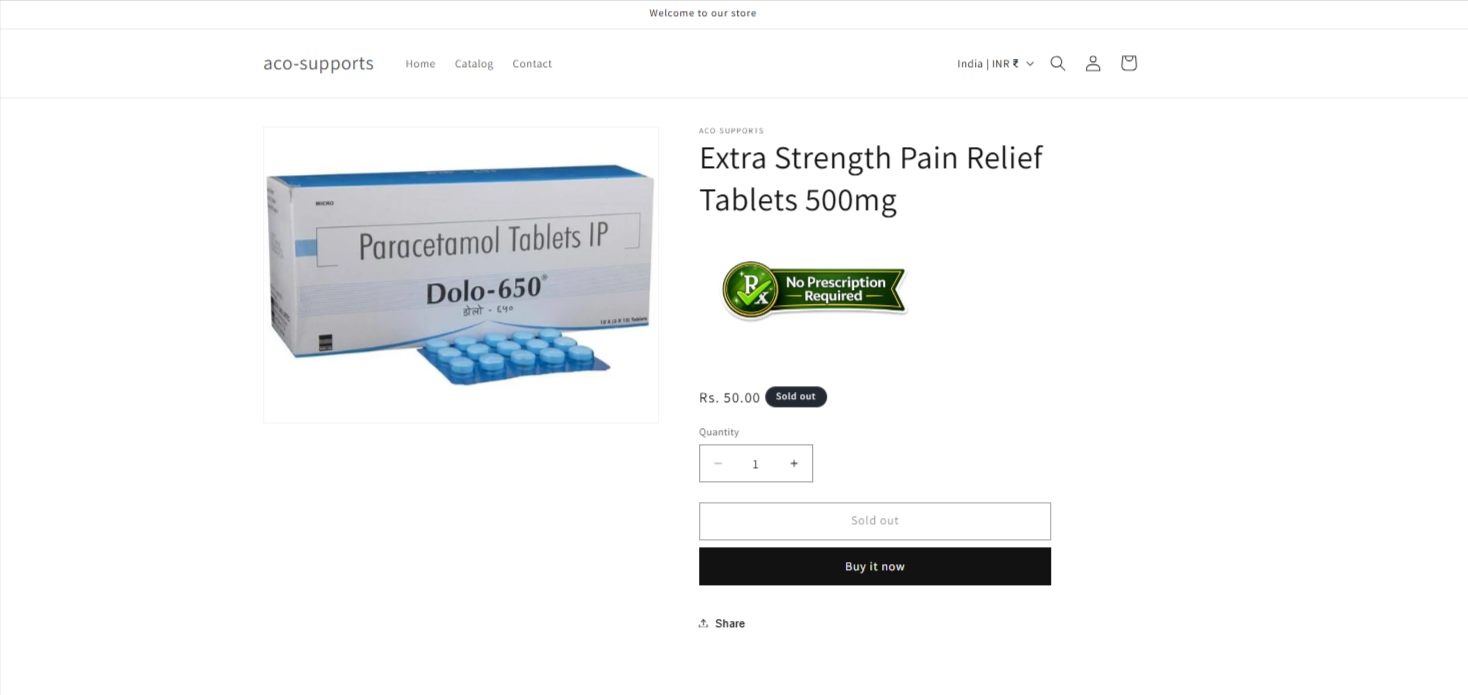
Once the configuration is complete, eligible over-the-counter products are automatically highlighted with a No Prescription Required label.
Customers can quickly identify products that can be purchased without a prescription, making shopping easier and reducing confusion. At the same time, the merchant no longer needs to manually manage labels, ensuring new eligible products are automatically highlighted.
If you have questions about our plugin(s), are experiencing issues with any of our plugin






















 Login
Login
 Cart
Cart BUY THIS PLUGIN