A baby store sells baby clothes, toys, feeding products, strollers, and other baby essentials. Since many customers are first-time parents, the merchant wants to reassure them that the products are safe and the checkout process is secure.
The merchant wants to display Secure Checkout and Baby Safe trust badges on product pages to help customers shop with confidence.
First-time parents often look for reassurance before buying baby products online.
Without clear trust badges, customers may hesitate to make a purchase or leave the store to look for more information.
The merchant needs a simple way to display trust badges across product pages without adding them manually every time.
Acowebs Shopify Labeler lets merchants create Trust Badges that highlight important information such as Secure Checkout and Baby Safe.
The merchant simply creates the trust badges, customises their appearance, and publishes them.
Once enabled, the trust badges are displayed on product pages, helping customers feel more confident while shopping.
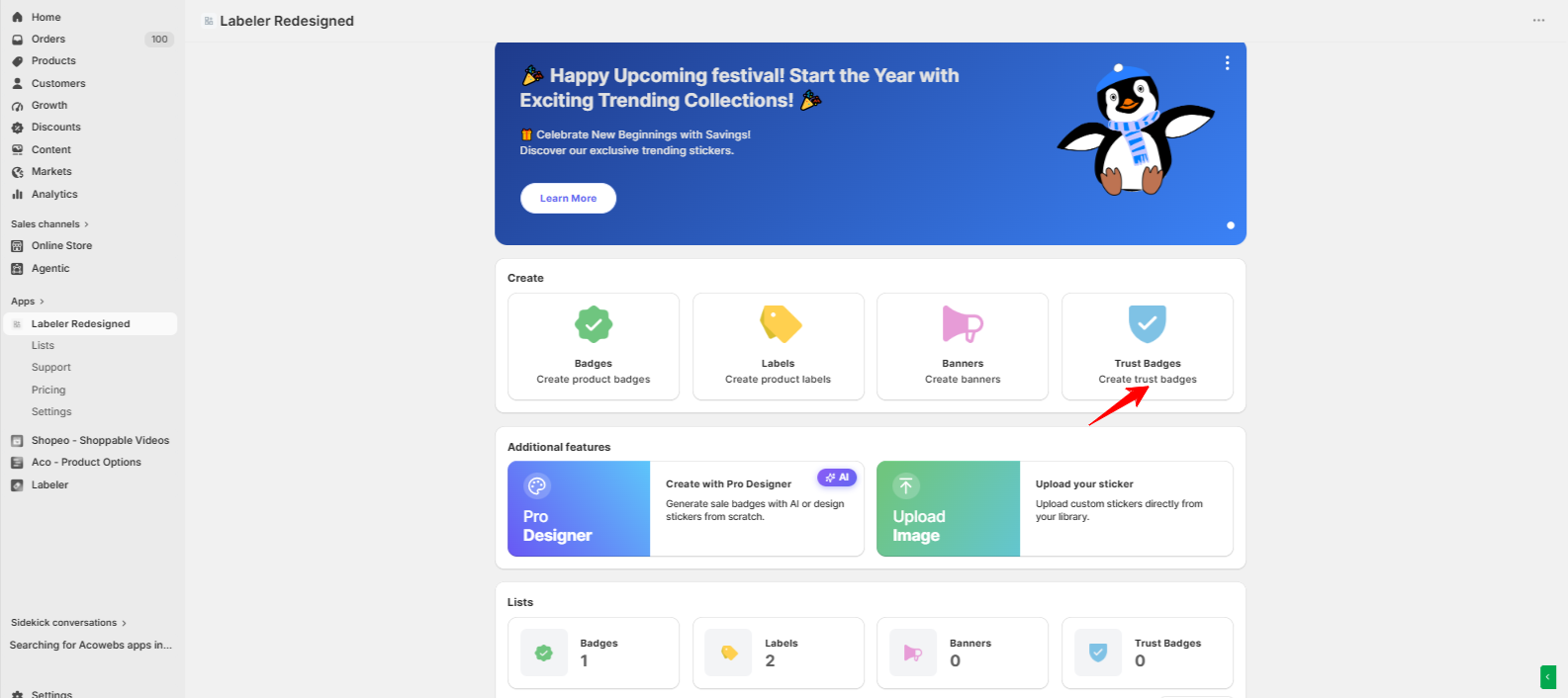
Open the Labeler app and click Create Trust Badges.
This opens the Trust Badge editor, where you can create badges that build customer confidence.
Screenshot: Trust Badges option on the Labeler dashboard
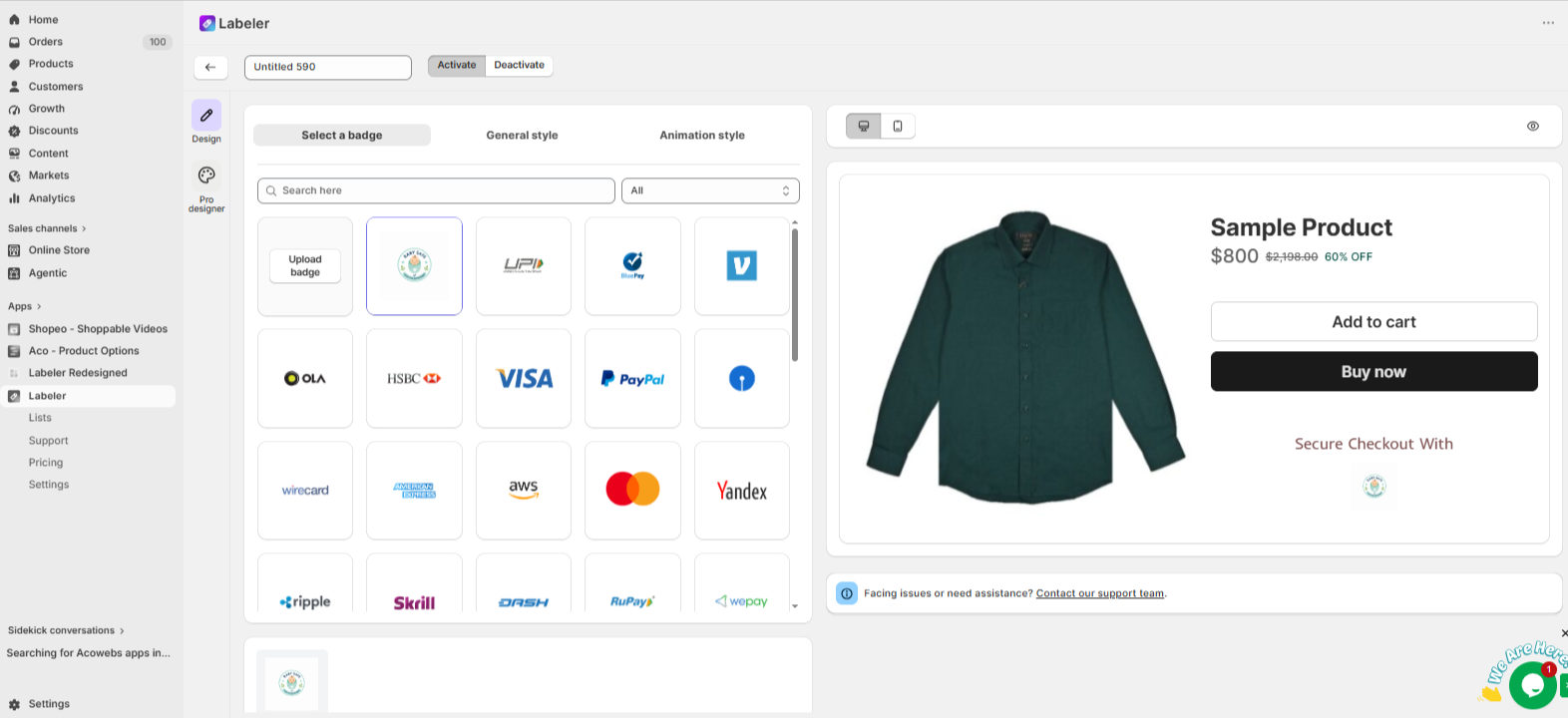
Open the Select a Badge tab.
Choose the Secure Checkout and Baby Safe trust icons.
These badges let customers know that your store offers a safe shopping experience and trusted baby products.
Screenshot: Trust icons selected.
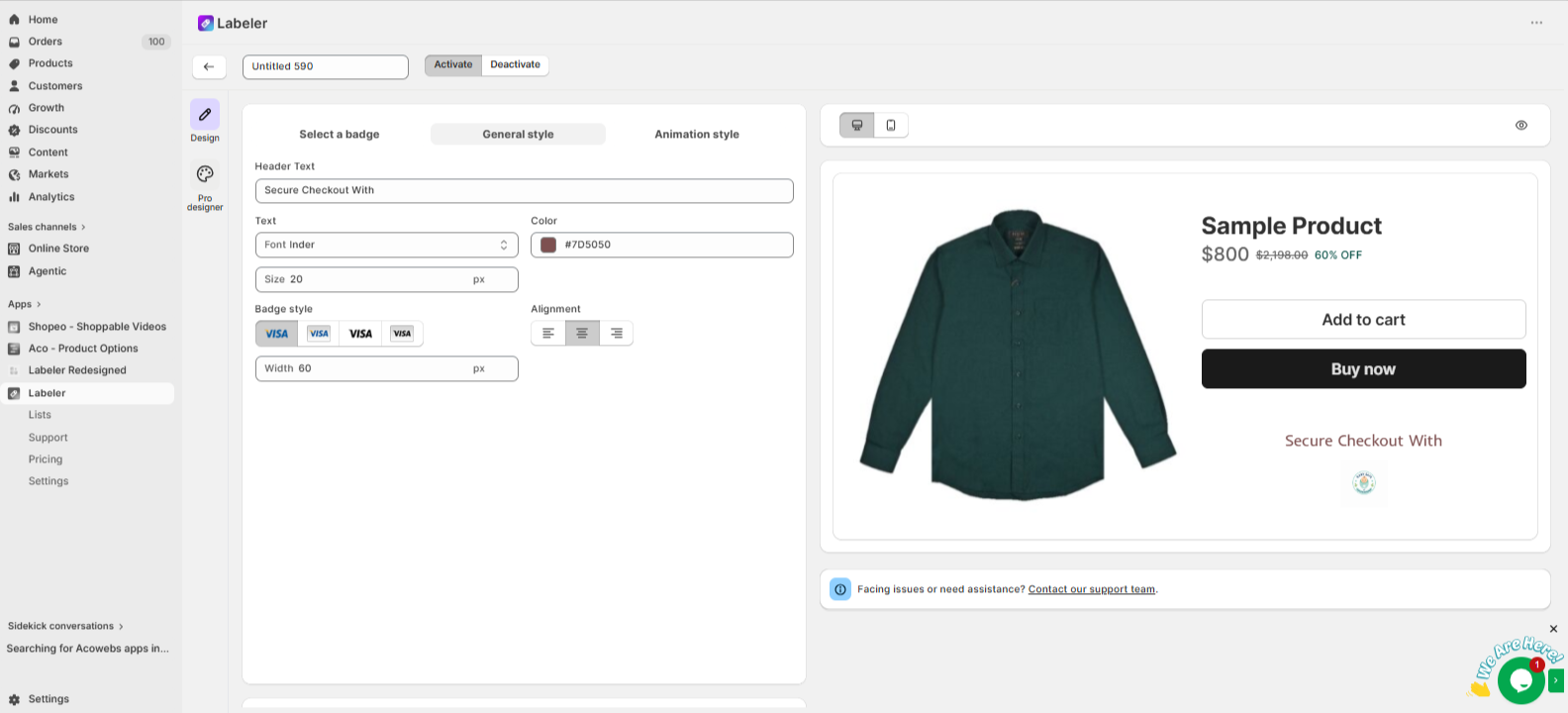
Open the General Style tab.
Customise the heading, font, colours, badge size, alignment, and icon width to match your store’s design.
For example, you can use a heading like “Shop with Confidence” above the trust badges.
This helps the badges fit naturally into your product pages while making them easy to notice.
Screenshot: Trust Badge General Style settings.
Click Save to publish the trust badges.
From this point onwards, every customer visiting your product pages will see the Secure Checkout and Baby Safe trust badges. This helps first-time parents feel more confident about shopping from your store.
Screenshot: Trust Badges displayed on the product page.
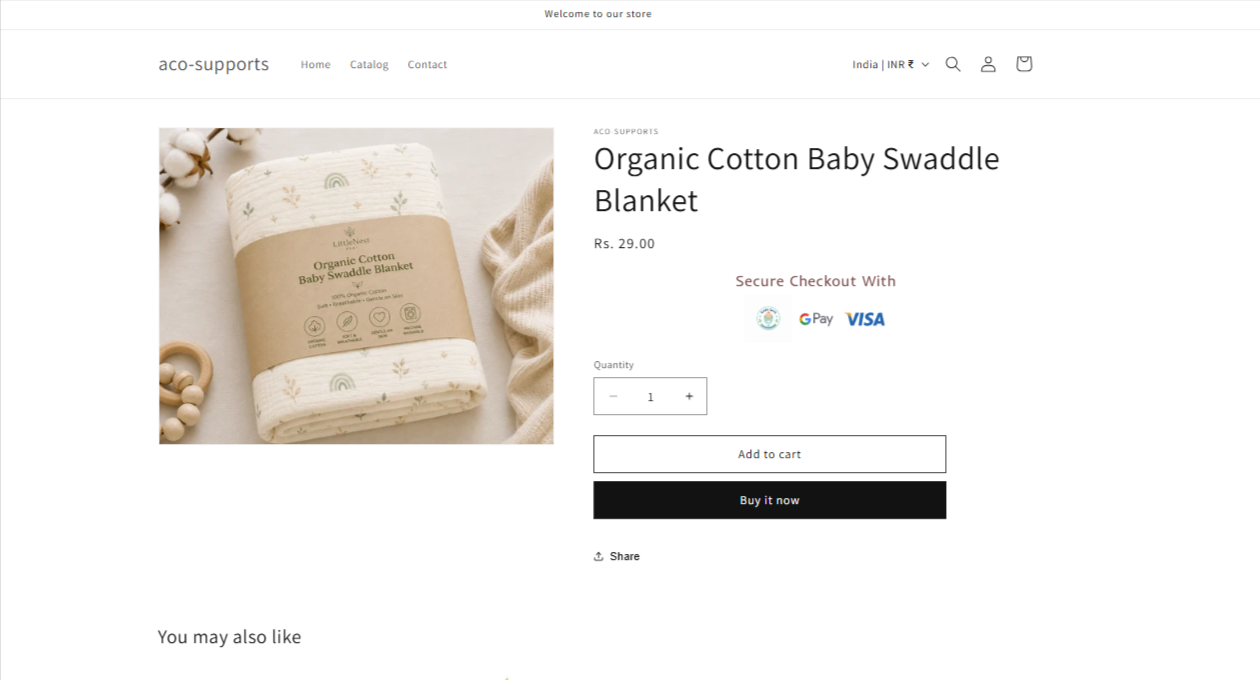
Once the configuration is complete, trust badges are displayed across your product pages automatically.
Customers can quickly see that your store offers secure checkout and trusted baby products, helping build confidence, reduce hesitation, and encourage more purchases.
If you have questions about our plugin(s), are experiencing issues with any of our plugin






















 Login
Login
 Cart
Cart BUY THIS PLUGIN