A coffee brand introduces limited-edition flavors such as Pumpkin Spice, Holiday Blend, and Summer Cold Brew during seasonal promotions. The merchant wants these products to display a Seasonal Special badge only while the campaign is running.
Instead of manually enabling and removing the badge before and after each promotion, the merchant wants the badge to appear and disappear automatically based on the campaign schedule.
Seasonal campaigns run for a limited time. Manually managing promotional badges for every campaign can be repetitive and increases the risk of forgetting to remove expired promotions.
The merchant needs a simple way to automatically display seasonal badges during the campaign and remove them when it ends.
Acowebs Shopify Labeler allows merchants to schedule badges using the Badge Schedule feature.
The merchant simply creates a Seasonal Special badge, applies it to the seasonal coffee products, configures the campaign schedule, and publishes it.
From that point onwards, Labeler automatically displays the badge when the campaign starts and removes it when the campaign ends, without requiring any manual updates.
Open the Labeler app and click Create New Badge.
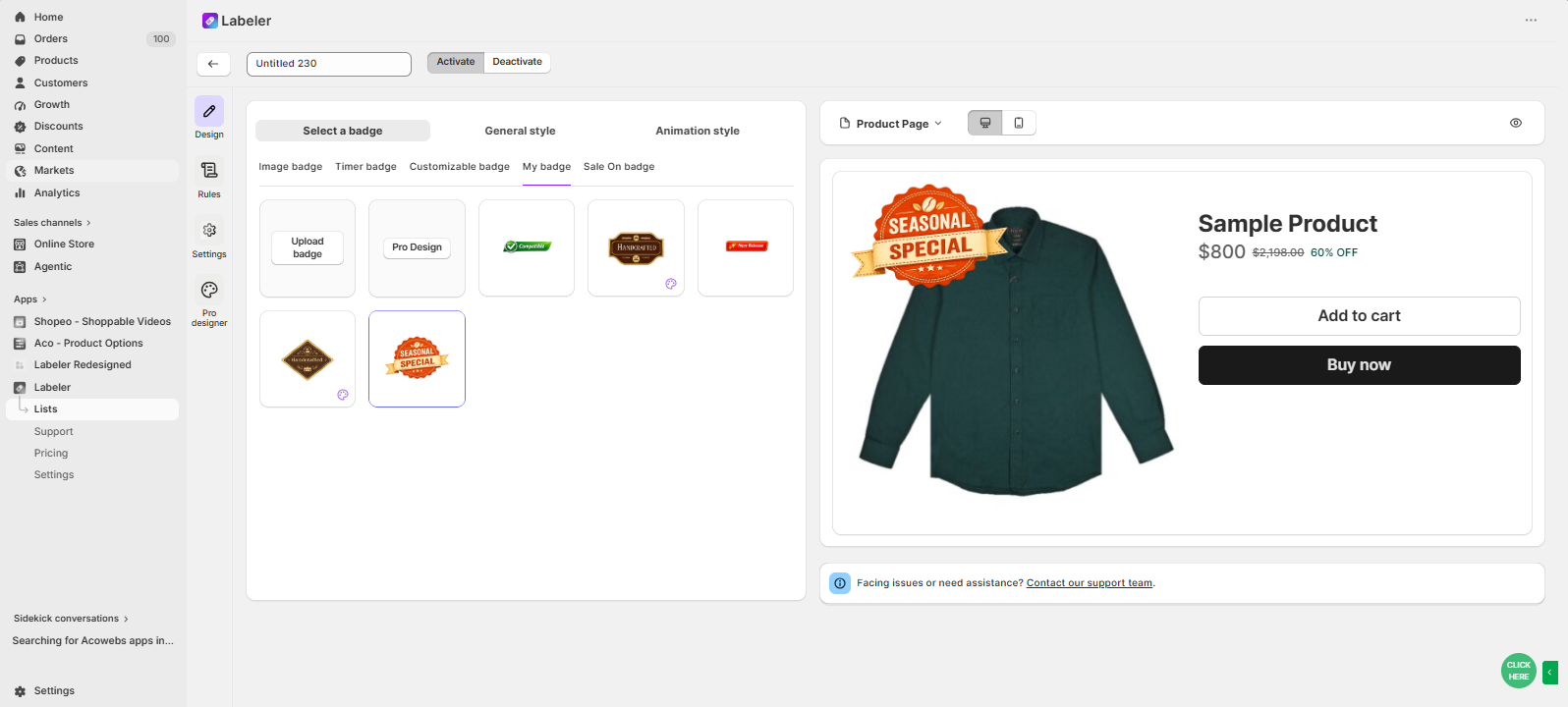
Go to the Design tab and Select / Create a badge with the text Seasonal Special. Customise the colours, fonts, icons, and position to match your seasonal campaign.
This creates the badge that will be displayed during your promotional campaign.
Screenshot: Seasonal Special badge created/ Selected..
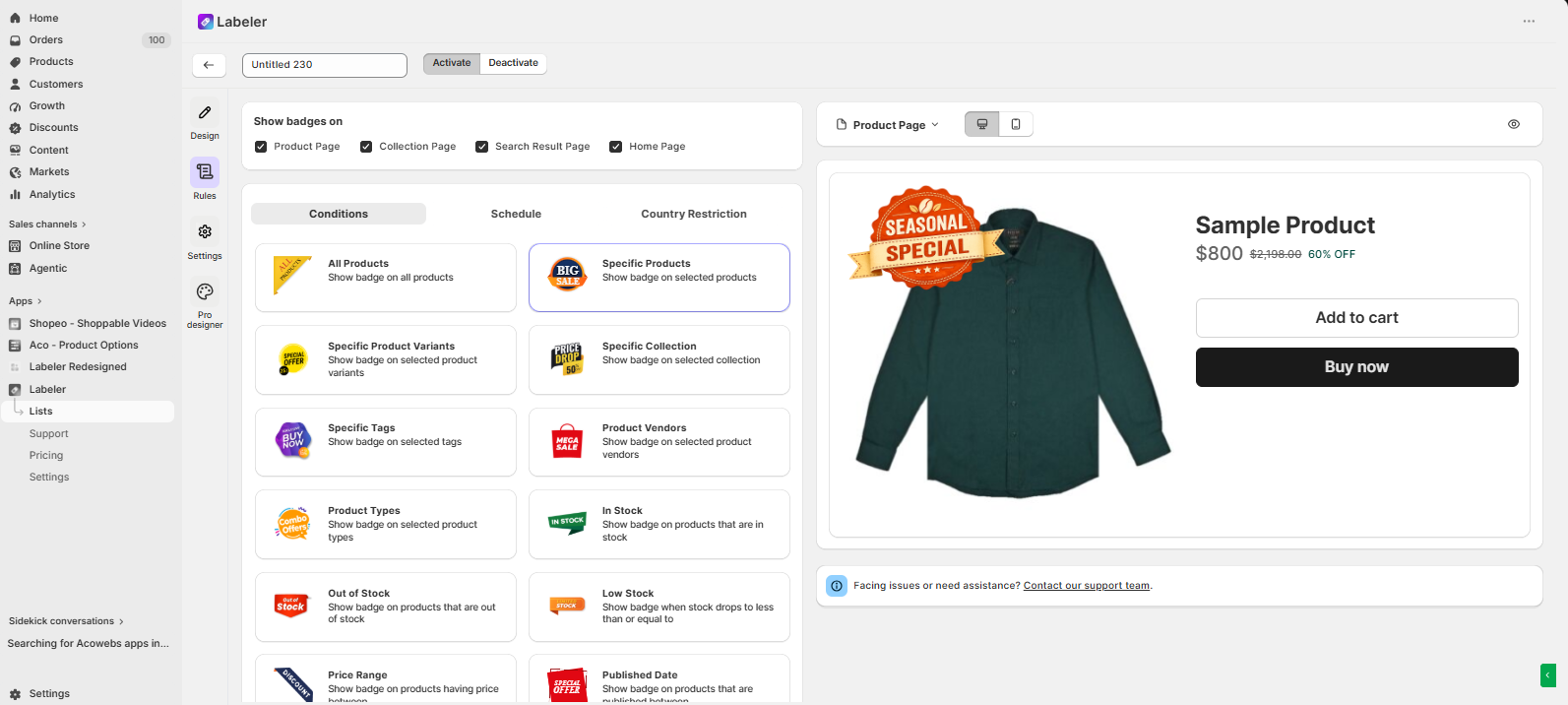
Open the Rules tab and choose the rule you use to identify your seasonal coffee products.
This tells Labeler which products should display the Seasonal Special badge during the campaign.
Screenshot: Specific products selected.
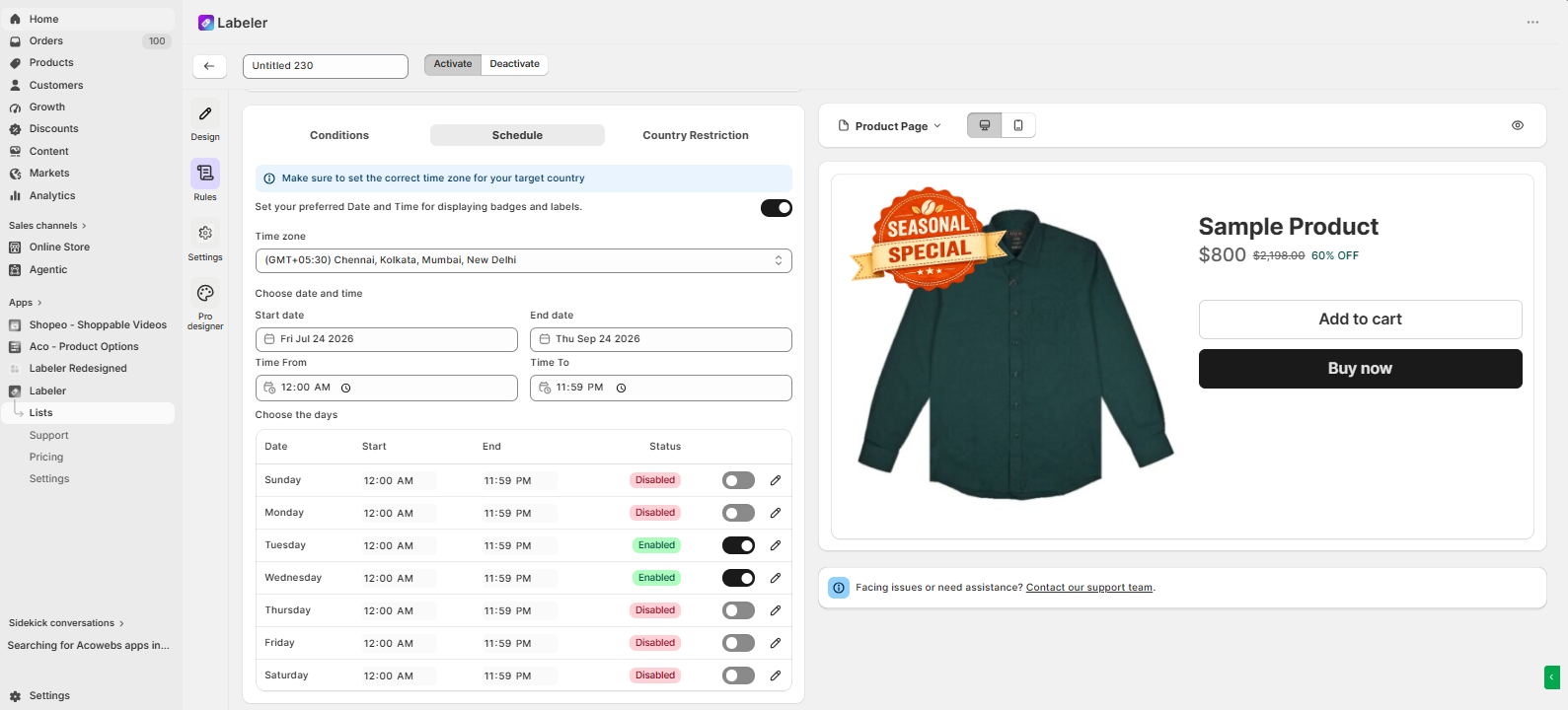
Open the Schedule tab.
Enable “Set your preferred Date and Time for displaying badges and labels.“
Once enabled, select the start date and time and end date and time for your seasonal coffee campaign.
This tells Labeler to automatically display the Seasonal Special badge when the campaign begins and automatically remove it when the campaign ends, so you don’t have to manage the promotion manually.
Screenshot: Badge Schedule configured.
Click Save to publish the badge.
From this point onwards, the seasonal coffee campaign runs automatically. The Seasonal Special badge appears on the selected coffee products at the scheduled start time and is automatically removed when the campaign ends.
Screenshot: Seasonal Special badge displayed on the product page.
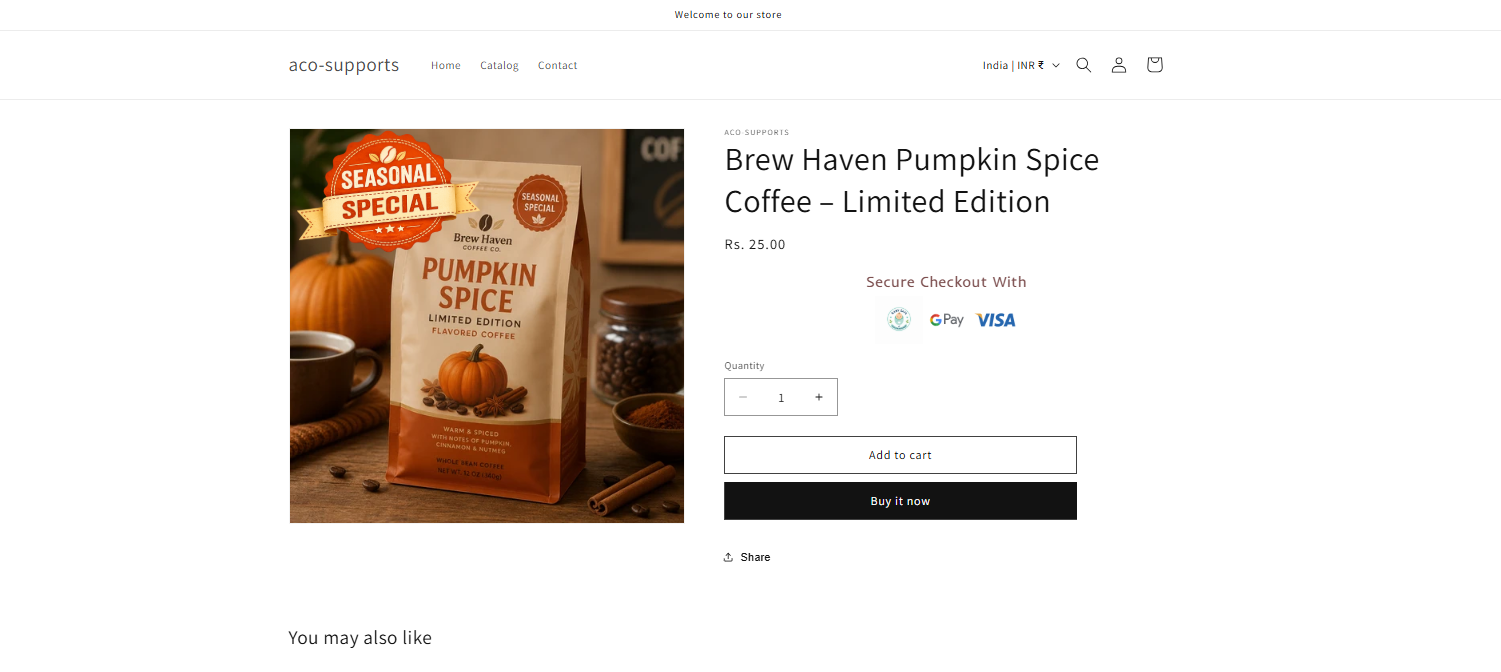
Once the configuration is complete, seasonal coffee products are automatically highlighted with a Seasonal Special badge during the campaign period.
Customers can quickly identify limited-edition flavors while browsing, helping increase campaign visibility and encouraging seasonal purchases. At the same time, the merchant no longer needs to manually enable or remove promotional badges, making seasonal campaigns easier to manage.
If you have questions about our plugin(s), are experiencing issues with any of our plugin






















 Login
Login
 Cart
Cart BUY THIS PLUGIN