
Download and install WPML and set up using the site key. During setup, you’ll get to choose the languages you want to translate your site into. If you want to add or remove languages at any time, go to WPML > Languages.
Make sure you also install and activate the free add-on WPML Multilingual & Multicurrency for WooCommerce (WCML) to be able to translate WooCommerce content. The multicurrency functionality can even be used without WPML.
You can translate the WooCommerce Dynamic Pricing With Discount Rules plugin by following the steps below.
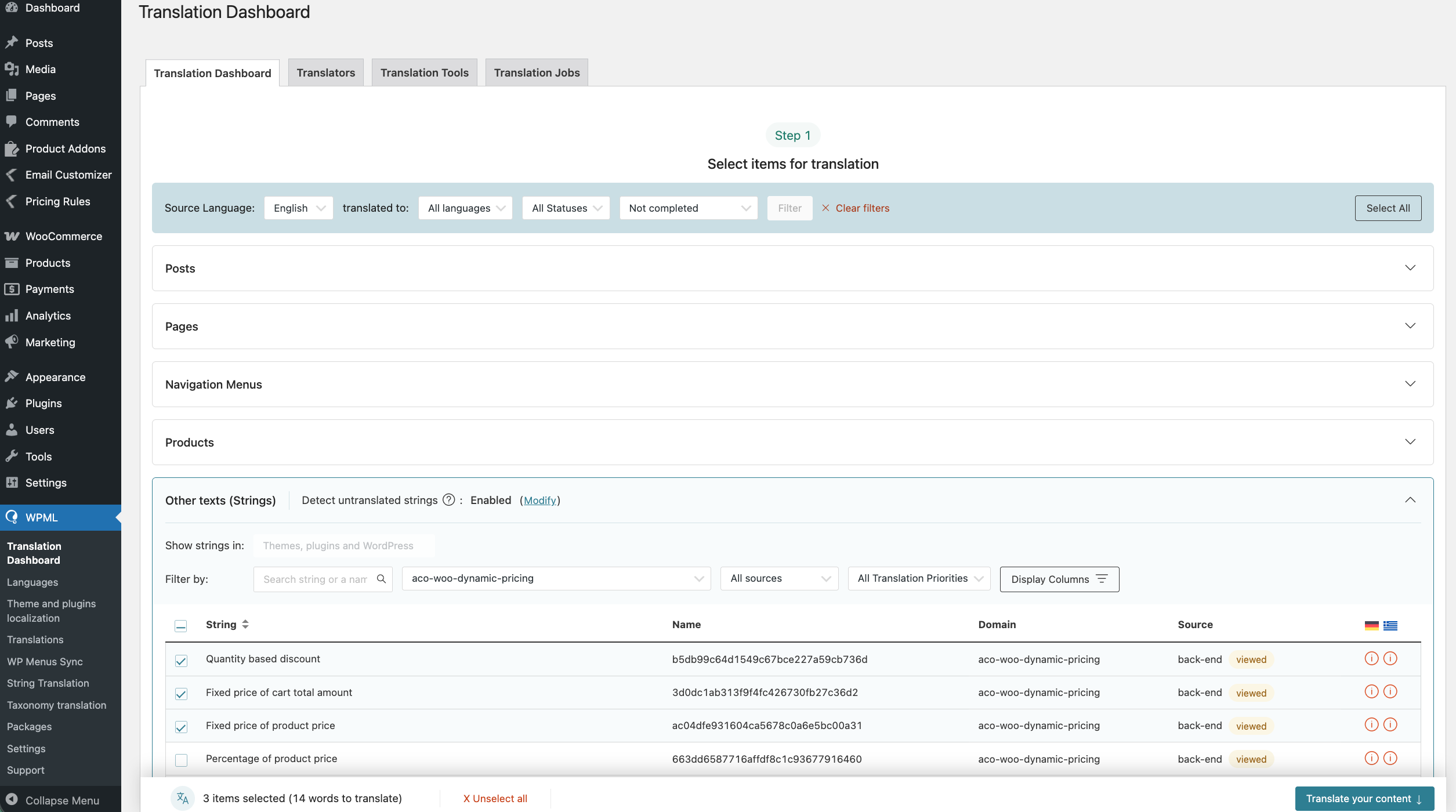
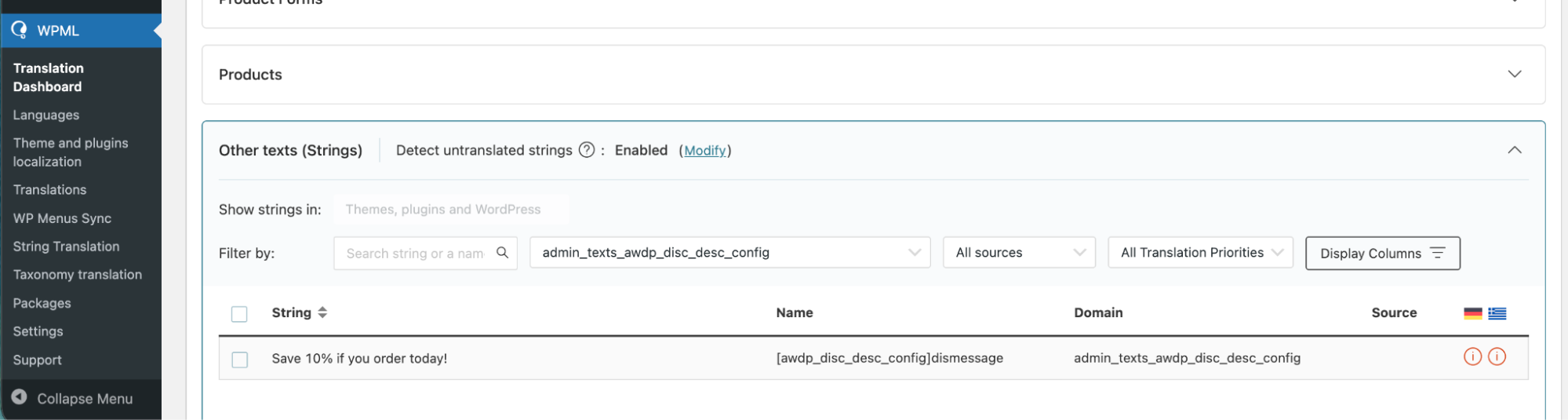
1. Go to WPML → Translation Dashboard and expand the Other Texts (Strings) section. Filter to find the strings from WooCommerce Dynamic Pricing With Discount Rules via the domain aco-woo-dynamic-pricing.
Select as many strings as you want to translate and click on Translate your content.
Note : If you can’t see some strings, go to WPML > Themes and plugins localization and scan the plugin.
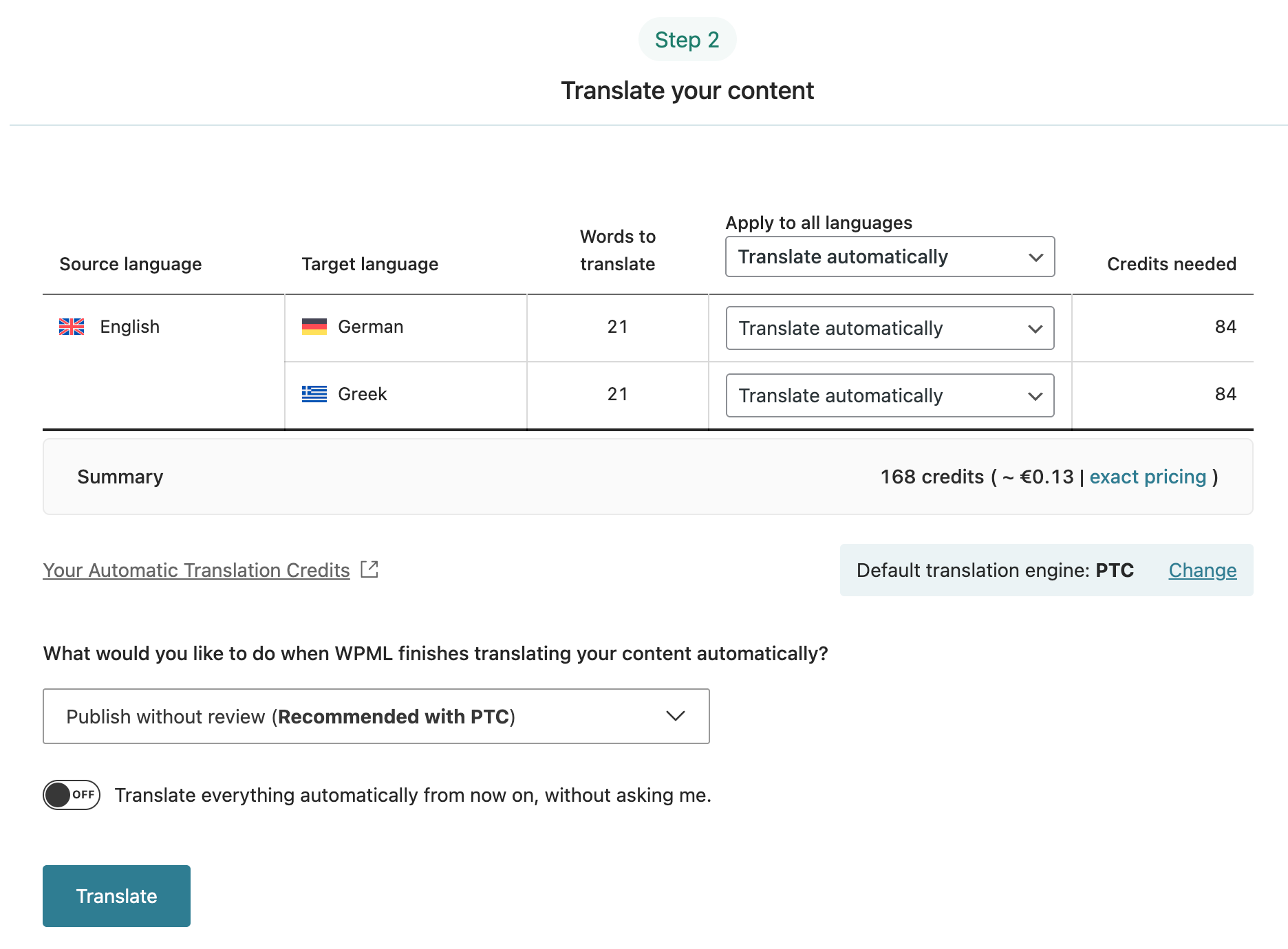
2. At Step 2 on the Translation Dashboard, choose your preferred translation method. Translating automatically is the most efficient way as you can translate multiple strings in minutes.
Private Translation Cloud (PTC) is the pre-selected engine for newly registered sites and produces the most accurate translations. The Dashboard also shows the cost of translating your selected strings.
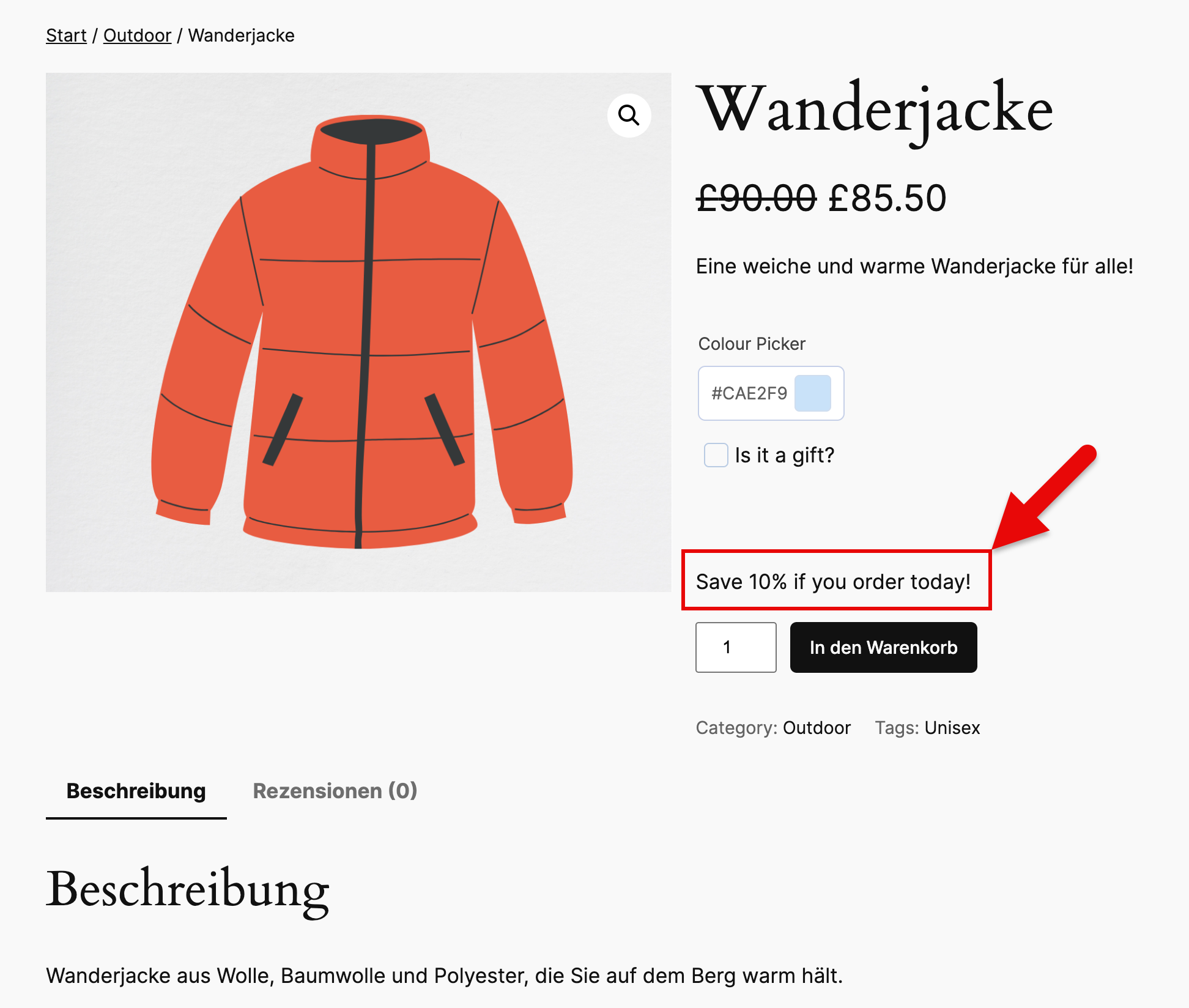
Some strings may not be immediately translatable and you’ll need to register them before you can translate. An example is a custom message, as shown in the screenshot below.
To translate these strings:
1. Click on the link below the Other texts (Strings) section to navigate to the Admin texts page.
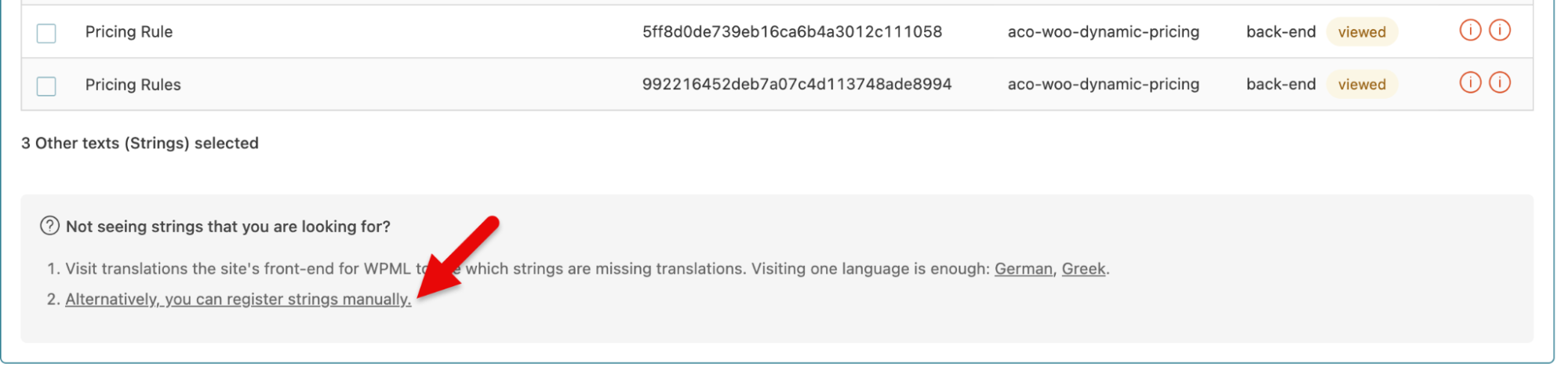
2. At the Admin texts, find your strings, select them and click Add to String Translation.
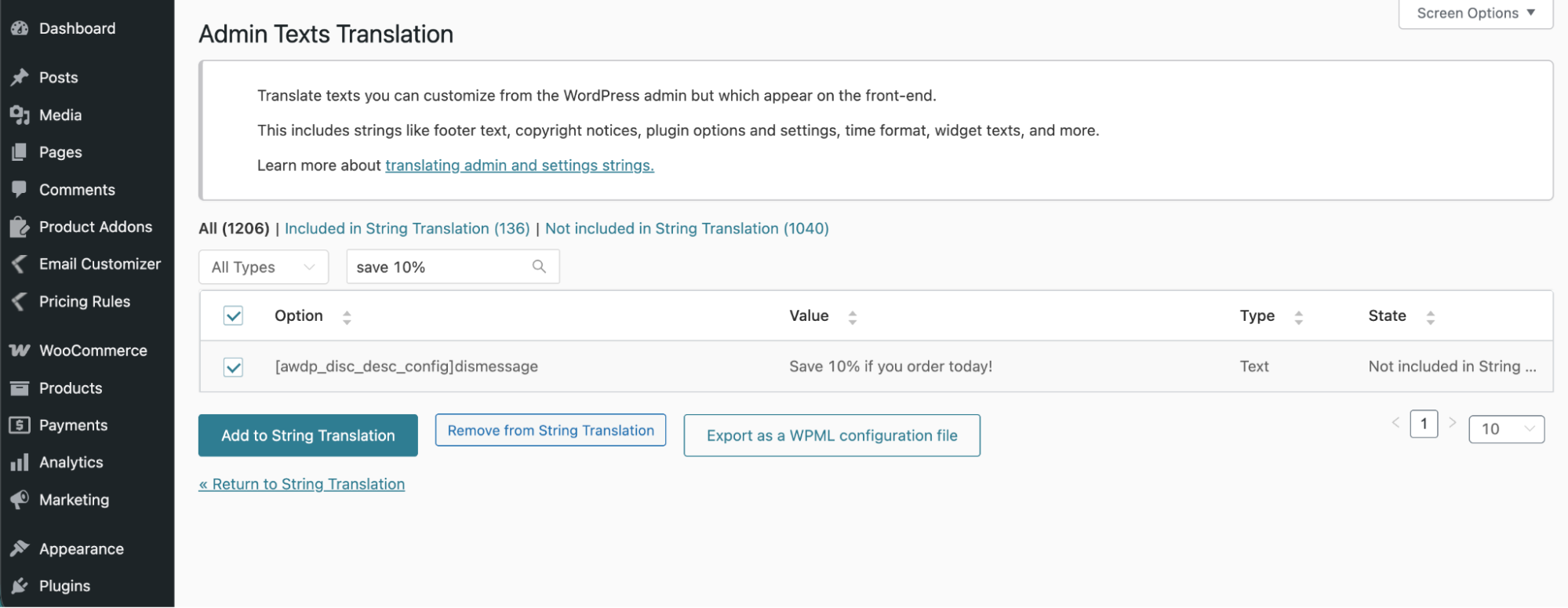
3. Go back to the Translation Dashboard and find the strings you registered. You can now quickly translate them into available languages in the same way you translated other strings and content.
If you have questions about our plugin(s), are experiencing issues with any of our plugin



















 Login
Login
 Cart
Cart BUY THIS PLUGIN